> For the complete documentation index, see [llms.txt](https://docs.mailtrap.io/llms.txt). Markdown versions of documentation pages are available by appending `.md` to page URLs; this page is available as [Markdown](https://docs.mailtrap.io/guides/ai-powered-integrations/github-copilot.md).
# GitHub Copilot
[GitHub Copilot](https://github.com/features/copilot) is an AI coding assistant that works inside VS Code, JetBrains IDEs, Eclipse, Xcode, and Visual Studio. In this guide, you’ll learn how to connect it with the Mailtrap MCP server, which allows you to, amongst other things, perform the following actions:
* [Connect Mailtrap to your project](#connect-mailtrap-to-your-project)
* [Perform Sandbox operations during code review](#sandbox-operations-during-code-review)
* [Fetch, validate, and edit email templates](#template-validation)
* [Forward email templates to your teammates](#sending-emails-to-your-teammate)
**Note**: Mailtrap offers a free, 4000 email/month Email API and SMTP plan.
#### Prerequisites
Before you start, make sure to:
* Set up your [sending domain](https://docs.mailtrap.io/email-api-smtp/setup/sending-domain) (this takes approximately 5 minutes).
* Install the latest Node.js version since [Mailtrap MCP](https://www.npmjs.com/package/mcp-mailtrap) is implemented as a Node.js command line utility.
* Update VS Code to the latest version with GitHub Copilot enabled.
### Step 1. Add Mailtrap MCP config to GitHub Copilot
To add Mailtrap MCP to GitHub Copilot in VS Code, you can use the [quick install link](https://insiders.vscode.dev/redirect/mcp/install?name=mailtrap\&config=%7B%22command%22%3A%22npx%22%2C%22args%22%3A%5B%22-y%22%2C%22mcp-mailtrap%22%5D%2C%22env%22%3A%7B%22MAILTRAP_API_TOKEN%22%3A%22%24%7Binput%3AmailtrapApiToken%7D%22%2C%22DEFAULT_FROM_EMAIL%22%3A%22%24%7Binput%3AsenderEmail%7D%22%2C%22MAILTRAP_ACCOUNT_ID%22%3A%22%24%7Binput%3AmailtrapAccountId%7D%22%7D%7D\&inputs=%5B%7B%22type%22%3A%22promptString%22%2C%22id%22%3A%22mailtrapApiToken%22%2C%22description%22%3A%22Mailtrap+API+Token%22%2C%22password%22%3Atrue%7D%2C%7B%22type%22%3A%22promptString%22%2C%22id%22%3A%22senderEmail%22%2C%22description%22%3A%22Sender+Email+Address%22%7D%2C%7B%22type%22%3A%22promptString%22%2C%22id%22%3A%22mailtrapAccountId%22%2C%22description%22%3A%22Mailtrap+Account+ID%22%7D%5D) or follow these steps:
* Open VS Code and navigate to **Settings**
* Search for **MCP** in the settings search bar
* Tick the **Chat > MCP: Enabled** option
* Click **Edit** **in** **settings.json**
{% hint style="info" %}
You can also open the **settings.json** file by typing **Preferences: Open User Settings (JSON)** in the Command Palette.
{% endhint %}
Once you open **settings.json**, insert the following code snippet into the file:
```json
{
"mcpServers": {
"mailtrap": {
"command": "npx",
"args": ["-y", "mcp-mailtrap"],
"env": {
"MAILTRAP_API_TOKEN": "your_mailtrap_api_token",
"DEFAULT_FROM_EMAIL": "your_sender@example.com",
"MAILTRAP_ACCOUNT_ID": "your_account_id",
"MAILTRAP_TEST_INBOX_ID": "your_test_inbox_id"
}
}
}
}
```
### Step 2. Insert Mailtrap credentials
Next, all you need to do is replace the following values in the **settings.json** file:
* `MAILTRAP_API_TOKEN` — Required for all functionality, used to authenticate API requests, which you can copy/paste from the credentials tab.
* `DEFAULT_FROM_EMAIL` — Required for email sending. Make sure the email’s domain matches your own domain from the **Sending Domains** tab in Mailtrap.
You can find these credentials in your Mailtrap account by navigating to **Sending Domains** → **Integration** → **API**.
* `MAILTRAP_ACCOUNT_ID` — This is required for template management purposes. You can find the account ID under **Settings** → **Account Settings**.
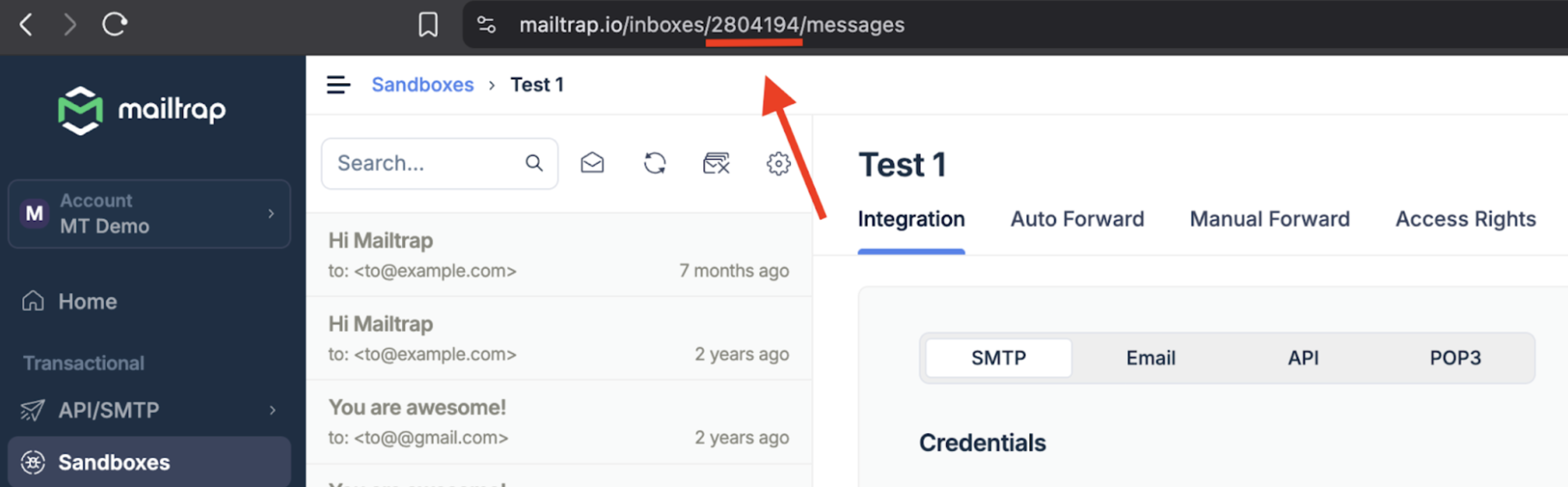
* `MAILTRAP_TEST_INBOX_ID` — If you need sandbox email functionality, you can find this ID in your Sandbox.
Once you insert your Mailtrap credentials, make sure to refresh the page or reopen VS Code.
{% hint style="info" %}
If you don’t add one or more variables, you’ll be prompted to do it to complete a specific action, and when given the variable, Copilot will ask you to update your **.env** file automatically.
{% endhint %}
### GitHub Copilot + Mailtrap MCP server use cases
#### Connect Mailtrap to your project
Regardless of the IDE you are using Copilot in, you can prompt the agent to integrate Mailtrap into your project with a prompt like this one:
> Integrate Mailtrap into my project, so that it can send emails through the Mailtrap email API.
>
> Additionally, safely store the Mailtrap credentials from the MCP configuration into an .env file
GitHub Copilot’s agent will then go through the Mailtrap documentation, integrate the email API, and safely store your credentials in a **.env** file. Then, you can proceed to test the configuration.
#### Sandbox operations during code review
While you’re reviewing your email-sending code and working in a staging environment using [Sandbox](https://mailtrap.io/email-sandbox/), you might want to try to trigger the logic to see if it works correctly or simply to verify the behavior, test emails, etc.
You can do all of this from your IDE connected to GitHub copilot with the following prompts:
"Get all messages from my sandbox inbox""Show me the first page of sandbox messages""Search for messages containing 'test' in my sandbox inbox""Show me the details of sandbox message with ID XYZ"
#### Template validation
Using a Mailtrap template ID in your code, but you’re not sure whether it’s the correct one? Just request the list of available templates in your Mailtrap account from GitHub Copilot.
#### Sending emails to your teammate
You can also ask your teammates’ opinion on an email design or a template you’re working in your Sandbox by prompting GitHub Copilot, no need to leave the editor.
---
# Agent Instructions
This documentation is published with GitBook. GitBook is the documentation platform designed so that both humans and AI agents can read, navigate, and reason over technical content effectively. Learn more at gitbook.com.
## Querying This Documentation
If you need additional information that is not directly available in this page, you can query the documentation dynamically by asking a question.
Perform an HTTP GET request on the current page URL with the `ask` query parameter, and the optional `goal` query parameter:
```
GET https://docs.mailtrap.io/guides/ai-powered-integrations/github-copilot.md?ask=&goal=
```
`ask` is the immediate question: it should be specific, self-contained, and written in natural language.
`goal` is optional and describes the broader end goal you are ultimately trying to accomplish on behalf of the user. GitBook uses it to tailor the answer towards what is most useful for that goal.
The response will contain a direct answer to the question and relevant excerpts and sources from the documentation.
Use this mechanism when the answer is not explicitly present in the current page, you need clarification or additional context, or you want to retrieve related documentation sections.