> For the complete documentation index, see [llms.txt](https://docs.mailtrap.io/llms.txt). Markdown versions of documentation pages are available by appending `.md` to page URLs; this page is available as [Markdown](https://docs.mailtrap.io/email-api-smtp/setup/sending-domain.md).
# Domain Setup
Set up your domain in Mailtrap. Add DNS records, verify SPF/DKIM/DMARC, pass compliance, and start sending emails in minutes.
For use with AI assistants
AI-readable resources:
This page as Markdown —
API reference as Markdown —
llms.txt —
llms-full.txt —
For setup with AI assistant follow these steps. Pause and confirm with the user before proceeding at steps marked with ⏸️.
1. Add a sending domain via the Mailtrap API (POST [https://mailtrap.io/api/accounts/{account\_id}/sending\_domains](https://mailtrap.io/api/accounts/%7Baccount_id%7D/sending_domains)) with my domain name.
2. Retrieve the DNS records from the API response — expect 4 CNAME records (domain verification, 2× DKIM, tracking) and 1 TXT record (DMARC).
3. Add the DNS records at my domain registrar. If I give you API credentials for my registrar (Cloudflare, AWS Route 53, etc.), configure them programmatically.
4. Check DNS propagation using dig CNAME \ or a DNS checker tool. DNS can take 15 minutes to 24 hours.
5. Verify the domain via the API (GET [https://mailtrap.io/api/accounts/{account\_id}/sending\_domains/{sending\_domain\_id}](https://mailtrap.io/api/accounts/%7Baccount_id%7D/sending_domains/%7Bsending_domain_id%7D)) or tell me to click Verify DNS Records in Sending Domains ().
6. ⏸️ DNS takes time — test with Sandbox now? While waiting, send a test email to Mailtrap Sandbox so we validate the integration code.
7. ⏸️ Domain verified — send a live email? Once verified, generate sending code using my domain and send a test email.
My domain: \[tell the assistant your domain]
My registrar: \[tell the assistant your DNS provider]
Need help adding DNS records for your specific provider? Check out our detailed step-by-step guides:
### Setting up your domain
{% @arcade/embed url="" flowId="39p36H3XvIxXKeKthmsd" %}
{% hint style="info" %}
**Important**: Make sure the **email address of the account owner is actively monitored**. If we detect suspicious sending activity or need to clarify any important account details, we may contact you at this email address to ask additional questions, which helps avoid unnecessary account restrictions.
Furthermore, if your emails mention, promote, or link to **another domain that belongs to you, your company, or your client, add that domain to Domains and verify it as well**. This helps us verify that the domains are connected to the same legitimate sender and prevents your emails from being mistaken for phishing. If you cannot add it due to the domains limit in your sending plan, please contact the support team for assistance.
{% endhint %}
{% stepper %}
{% step %}
**Add domain**
Go to *Domains* in the left navigation panel and click *Add Domain*.
Type in the domain from which you want to send emails and click Add. Remember that you should be the domain owner with access to its DNS records/have someone with access to DNS records.
After this step, you’ll see the Domain Verification page.
{% endstep %}
{% step %}
**Domain verification**
At this stage, you need to verify the domain. You have two options:
* Send domain verification instructions to your admin or developer;
* Or verify the domain yourself if you have access to your domain’s DNS records (your domain provider account).
{% hint style="success" %}
To send instructions to your admin or developer, enter their email address and click Send Instructions.
{% endhint %}
{% endstep %}
{% step %}
**Sender information**
After adding your DNS records, complete the Sender information form where you’ll be asked to provide either business or personal information.
Please keep in mind that it’s crucial to provide correct information corresponding to your company registration details. It is important in order to comply with international regulations. This information may also be automatically added to the email footer of promotional emails sent from your domain.
{% hint style="success" %}
You only need to provide this information once per account. If you've provided it before or add other domains later, you won't be asked to fill in the form again.
{% endhint %}
You can switch between personal and business information only once, meaning that you cannot change it after the form is submitted.
{% endstep %}
{% step %}
**Compliance check**
Compliance check is a process of checking every new domain added to Mailtrap.
Once all the DNS records are successfully verified, your domain will undergo an automatic review. This usually takes a couple of minutes. If your domain is verified at this stage, you’ll see the Verified badge next to your domain and below Compliance Check, and you’ll be able to start sending the emails. You’ll also receive an email informing you that your domain is ready for sending emails.
Some domains may be selected for additional checks. If so, we’ll ask you to fill out a simple Compliance Form and answer a few questions about your business, sending goals, etc. You’ll see a notification under Compliance Check and a link to the form.
We’ll email you if we need additional information from you. If all the checks are successful at this stage, your domain will be verified.
In some cases, your domain may be selected for manual verification. This is the final check before your domain is verified. The length of the manual verification depends on how fast you reply to our emails. If successful, you'll see Verified status. If not, you'll see a Rejected badge next to your domain and a message under Compliance Check. In case of any questions about the reasons for rejection, please contact our support team at .
{% endstep %}
{% endstepper %}
### To verify the domain yourself
{% hint style="info" %}
In the example below, we'll be using GoDaddy.
{% endhint %}
{% stepper %}
{% step %}
Go to your domain provider and locate the domain you've added to Mailtrap.
{% endstep %}
{% step %}
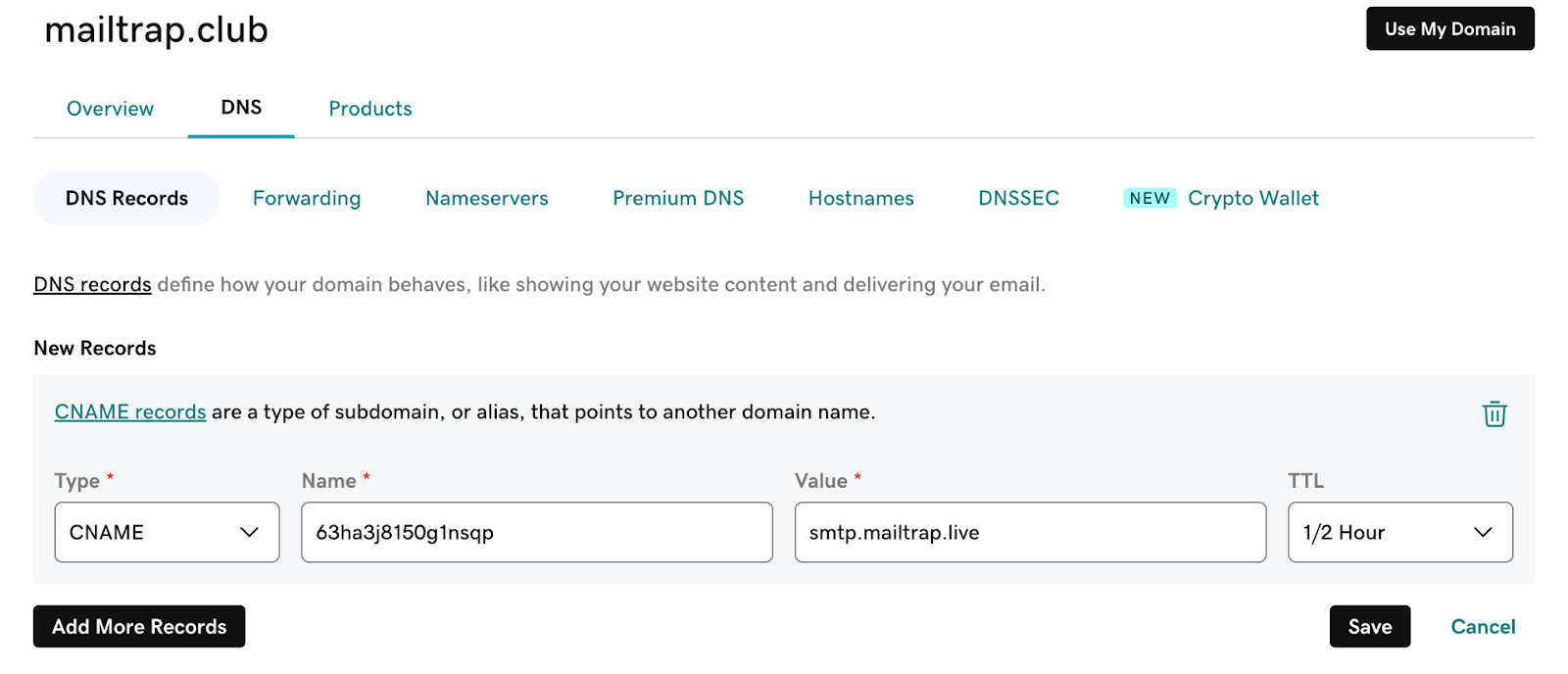
Open the DNS settings and click Add New Record.
{% endstep %}
{% step %}
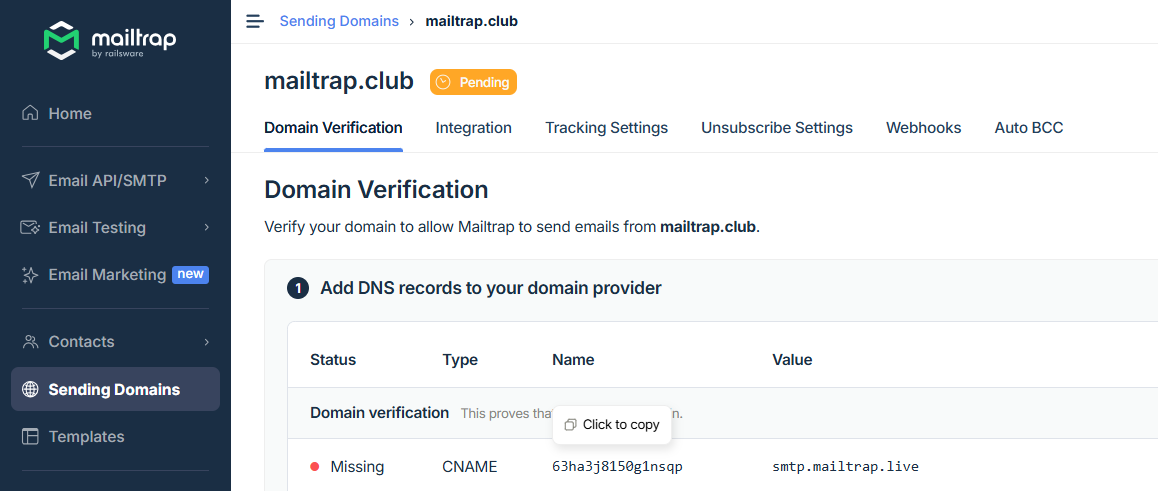
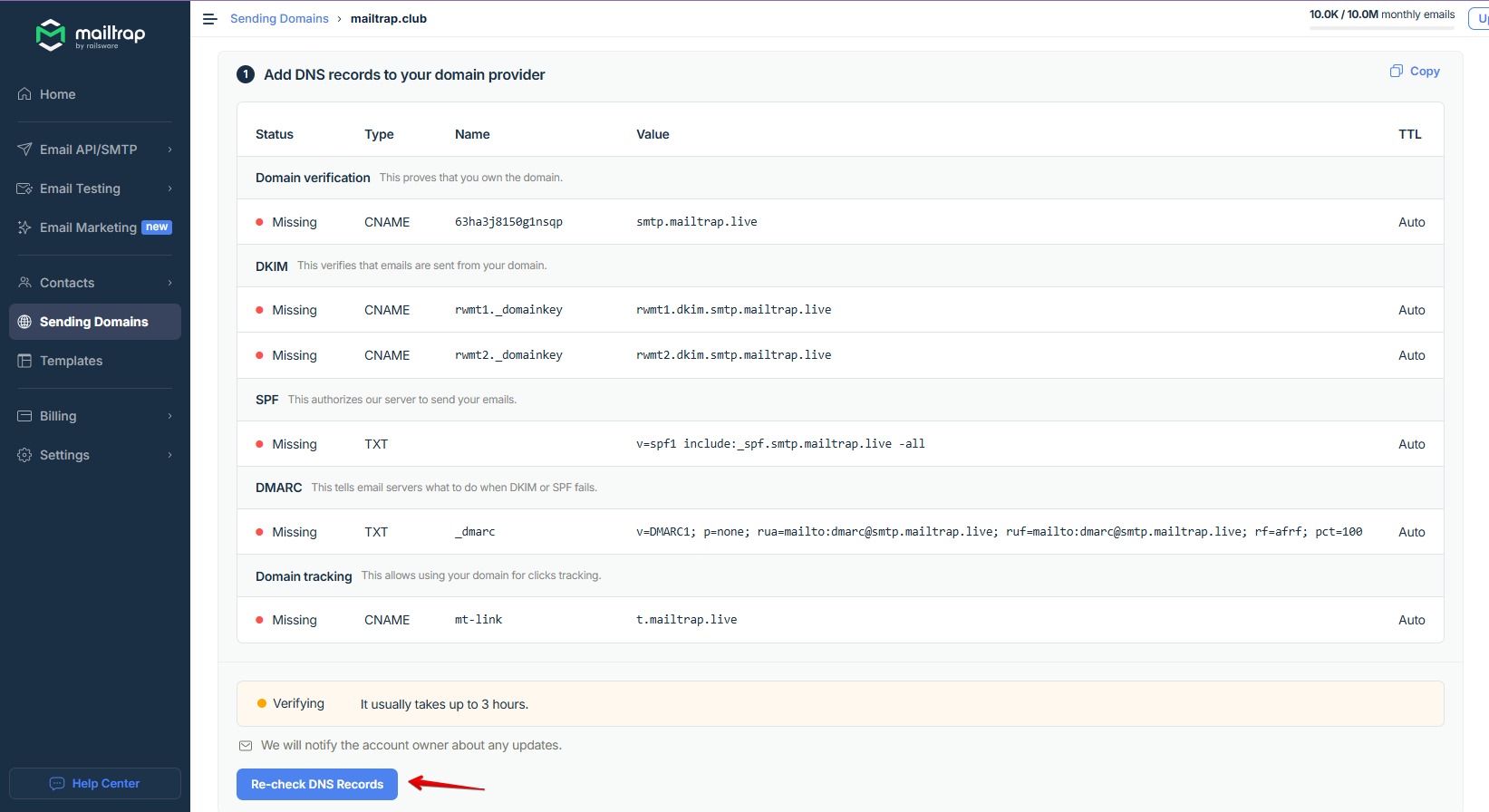
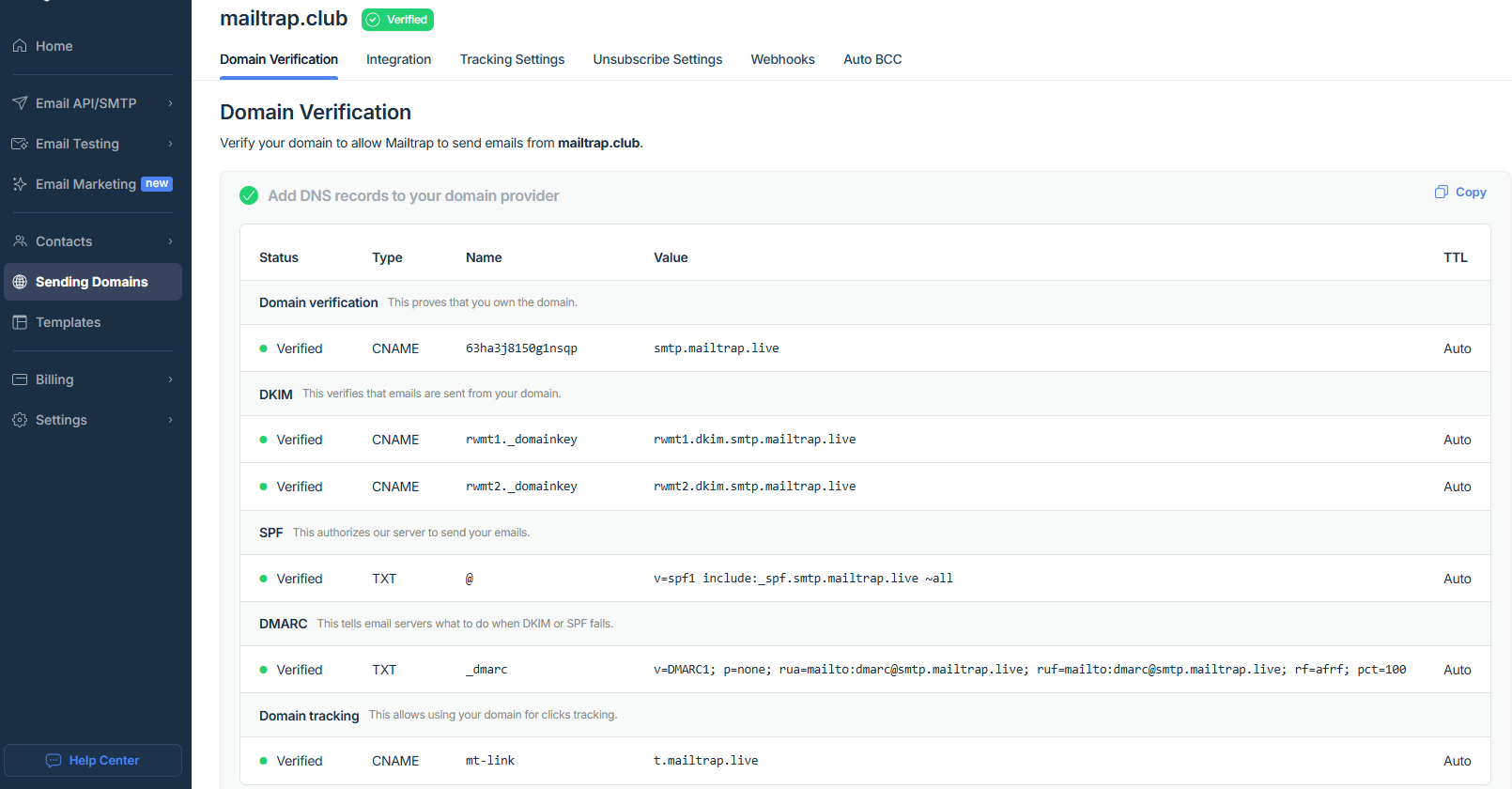
Return to Mailtrap. On the Domain Verification page, you'll see the DNS records you need to add to your domain provider. These are **Domain Verification**, **DKIM**, **DMARC**, and **Domain Tracking**. You'll need the values under **Type**, **Name**, and **Value**. The naming of these records in Mailtrap is the same as in most domain providers but may differ slightly depending on the provider.
Make sure you check the type next to each record in Mailtrap and choose a relevant one in your domain provider. There are **four CNAME type records** (Domain Verification, DKIM (2), and Custom Tracking Domain) and **one TXT type record** (DMARC).
{% endstep %}
{% step %}
Copy the Name and Value for each record one by one. You can do this by hovering and clicking each record.
{% endstep %}
{% step %}
Paste them into your domain provider.
{% endstep %}
{% step %}
Click Save after adding each record in your domain provider.
{% endstep %}
{% step %}
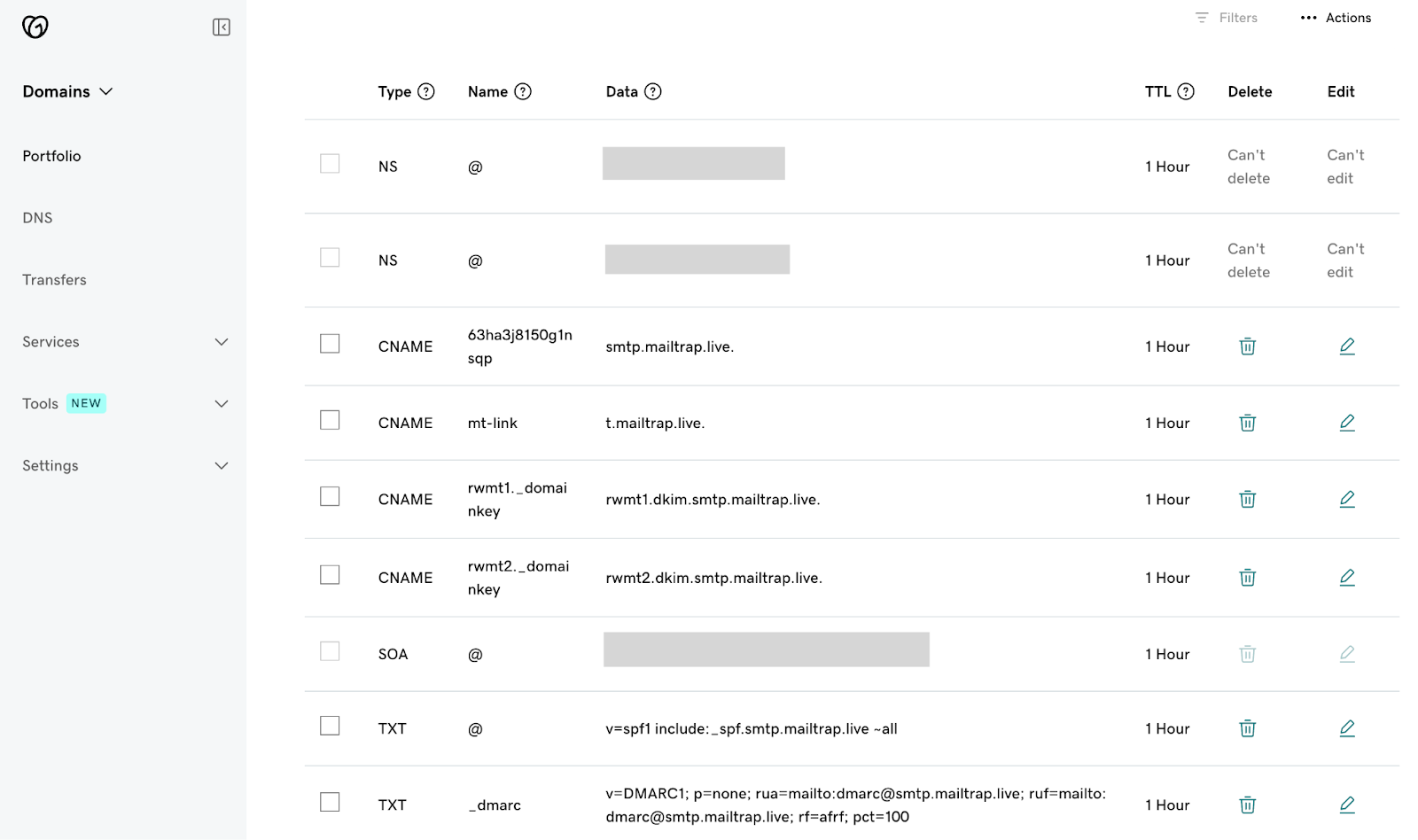
Repeat the process of copying and pasting for each record until you've added all the Mailtrap DNS records to your domain provider.
{% endstep %}
{% step %}
Then, return to Mailtrap. Some records may be verified immediately, while some may take more time. Mailtrap will check the DNS records automatically every hour, but you can force a check by clicking the Re-check DNS Records button.
{% endstep %}
{% step %}
If you add all the required DNS records correctly, the Status of DNS records will change from Missing to Verified, and the red dots will turn green.
{% endstep %}
{% step %}
Once the DNS records are verified, you’ll be taken to the next step, which is Compliance Check.
**Notes:**
* Some domain providers require a postfix format of the DKIM record. If that’s the case, replace `rwmt1._domainkey` with `rwmt1._domainkey.yourdomain.com` . Repeat the process for `rwmt2._domainkey` , changing the name to `rwmt2._domainkey.yourdomain.com` .
* If you’re asked to set TTL, use the default value as indicated under the TTL field on the Domain Verification page in Mailtrap.
{% endstep %}
{% endstepper %}
### DNS propagation time
After you add or update DNS records, it may take **15 minutes to a few hours** for Mailtrap to detect them.
DNS changes are not applied instantly because:
* DNS records are cached by DNS resolvers according to their TTL (Time To Live).
* There are multiple DNS servers worldwide, and updates need time to propagate across them.
* Even if you can see the updated record using one DNS checker or resolver, it doesn’t necessarily mean that Mailtrap (or other services) can already resolve it from their location.
In most cases, propagation completes within a few hours, but in rare cases it may take up to 24 hours.
#### How to check if your DNS records have propagated
To check if your DNS records have propagated, you have two options:
DNS Checker (automatic)
An easy way to verify whether your DNS records are publicly available is to use [DNS Checker](https://dnschecker.org/), which queries DNS servers worldwide and shows DNS propagation of 6 continents.
To use DNS Checker:
* Go to dnschecker.org and enter your domain name
* Select the record type (e.g., TXT, MX, CNAME, etc.)
* Click **Search**
And here's what your results should look like:
dig command (manual)
You can also verify your DNS records manually with the `dig` command. The `dig` command is a DNS lookup tool available on macOS and Linux (and on Windows via BIND tools) that queries DNS servers and returns the current records for a domain.
To use it, open a terminal and run dig followed by the record type and your domain name. You can also add `+short` for a concise output.
For instance, here's what you can run if you want to check:
* A TXT record (for SPF or domain verification):
```
dig TXT yourdomain.com +short
```
* A specific selector (e.g., DKIM):
```
dig TXT selector._domainkey.yourdomain.com +short
```
* MX records:
```
dig MX yourdomain.com +short
```
* CNAME records:
```
dig CNAME track.yourdomain.com +short
```
**If the correct value is returned in the response**, the record has likely propagated.
**If you see no result or an old value**, the record may still be propagating.
You can also check propagation using different public DNS resolvers:
```
dig TXT yourdomain.com @8.8.8.8 +short # Google DNS
dig TXT yourdomain.com @1.1.1.1 +short # Cloudflare DNS
```
**If the record appears across multiple public resolvers**, it should soon be visible to Mailtrap as well.
**If the records are correctly configured and still not verified after several hours**, double-check:
* Record type (TXT, CNAME, MX, etc.)
* Host/name field (e.g., using `selector._domainkey` instead of the full domain)
* That there are no duplicate or conflicting records
If everything looks correct, please allow additional time for propagation before contacting support.
### Useful tips
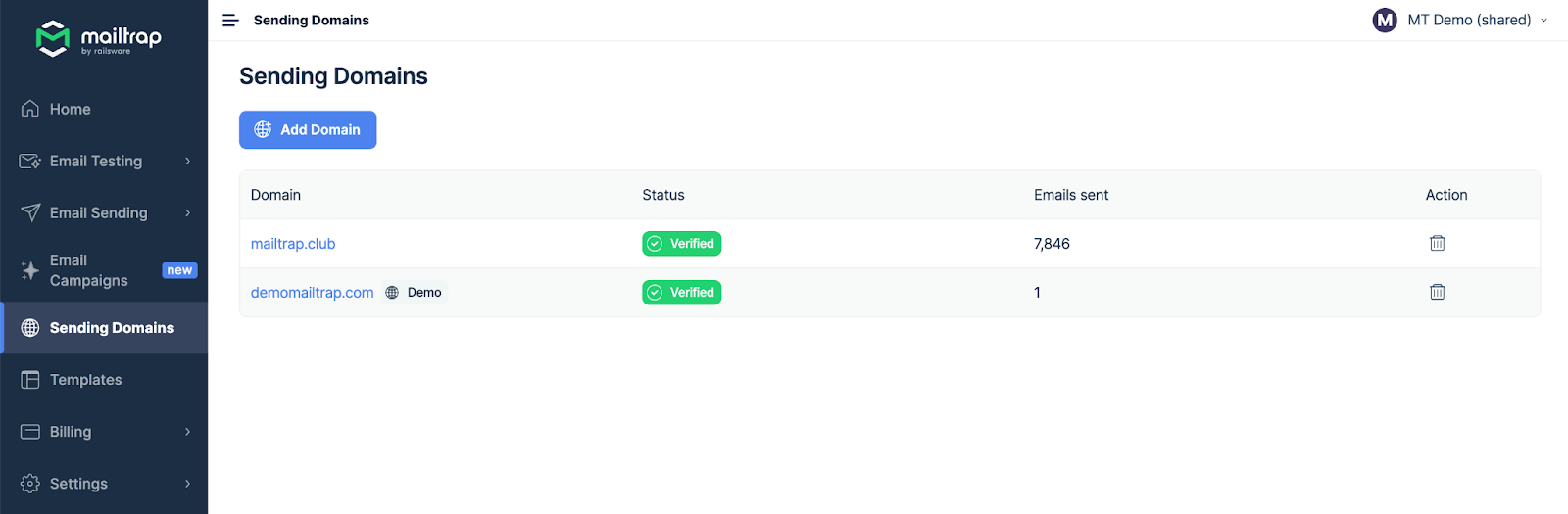
After completing the setup process, you can always return to the Domains tab to add any additional domains or subdomains. If you, for example, misspelled a domain, you’ll need to delete it and re-add it with the correct spelling.
{% hint style="info" %}
You can't create any additional demo domains, but you can delete an existing one if needed.
{% endhint %}
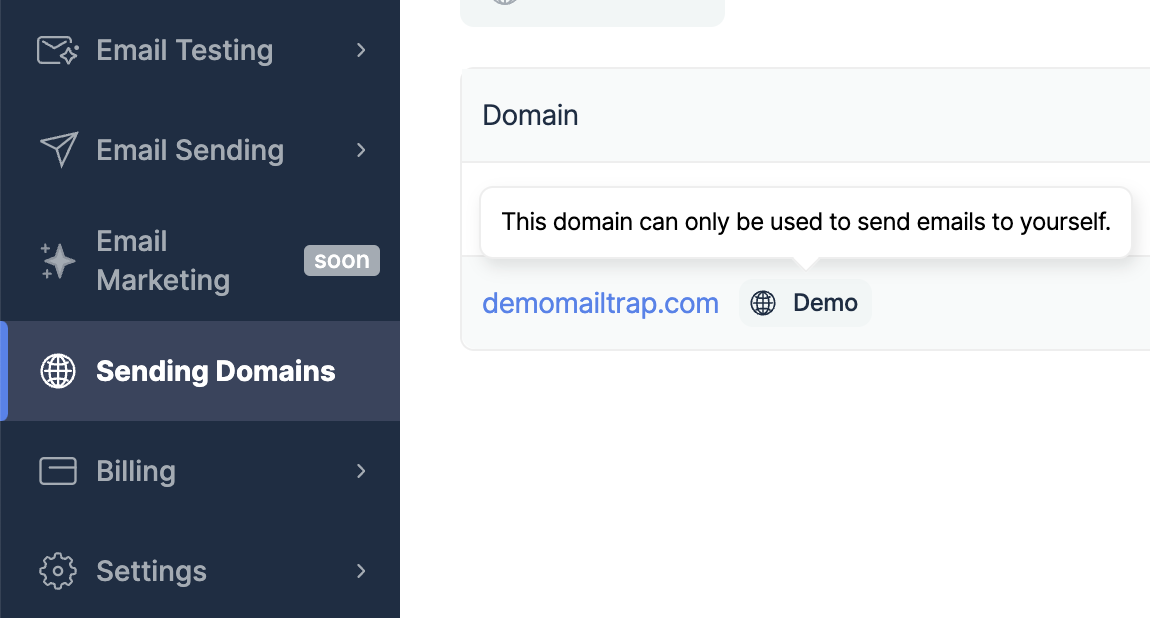
Remember that the domain with the Demo badge can be used to send emails only to the email address you registered with.
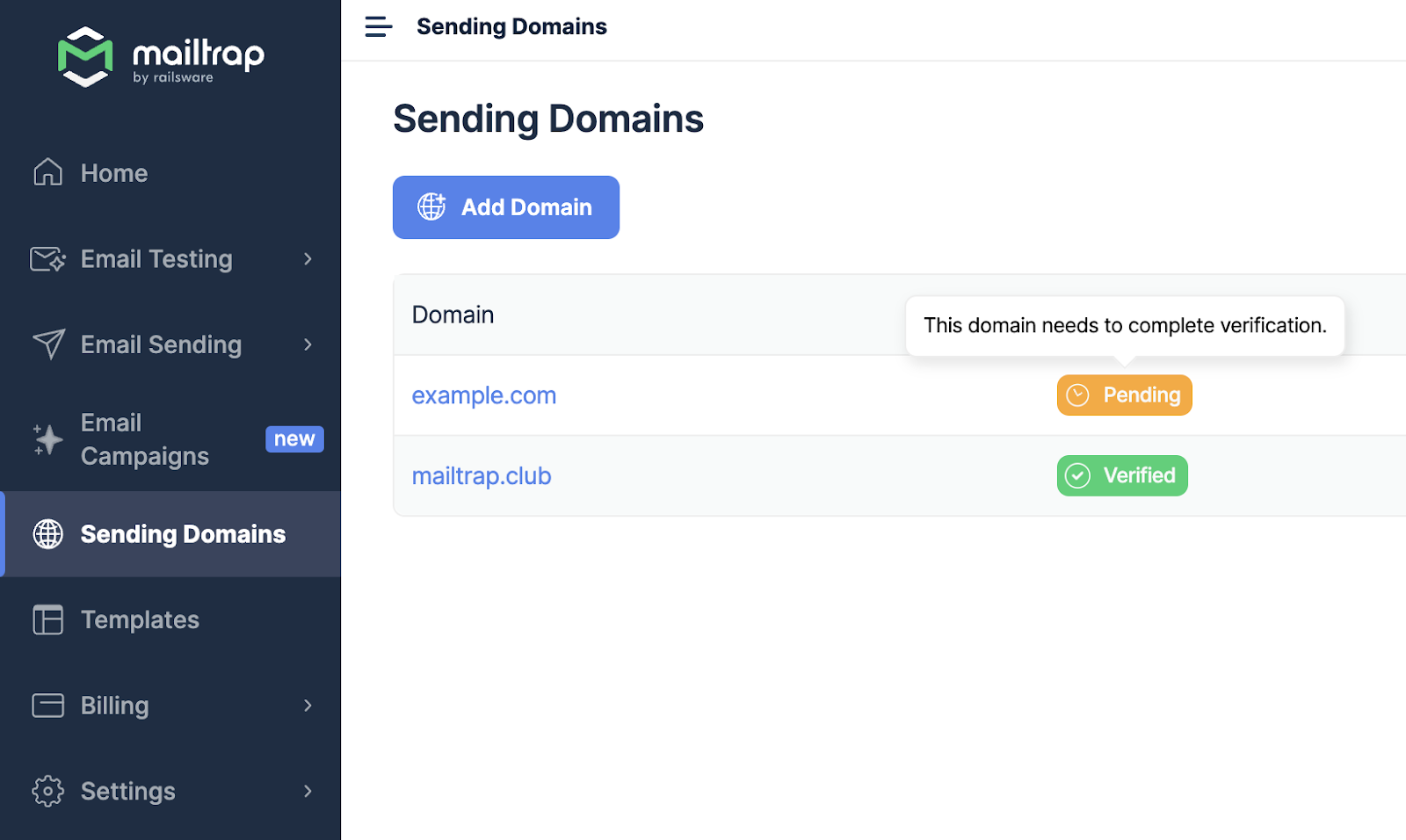
You can send emails to your recipients only from domains that have a Verified status. If the status is Pending or Rejected, you won't be able to send emails.
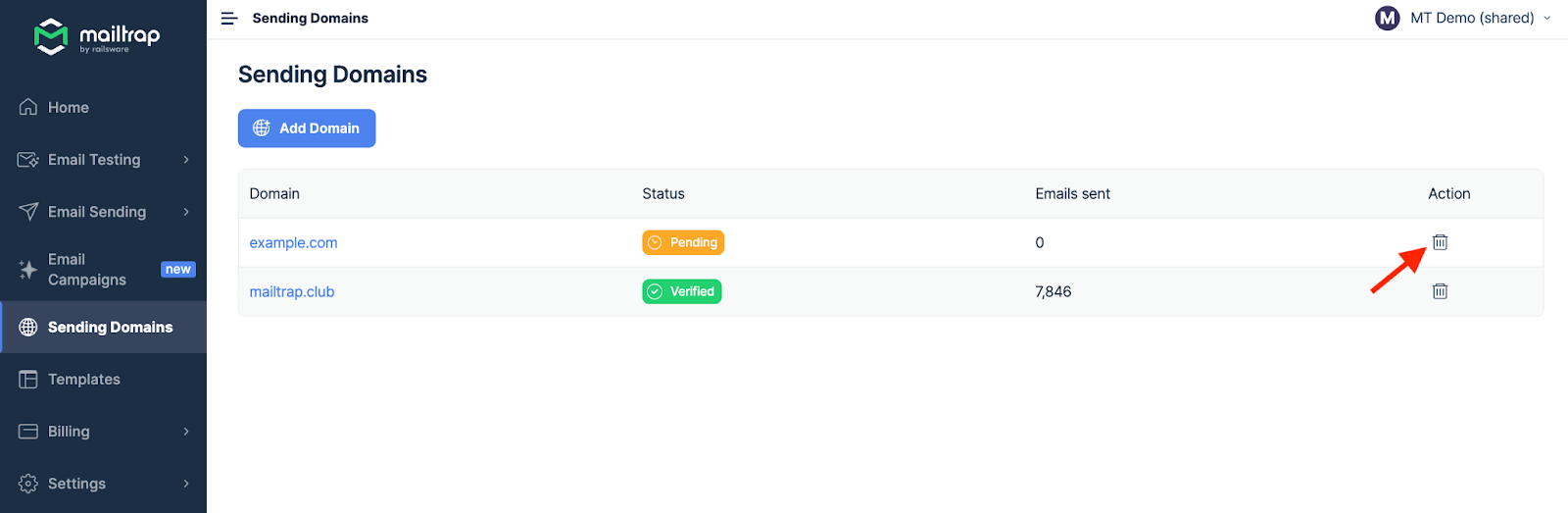
From the Domains menu, you can also delete the domains, subdomains, or the demo domain you no longer use. Just press the bin icon next to the domain. This will remove the domain from the list, and you won't be able to send any further emails until you add and verify it again.
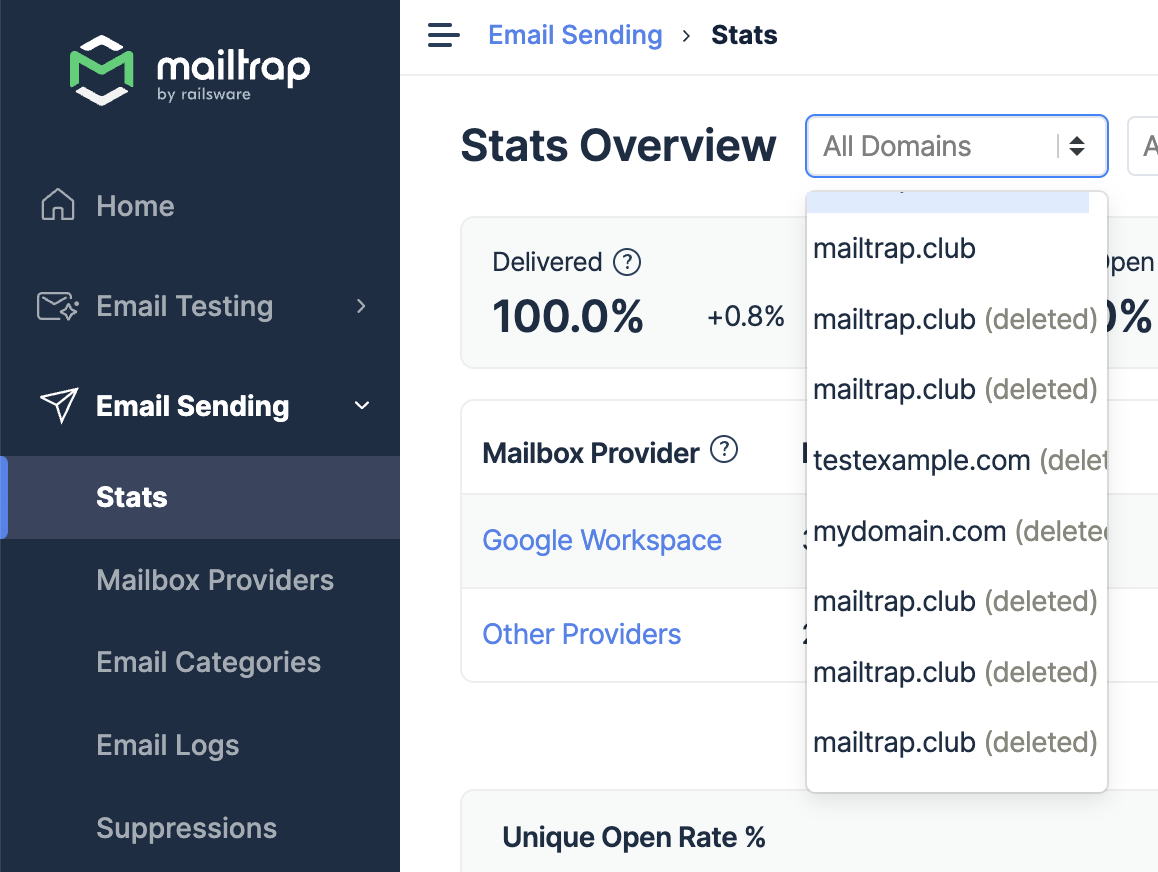
Note that removing a domain won't remove it from your Mailtrap account completely. It will still appear, for example, in analytics, and will be displayed with the (deleted) suffix, just like in the example below:
We do this to preserve your historical stats that would otherwise be lost.
---
# Agent Instructions
This documentation is published with GitBook. GitBook is the documentation platform designed so that both humans and AI agents can read, navigate, and reason over technical content effectively. Learn more at gitbook.com.
## Querying This Documentation
If you need additional information that is not directly available in this page, you can query the documentation dynamically by asking a question.
Perform an HTTP GET request on the current page URL with the `ask` query parameter, and the optional `goal` query parameter:
```
GET https://docs.mailtrap.io/email-api-smtp/setup/sending-domain.md?ask=&goal=
```
`ask` is the immediate question: it should be specific, self-contained, and written in natural language.
`goal` is optional and describes the broader end goal you are ultimately trying to accomplish on behalf of the user. GitBook uses it to tailor the answer towards what is most useful for that goal.
The response will contain a direct answer to the question and relevant excerpts and sources from the documentation.
Use this mechanism when the answer is not explicitly present in the current page, you need clarification or additional context, or you want to retrieve related documentation sections.
.png?alt=media)