> For the complete documentation index, see [llms.txt](https://docs.mailtrap.io/llms.txt). Markdown versions of documentation pages are available by appending `.md` to page URLs; this page is available as [Markdown](https://docs.mailtrap.io/guides/integrations/salesforce.md).
# Salesforce
[Salesforce](https://www.salesforce.com/ap/) is a cloud-based CRM platform used by businesses to manage customer relationships, sales, and marketing.
With the [Email Sandbox for Salesforce](https://appexchange.salesforce.com/appxListingDetail?listingId=4f6cce1b-4943-4b23-94d7-d01df5249b03) add-on, you can route your Salesforce emails through [Email Sandbox](https://mailtrap.io/email-sandbox/) to test and inspect them before they reach real recipients.
In this guide, you'll learn how to:
* [Install the Email Sandbox add-on](https://docs.mailtrap.io/guides/integrations/salesforce#step-1.-install-the-email-sandbox-add-on)
* [Connect and authorize Salesforce](https://docs.mailtrap.io/guides/integrations/salesforce#step-2.-connect-and-authorize-salesforce)
* [Activate the Email Sandbox add-on](https://docs.mailtrap.io/guides/integrations/salesforce#step-3.-activate-email-sandbox-for-salesforce)
Pricing
The add-on is free to use with a free Mailtrap account. You get the standard Mailtrap Free plan limits: 50 test emails per month, 1 email per 10 seconds, 1 user and 1 sandbox.
To go beyond these limits, upgrade to a paid Mailtrap plan and add the Salesforce add-on, billed monthly per Salesforce user. A paid plan lets you:
* Test more emails each month, up to unlimited
* Send at higher speed
* Create more sandboxes
* Invite your team to your Mailtrap account
* Get priority support, plus SSO on the Enterprise plan
Additionally, there are available [discounts for non-profit organizations and open-source initiatives](https://docs.mailtrap.io/account-and-organization/billing/non-profit-and-open-source).
{% hint style="info" %}
The add-on works with Sales Cloud, Service Cloud, Experience Cloud and platform email, including Flow, Apex, email alerts and templates. It doesn't work with Marketing Cloud.
{% endhint %}
## Step 1. Install the Email Sandbox add-on
{% @arcade/embed flowId="pBqMHghFzHxD8ixTY5hT" url="" %}
* Open the official [Mailtrap Email Sandbox AgentExchange listing](https://appexchange.salesforce.com/appxListingDetail?listingId=4f6cce1b-4943-4b23-94d7-d01df5249b03), click **Get It Now**, and log in via Trailblazer.
* Choose where to install the package
* Confirm the installation details and make sure to accept the terms and conditions
* Choose a Salesforce username (i.e., ****)
* Select whether to install the app for admins only, all users, or specific profiles.
* Approve third-party access and click **Continue**.
If the installation takes longer, Salesforce will email you a confirmation.
You can also check for the **RWMailtrapApp** under **Installed Packages**.
## Step 2. Connect and authorize Salesforce
Email Sandbox for Salesforce requires a [Named Credential](https://help.salesforce.com/s/articleView?id=xcloud.named_credentials_about.htm\&type=5) called **MailTrap\_To\_SF** to communicate with your Salesforce org. To set it up, you need to:
* [Assign permission set](https://docs.mailtrap.io/guides/integrations/salesforce#assign-permission-set)
* [Create Named Credentials](https://docs.mailtrap.io/guides/integrations/salesforce#create-named-credentials)
* [Add access to the Named Credentials](https://docs.mailtrap.io/guides/integrations/salesforce#add-access-to-the-named-credentials)
{% hint style="info" %}
**Useful link**: [What are Named Credentials?](https://help.salesforce.com/s/articleView?id=xcloud.nc_basics.htm\&type=5)
{% endhint %}
### Assign permission set
{% @arcade/embed flowId="hzXq7EtgAGGHVI0cJknW" url="" %}
First, you need to assign Mailtrap Admin permission set to User who will configure the app.
* In **Setup** go to **Users** (under **Administration**) and open the **Users** settings. Then, select the user you want running this whole configuration, or the system administrator.
* Under the **Permission Set Assignments** list, click on **Edit Assignments**.
* Select **MailTrap Admin** and hit the **Save** button.
### Create Named Credentials
#### Step 1. Create an External Client App
{% @arcade/embed flowId="MZsHAOSVkEVG0zUuJ3zA" url="" %}
* Navigate to **Setup** → **Apps** → **External Client Apps** → **External Client App Manager** and click on **New External Client App**.
* Then, enter the required **Basic Information**, such as **External Client App Name**, **API Name**, **Contact Email**, and **Distribution State**.
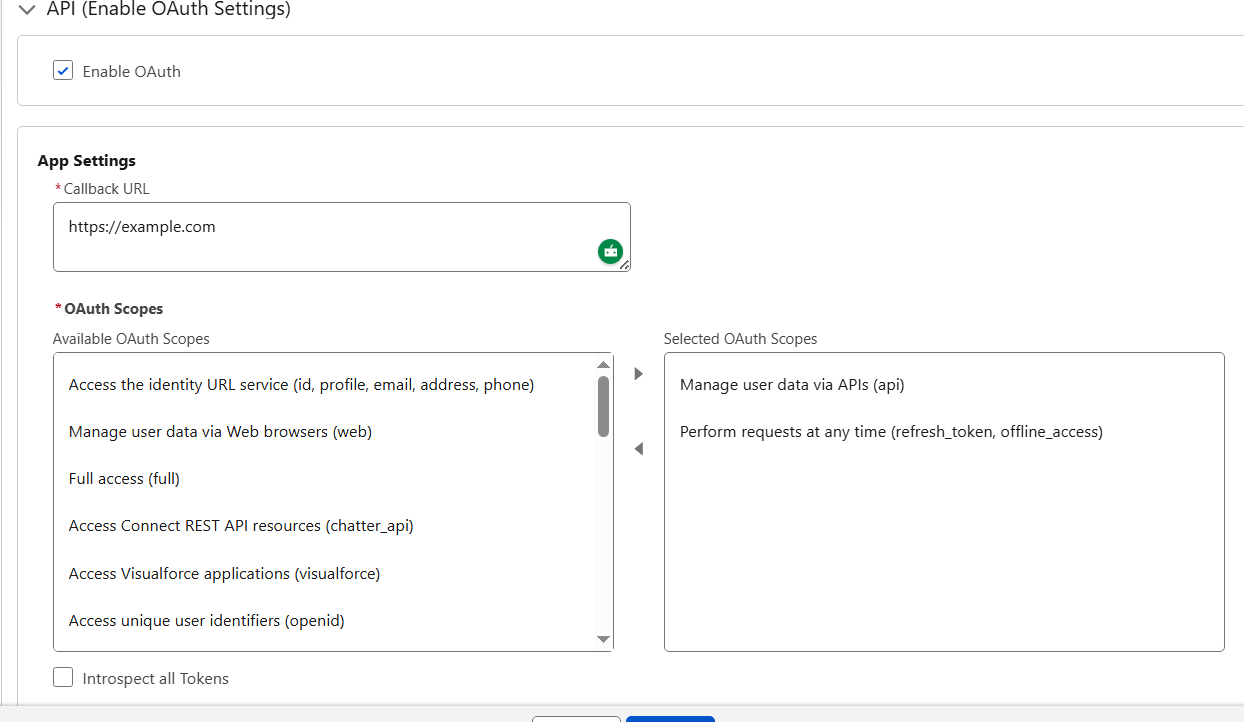
* Next, make sure to check the **Enable OAuth** box and configure it with the following settings:
* **Callback URL** – For now, use `https://www.example.com` (we will change it later);
* **OAuth Scopes** – Select **Manage user data via APIs (api)** and Perform **requests at any time (refresh\_token, offline\_access)**.
* Under **Flow Enablement**, tick the **Client Credentials Flow** and hit the **Create** button.
* Under the **Policies** tab, click **Edit**. This will allow you to make the required changes to **OAuth Policies**.
* Enable **Client Credentials Flow** and enter the email address of the **Admin User** with **MailTrap Admin permission** set assigned.
* Hit the **Save** button.
* Go to the **Settings** tab, expand the **OAuth Settings**, and click on **Consumer Key and Secret**.
* You will be redirected to a page where you can see your **Consumer Key** and **Consumer Secret**, you should copy both of them.
#### Step 2. Create Auth Provider
{% @arcade/embed flowId="R2peujh8cGq038DFp5uP" url="" %}
{% hint style="info" %}
**Useful links**:
* [Configure a Salesforce Authentication Provider](https://help.salesforce.com/s/articleView?id=xcloud.sso_provider_sfdc.htm\&type=5)
* [My Domain (for finding your domain URL)](https://help.salesforce.com/s/articleView?id=xcloud.domain_name_overview.htm\&type=5)
{% endhint %}
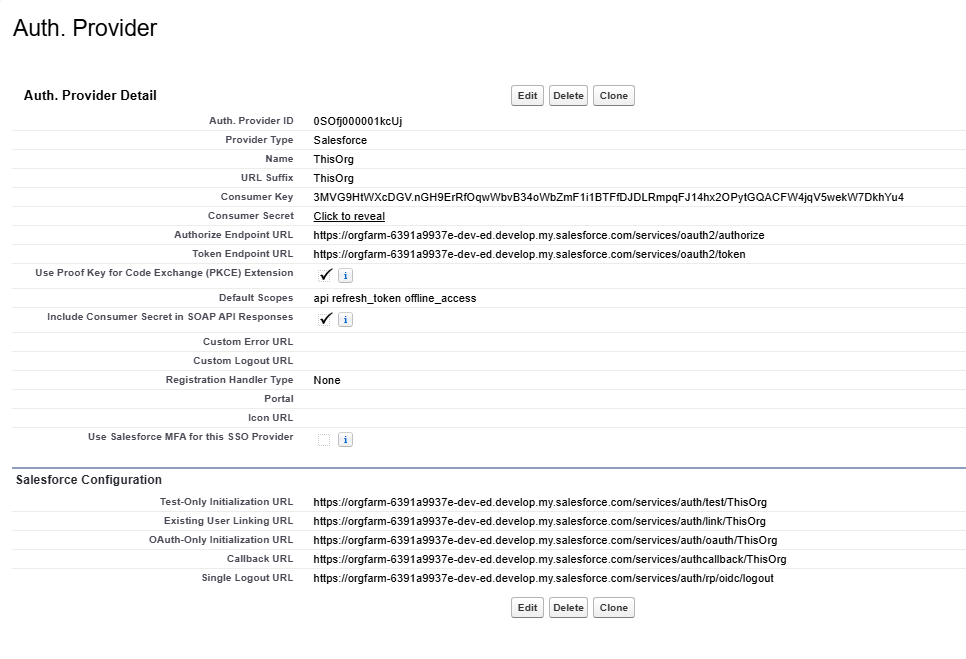
* Navigate to **Setup** → **Identity** (Under **Settings**) → **Auth.Providers** and click on **New**.
* Then, enter the following settings for **Auth. Provider**:
* For **Provider Type**, select **Salesforce**.
* For **Consumer Key** and **Consumer Secret** you should paste from the **Connected App**.
* Paste ***api refresh\_token offline\_access*** in **Default Scopes**.
* **Authorize Endpoint URL**: Your domain URL + `/services/oauth2/authorize`
* **Token Endpoint URL**: Your domain URL + `/services/oauth2/token`
{% hint style="info" %}
Domain URL can be found under Company Settings → My Domain.
{% endhint %}
* Copy **Callback URL** from **Auth.Providers**.
* Paste the **Callback URL** into the **Connected App** instead of `https://www.example.com`.
#### Step 3. Named Credentials to Salesforce
{% @arcade/embed flowId="JRDIhh5xmjdiE2iQGnGJ" url="" %}
{% hint style="info" %}
**Useful links**:
* [External Credentials](https://help.salesforce.com/s/articleView?language=en_US\&id=sf.nc_create_edit_external_credential.htm\&type=5)
* [Enable External Credentials Principals](https://help.salesforce.com/s/articleView?id=xcloud.nc_enable_ext_cred_principal.htm\&type=5)
{% endhint %}
* Navigate to **Setup** → **Named Credentials** (under **Security**)→ click on **External Credentials** and hit the **New** button.
* Then, fill in all necessary information:
* **Name**: MailTrap\_To\_SF
* **Authentication Protocol**: OAuth 2.0
* **Authentication Flow Type**: Browser Flow
* **Scope**: api refresh\_token offline\_access
* **Identity Provider**: select the Auth.Provider you created – `ThisOrg`
Once you’re done, make sure to hit the **Save** button.
* Navigate to **Named Credentials**, click **New**.
* Fill in all necessary information:
* **Label and Name**: MailTrap\_To\_SF
* **URL**: Your domain URL
* **External Credential**: select External Credential you created before – MailTrap\_To\_SF
* **Allowed Namespaces for Callouts**: RWMailtrap
{% hint style="danger" %}
Name should specifically be **MailTrap\_To\_SF**, no other can be used for MailTrap package.
{% endhint %}
* Once you’re done, click **Save**, and go back to the **External Credentials** tab to open it.
* In the **Principals** section click **New**.
* Configure it as in the screenshot below, then click **Save**.
* In the **Principals** section click the menu button underneath **Actions**:
* Then, **Authenticate**:
* Login to the Salesforce organization, **Allow** access, and confirm.
* Go to the **Profiles** page and find the profile you want to give permissions to.
* At the **Enabled External Credential Principal** **Access** section click **Edit**.
* Select **MailTrap\_To\_SF – 1** and click **Save**.
And that’s it, your application is ready!
## Step 3. Activate Email Sandbox for Salesforce
{% @arcade/embed flowId="F7ti6g7iNkm6fhVAACeM" url="" %}
To enable the Email Sandbox for Salesforce, you need to connect your Mailtrap account by adding a [Mailtrap API Token](https://docs.mailtrap.io/email-api-smtp/setup/api-tokens). To do this:
* First, navigate to the Mailtrap app via **App Launcher**.
* Then, click on **Connect Mailtrap account**.
To activate the Sandbox mode, navigate to **Account Settings**, and then:
* Paste your API token in the bar, hit **Save**.
{% hint style="info" %}
**Important**: The Mailtrap API token you intend to use for the Salesforce integration with Sandbox should have:
* At least **Viewer** permission for *the whole account*.
* **Admin** permission for *one or multiple sandboxes*.
If your API token doesn’t meet one of these requirements, you won’t be able to activate the add-on.
{% endhint %}
* Select a sandbox to receive emails
* Activate the sandbox mode
The integration is complete! 🎉
## Sending a test email
To verify the integration, go to the **Contacts** page and try to send an email to one of your contacts. For example:
If you’ve followed everything correctly so far, once you click on **Send**, an email should arrive in your Sandbox, just like so:
---
# Agent Instructions
This documentation is published with GitBook. GitBook is the documentation platform designed so that both humans and AI agents can read, navigate, and reason over technical content effectively. Learn more at gitbook.com.
## Querying This Documentation
If you need additional information that is not directly available in this page, you can query the documentation by asking a question.
Perform an HTTP GET request on the following URL with the `ask` and `goal` query parameters:
```
GET https://docs.mailtrap.io/guides/integrations/salesforce.md?ask=&goal=
```
`ask` is the immediate question: it should be specific, self-contained, and written in natural language.
`goal` is what the user is ultimately trying to achieve, the reason they need the answer. Sharing it helps GitBook give you a better, more relevant answer. A goal is most helpful when it describes the outcome the user wants rather than restating the question. For example, with `ask=how do I create an API token`, a goal like `automate deployments from our CI pipeline` lets GitBook tailor the answer to that use case.
The response will contain a direct answer to the question and relevant excerpts and sources from the documentation.
Use this mechanism when the answer is not explicitly present in the current page, you need clarification or additional context, or you want to retrieve related documentation sections.