> For the complete documentation index, see [llms.txt](https://docs.mailtrap.io/llms.txt). Markdown versions of documentation pages are available by appending `.md` to page URLs; this page is available as [Markdown](https://docs.mailtrap.io/guides/integrations/zapier.md).
# Zapier
Automate email sending by connecting Mailtrap to over 7,000 applications using Zapier without writing any code.
View on Zapier Marketplace
## Overview
Using the Mailtrap integration with Zapier, you can automate email sending by connecting Mailtrap to over 7,000 other applications without any coding. This guide shows you how to set up the integration, create automations, and manage your connections.
### Connecting Mailtrap to Zapier
{% stepper %}
{% step %}
Log in to your [Zapier account](https://zapier.com/sign-up) or create a new account.
{% endstep %}
{% step %}
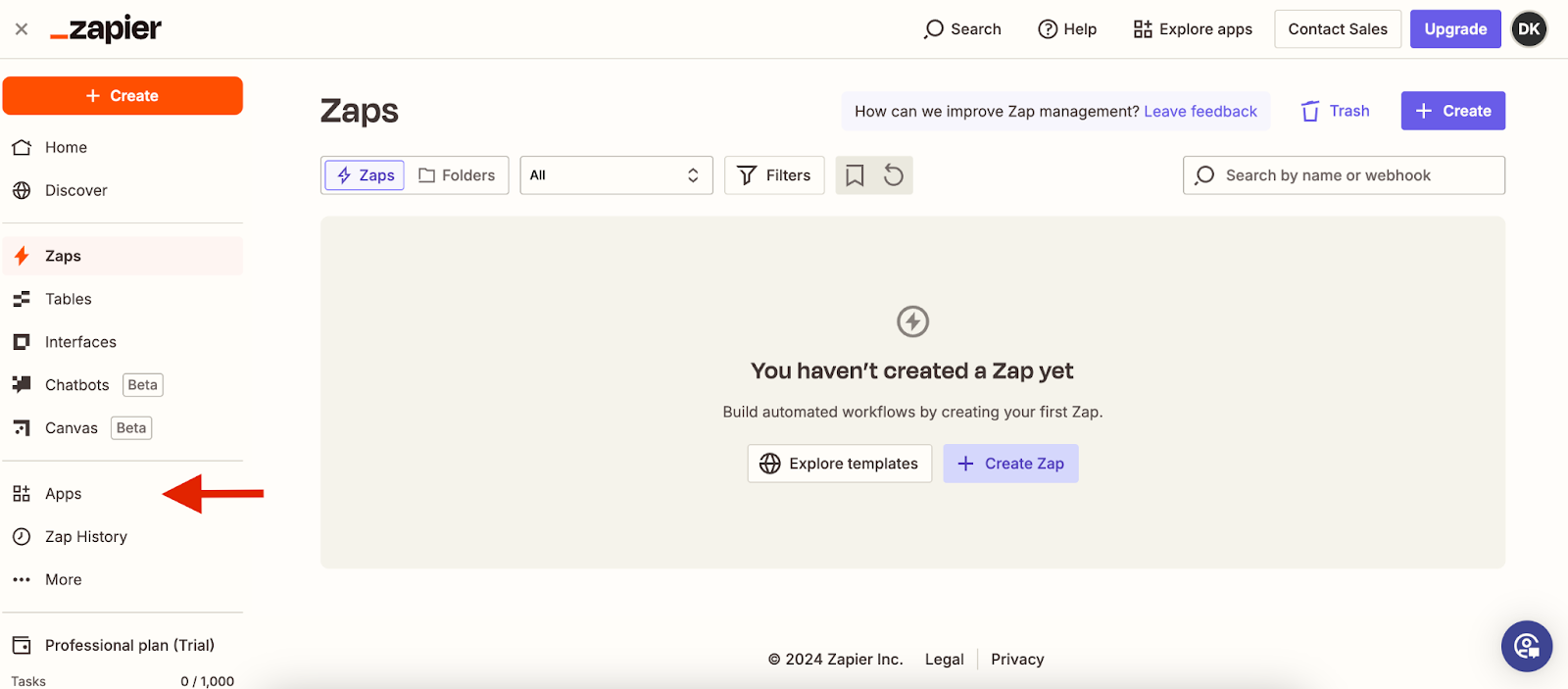
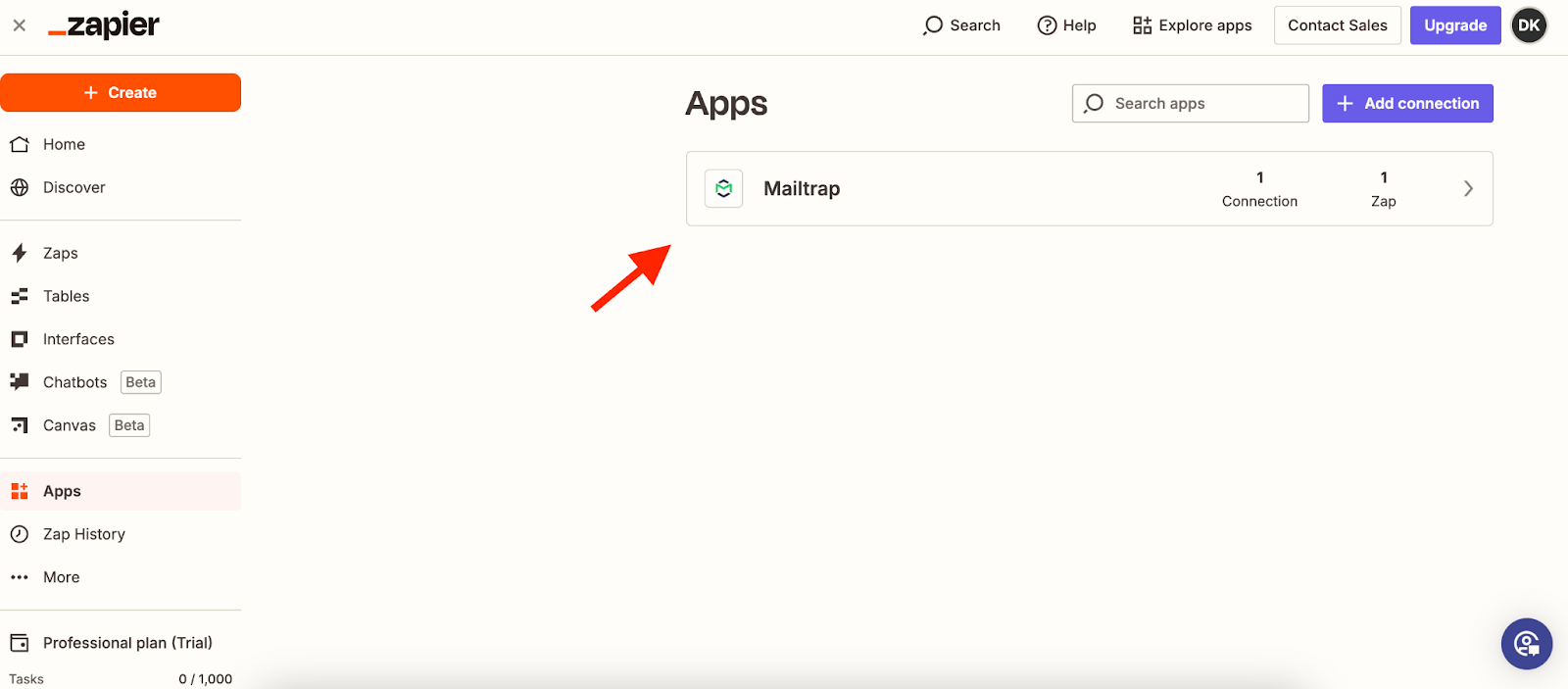
Navigate to **Apps** in the left-hand side menu.
{% endstep %}
{% step %}
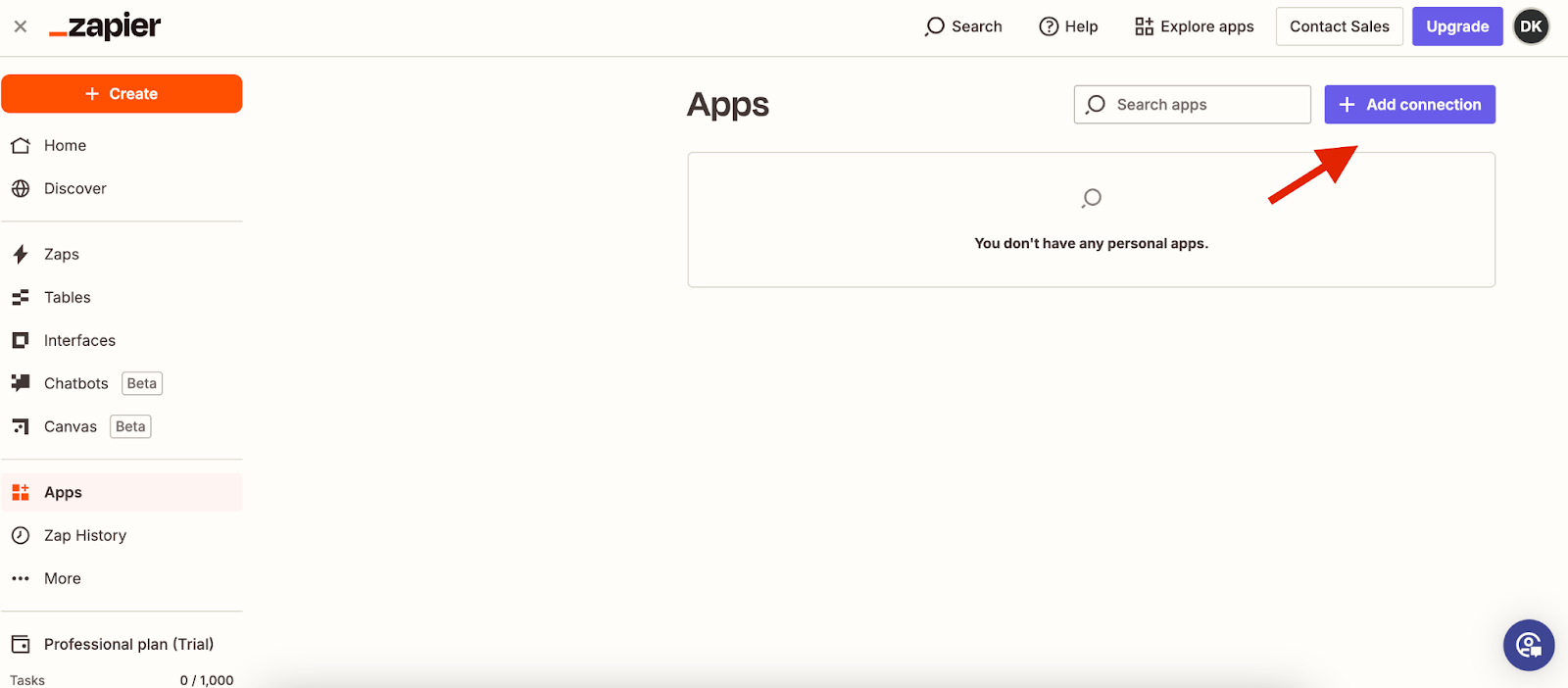
Click **Add connection**.
{% endstep %}
{% step %}
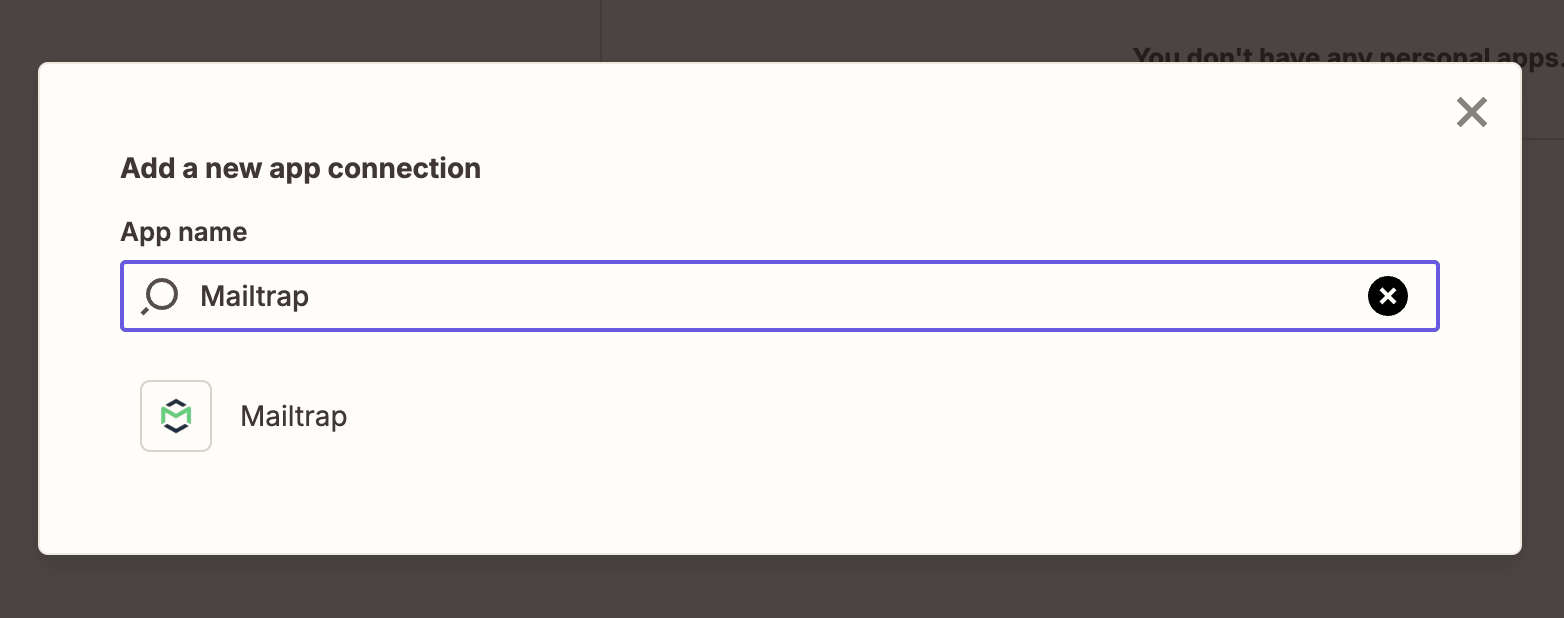
Type *Mailtrap* in the **App name** search bar.
{% endstep %}
{% step %}
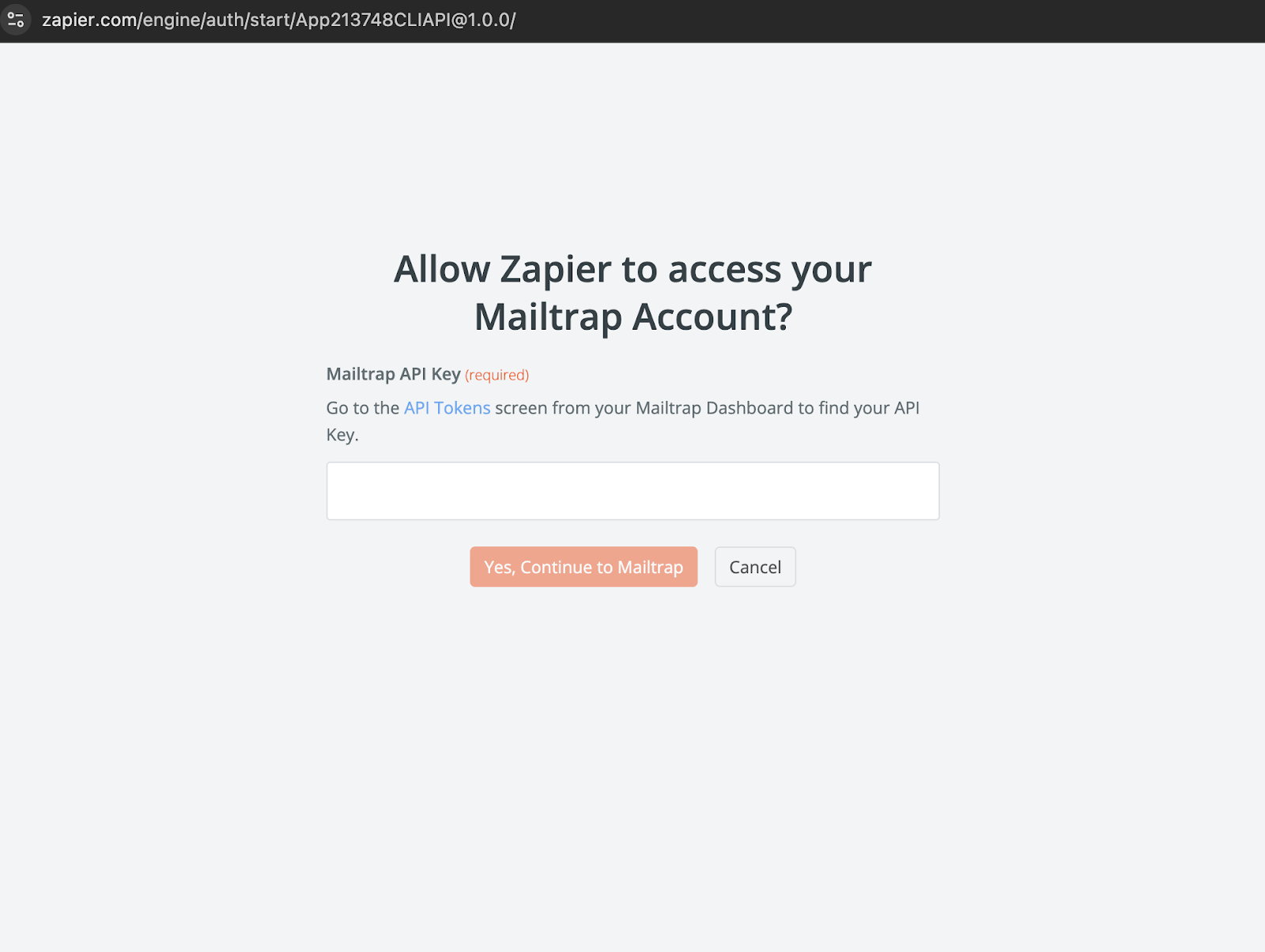
Enter your Mailtrap API key to allow Zapier to access your account.
**Note**: This should be the token for the domain you've added and verified in Mailtrap. You'll find it in the **Settings** → **API Tokens** menu.
{% endstep %}
{% endstepper %}
### Creating an automation
To set up trigger-based email sending via Mailtrap in Zapier, you need to create a Zap.
A Zap is a workflow connecting multiple apps that consists of a trigger (an event that starts a Zap) and one or more actions (events the Zap performs).
#### Using Copilot
{% stepper %}
{% step %}
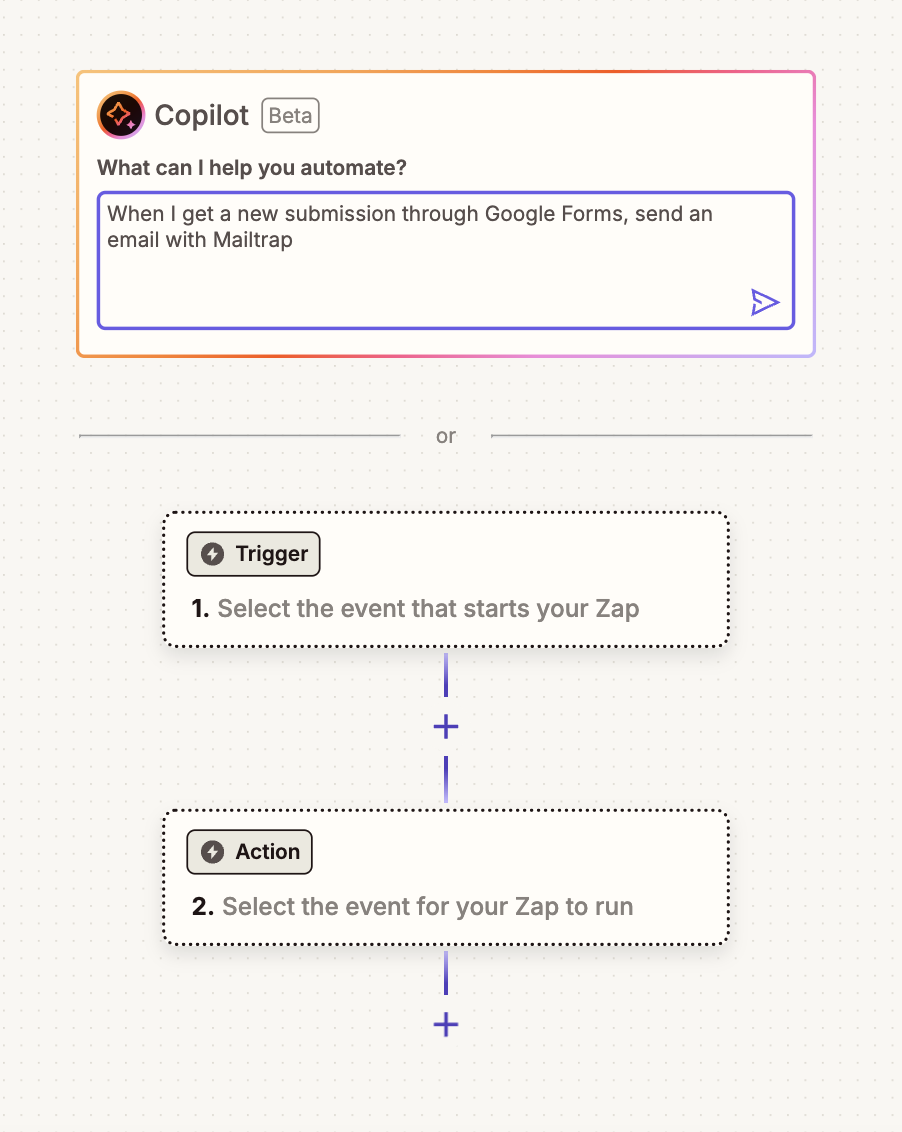
Describe the workflow you want to create to Copilot.
{% endstep %}
{% step %}
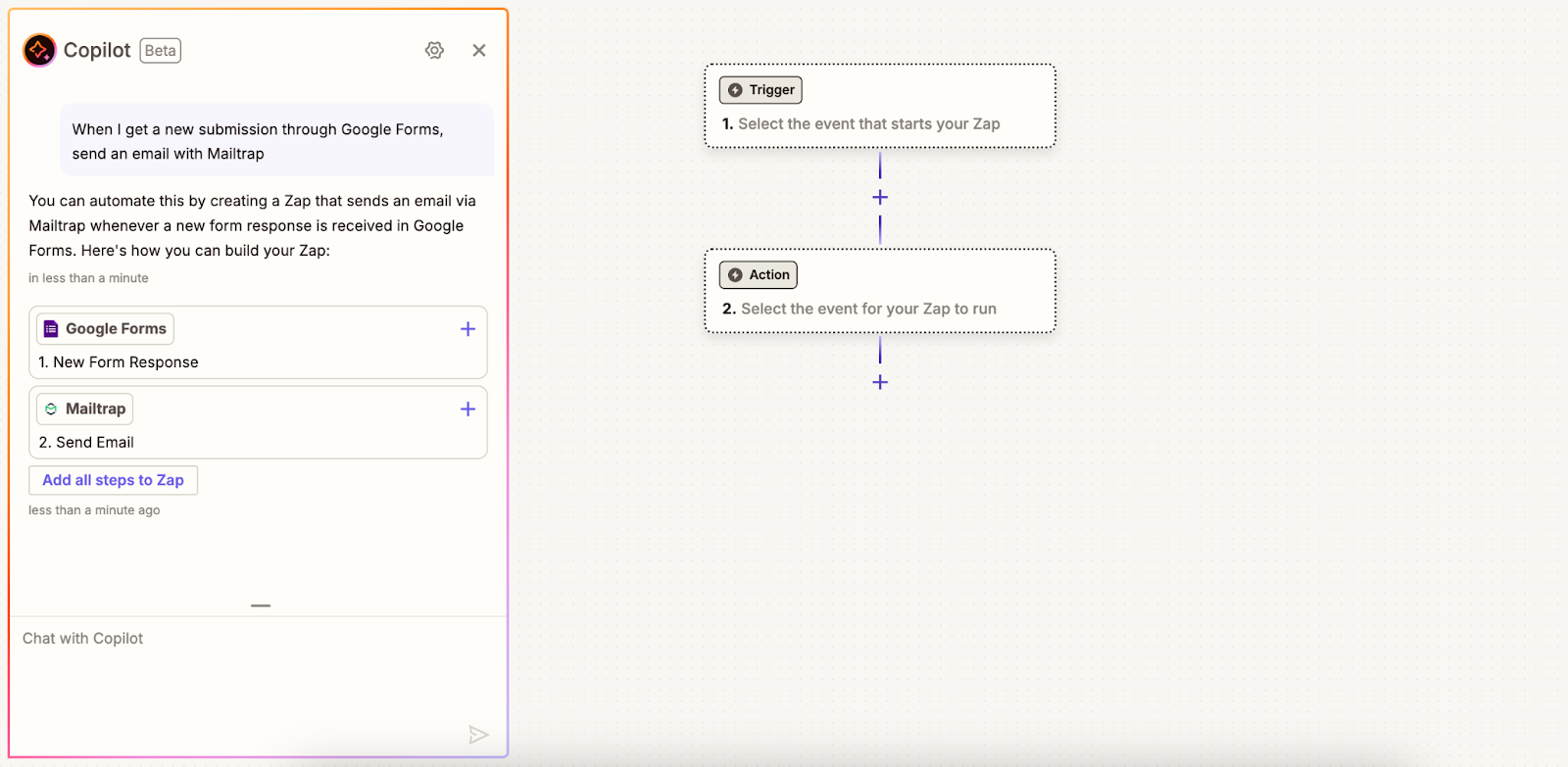
Add some or all the steps created by Copilot to the Zap or continue to prompt the chatbot to add or replace steps.
{% endstep %}
{% step %}
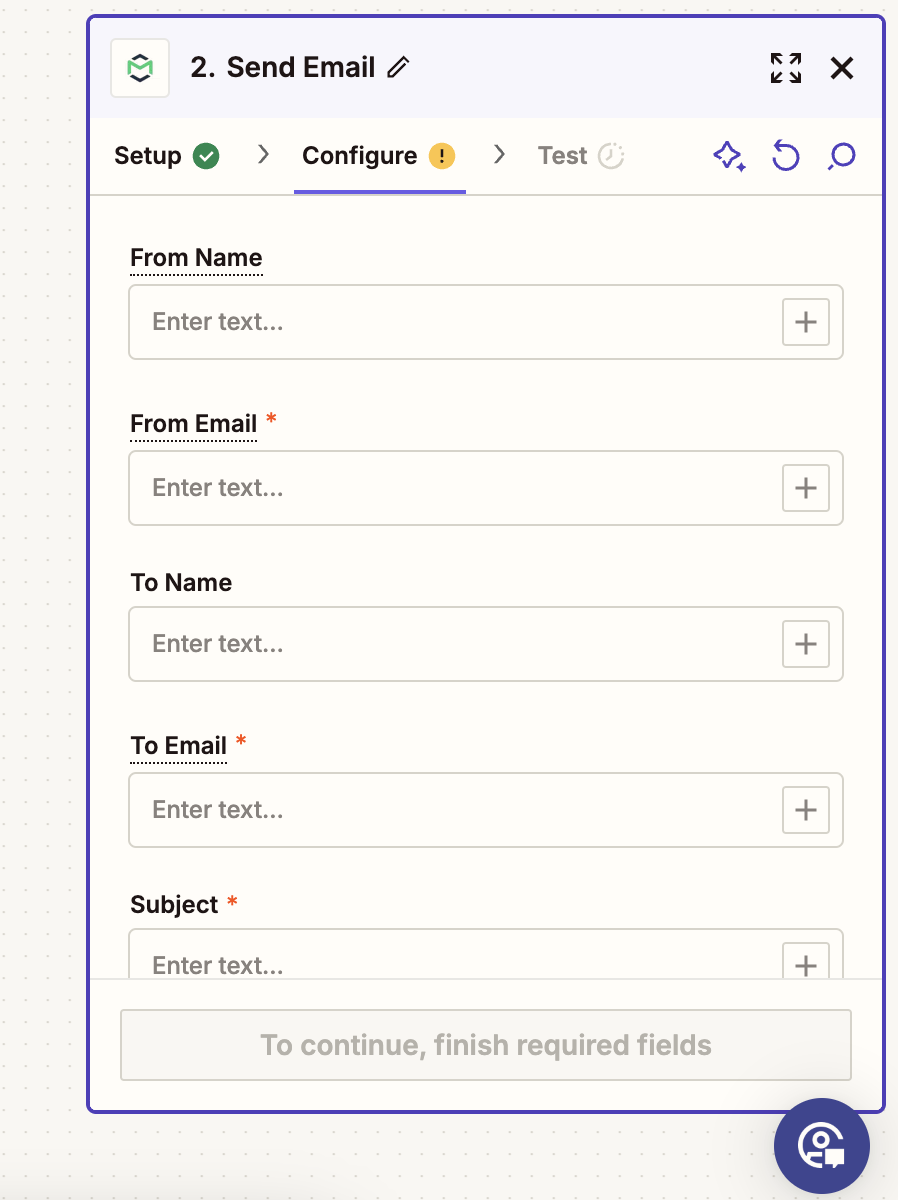
Configure the required fields for sending an email. The from email should contain the same sending domain you added and verified in Mailtrap.
{% endstep %}
{% step %}
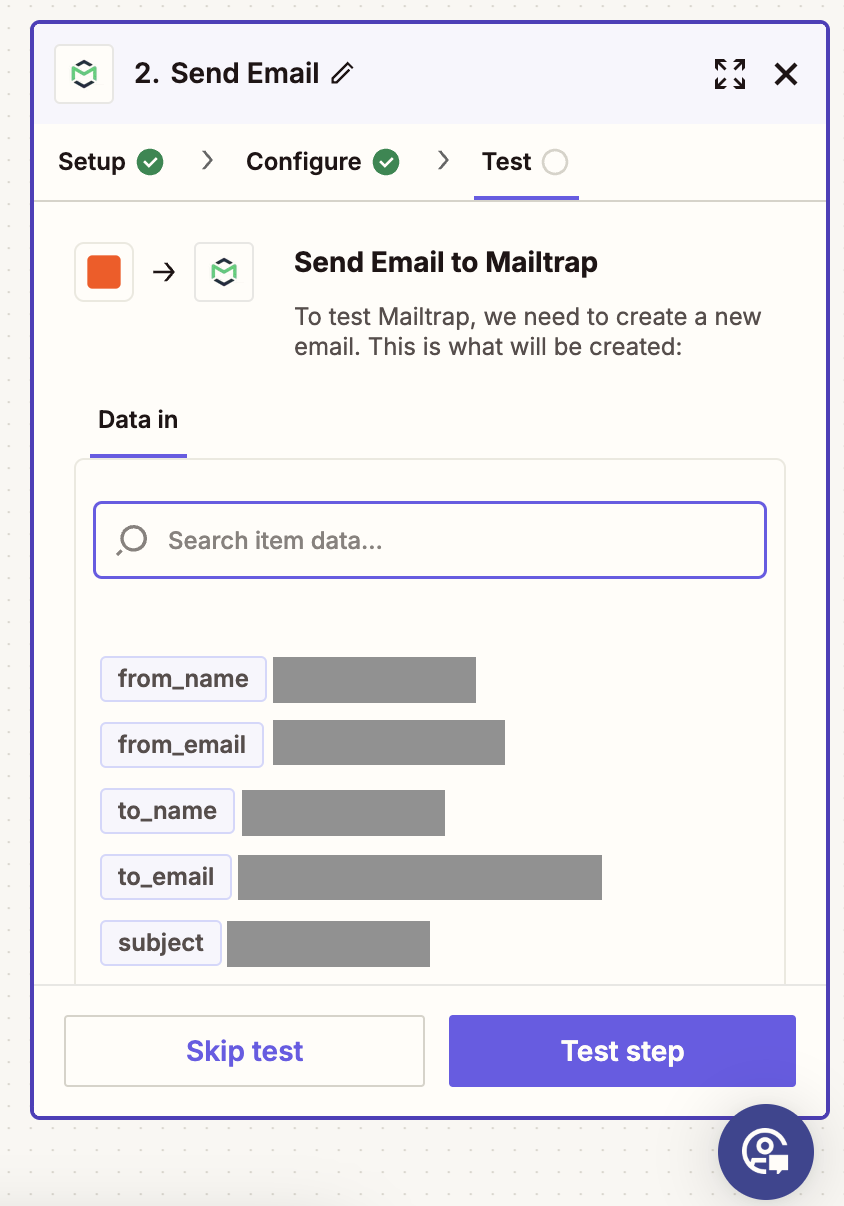
Send a test email to Mailtrap (optional).
{% endstep %}
{% step %}
Publish the Zap.
{% endstep %}
{% endstepper %}
#### Manually
{% stepper %}
{% step %}
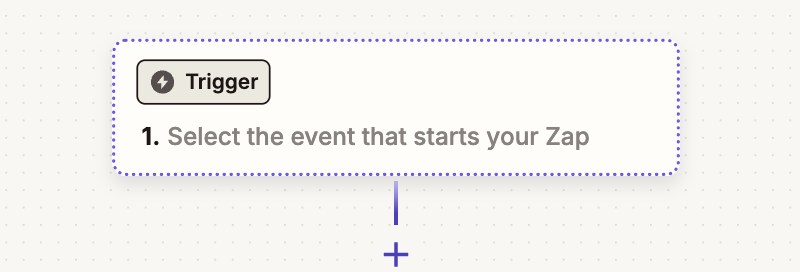
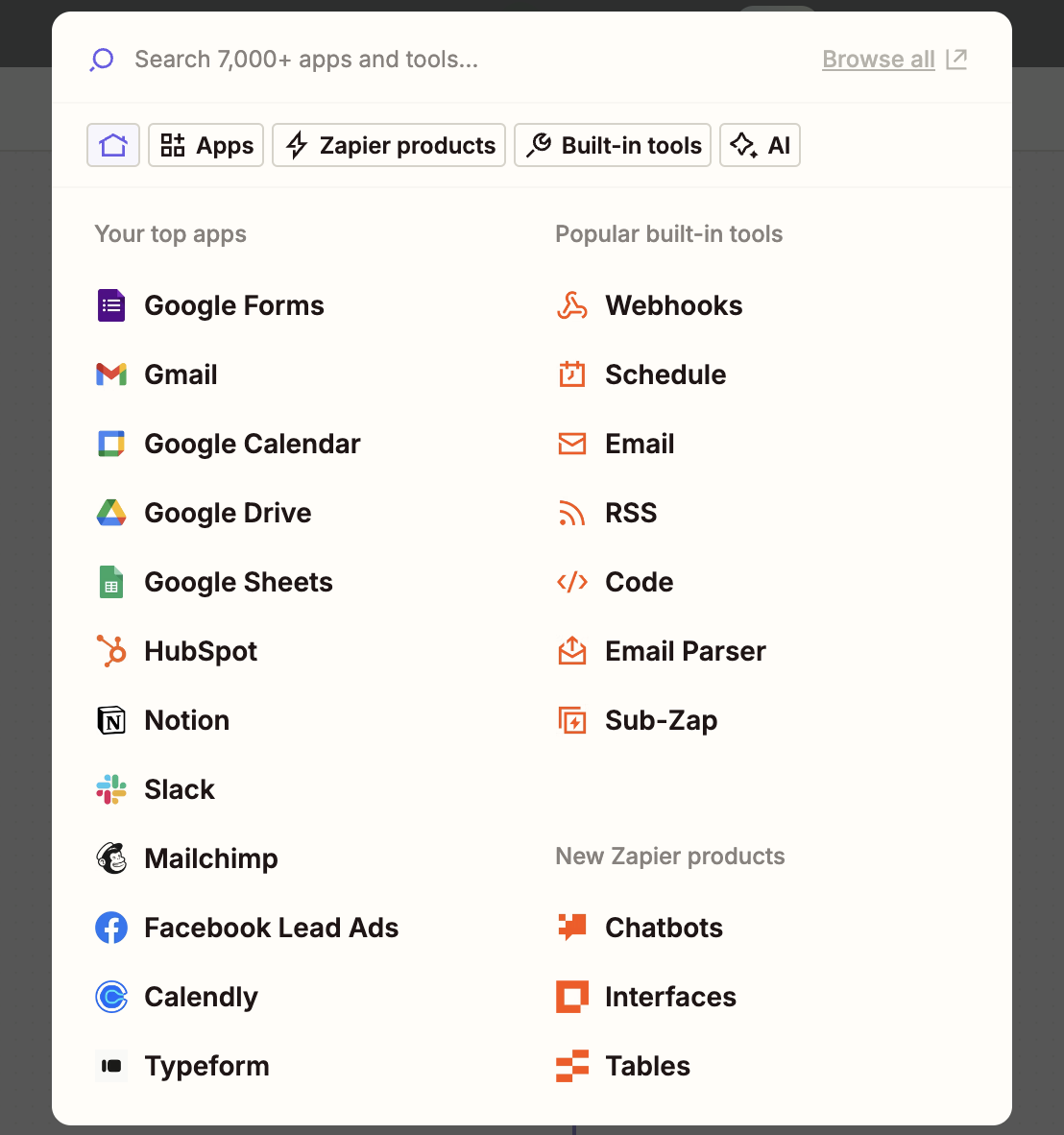
Select an event (trigger) to start your Zap.
Zapier's app directory contains 7,000+ apps with triggers and actions available for each.
{% endstep %}
{% step %}
Search for and select **Mailtrap** as the action for your Zap to run.
{% endstep %}
{% step %}
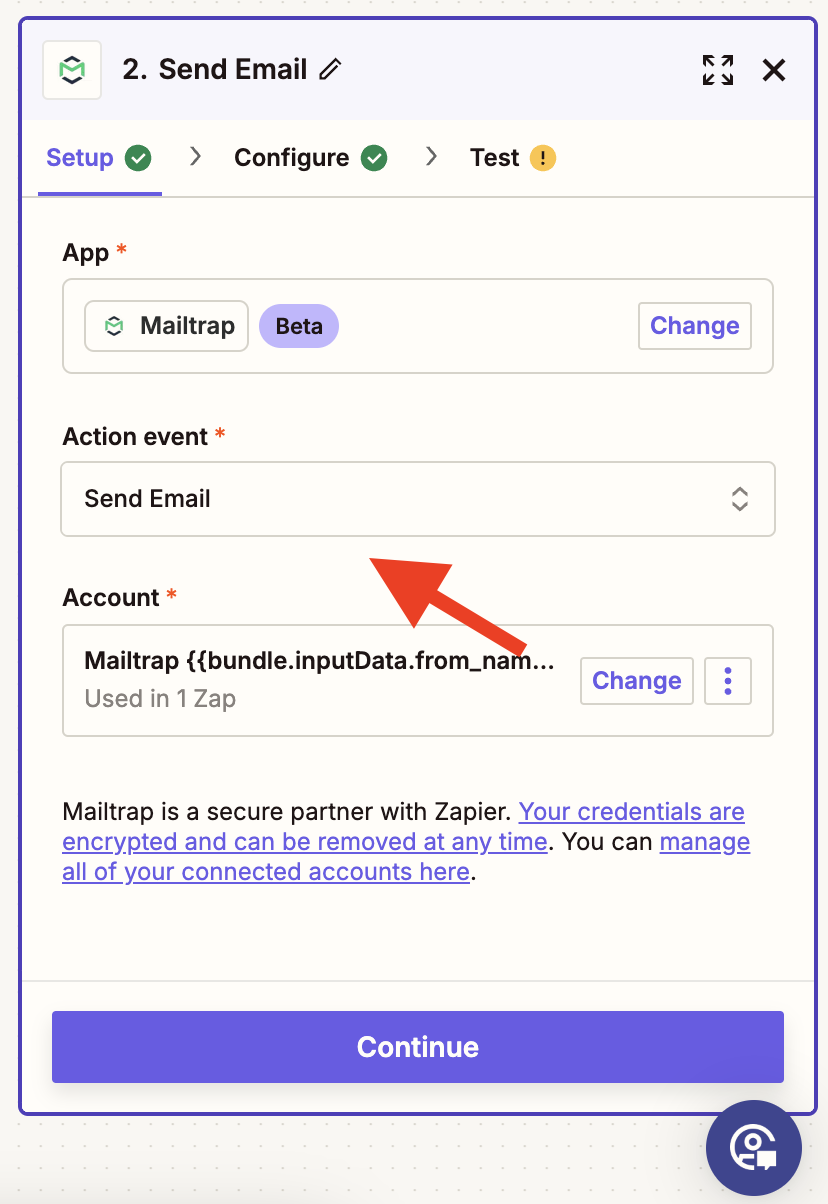
Select **Send Email** as the action event.
{% endstep %}
{% step %}
Configure the required fields for sending an email.
{% endstep %}
{% step %}
Send a test email to Mailtrap (optional).
{% endstep %}
{% step %}
Publish the Zap.
{% endstep %}
{% endstepper %}
### Removing Mailtrap credentials from Zapier
{% stepper %}
{% step %}
Navigate to **Apps** in the left-hand side menu.
{% endstep %}
{% step %}
Click on your Mailtrap connection.
{% endstep %}
{% step %}
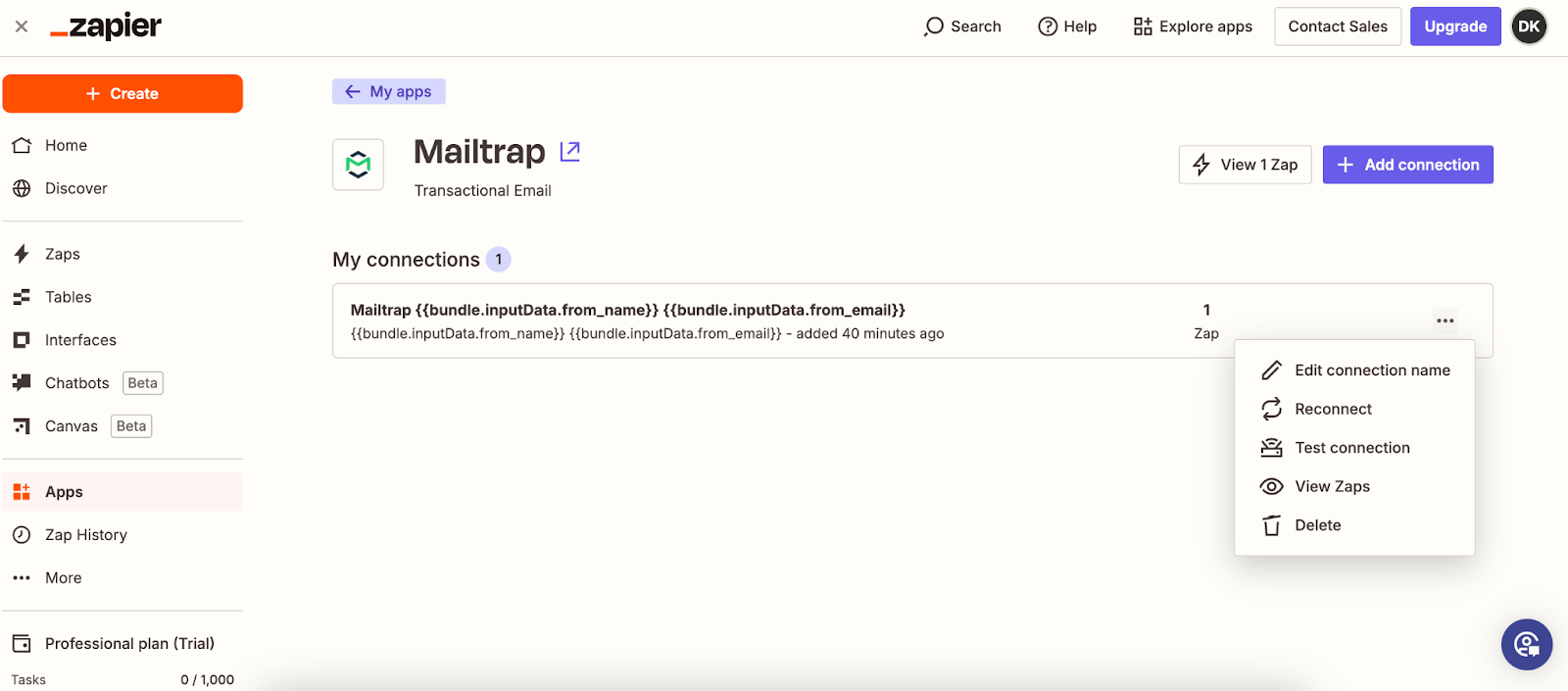
Click the three-dot menu and then **Delete** in the dropdown menu. Using the same menu, you can edit the connection name, reconnect, test the connection, and view Zaps created using the connection.
{% endstep %}
{% endstepper %}
## Next steps
After setting up your Mailtrap and Zapier integration, you can create unlimited Zaps to automate your email workflows and connect your favorite apps seamlessly.
---
# Agent Instructions
This documentation is published with GitBook. GitBook is the documentation platform designed so that both humans and AI agents can read, navigate, and reason over technical content effectively. Learn more at gitbook.com.
## Querying This Documentation
If you need additional information that is not directly available in this page, you can query the documentation dynamically by asking a question.
Perform an HTTP GET request on the current page URL with the `ask` query parameter, and the optional `goal` query parameter:
```
GET https://docs.mailtrap.io/guides/integrations/zapier.md?ask=&goal=
```
`ask` is the immediate question: it should be specific, self-contained, and written in natural language.
`goal` is optional and describes the broader end goal you are ultimately trying to accomplish on behalf of the user. GitBook uses it to tailor the answer towards what is most useful for that goal.
The response will contain a direct answer to the question and relevant excerpts and sources from the documentation.
Use this mechanism when the answer is not explicitly present in the current page, you need clarification or additional context, or you want to retrieve related documentation sections.