> For the complete documentation index, see [llms.txt](https://docs.mailtrap.io/llms.txt). Markdown versions of documentation pages are available by appending `.md` to page URLs; this page is available as [Markdown](https://docs.mailtrap.io/guides/integrations/supabase/transactional-emails.md).
# Supabase Transactional Emails Integration
Learn how to integrate Mailtrap SMTP with Supabase to bypass email rate limits and send production-ready emails with comprehensive analytics.
With Mailtrap SMTP, you can move beyond Supabase's limit of [2 emails per hour](https://supabase.com/docs/guides/auth/rate-limits) to a production-ready [email-sending solution](https://mailtrap.io/email-sending/) with comprehensive [analytics](https://mailtrap.io/actionable-analytics/).
Mailtrap’s native integration with Supabase streamlines your workflow by automatically populating your Supabase project with Mailtrap’s SMTP credentials. You can access this setup via the Integrations page in Mailtrap or through the [Supabase Marketplace](https://supabase.com/docs/guides/integrations/supabase-marketplace).
{% hint style="info" %}
Currently, this integration supports Sending Domains (API/SMTP) only and does not include Email Sandbox configuration. If you would like to see Sandbox support in the future, please [leave a feature request here](https://feedback.mailtrap.io/).
{% endhint %}
#### Prerequisites:
* **Admin rights** for your Mailtrap account.
* A [**verified sending domain**](/email-api-smtp/setup/sending-domain.md) set up within Mailtrap.
* An existing **Supabase account** with an active project.
#### Use cases:
* **Supabase Auth**: Managing email confirmations, magic links, and password resets.
* **Database Events**: Triggering transactional emails based on database changes.
* **User Interaction**: Powering contact forms or "Send Message" features.
{% hint style="info" %}
Sending automated emails via Supabase Edge Functions is not covered by this integration. Please refer to our [dedicated guide for Edge Functions](https://mailtrap.io/blog/supabase-send-email/#Configure-Supabase-Edge-Functions-and-Database-Webhooks).
{% endhint %}
### Step-by-step integration guide
{% stepper %}
{% step %}
**Initiate the integration**
* Log in to your Mailtrap account.
* Navigate to the [**Integrations** page](https://mailtrap.io/api-smtp/integrations) from the sidebar.
* Click on the **AI & Development** tab (or search for "Supabase") and locate the **Supabase** card.
* Click the **Integrate** button.
{% endstep %}
{% step %}
**Authorize access**
* On the setup screen, click **Connect Supabase**.
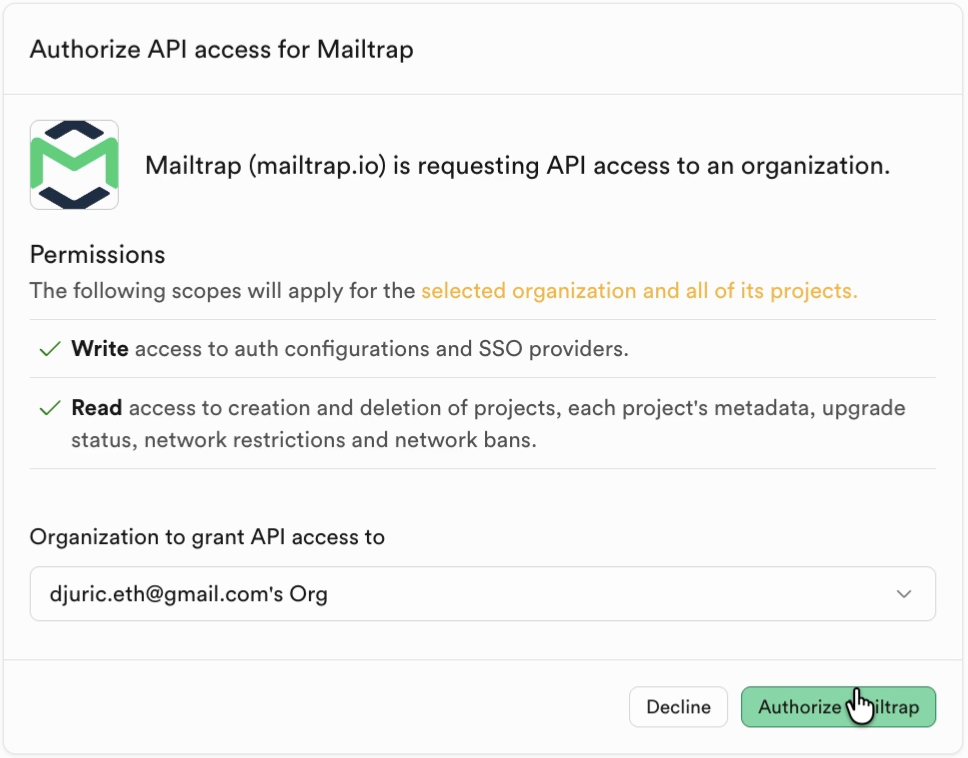
* Review the permissions for the access of your Supabase organizations and projects, and click **Authorize Mailtrap**.
{% hint style="info" %}
**Write** and **Read** access is required to update configurations. Moreover, you can revoke the authorization at any time.
{% endhint %}
{% endstep %}
{% step %}
**Select your project**
Once authorized, Mailtrap will load your available Supabase projects. Then, all you need to do is:
* Click the **Select a Supabase project** dropdown menu
* Choose the specific project you wish to integrate (e.g., Test Integration).
{% endstep %}
{% step %}
**Create an API Token**
* In the **Create an API token** section, use the dropdown menu to select the Mailtrap Domain you want to use for sending emails.
* Click **Create Token**.
{% endstep %}
{% step %}
**Configure sender details**
Define who the emails will appear to be coming from.
* Sender name: The name you want displayed in the recipient's inbox (e.g., Julia or Support Team).
* Sender email: The local part of the email address (e.g., enter noreply to create ).
* Mailtrap will generate a preview of the SMTP settings (Host, Port, Username, etc.).
* Click Configure SMTP to finish the process.
You will see a confirmation message stating: "*Successfully configured Supabase SMTP*."
{% endstep %}
{% endstepper %}
### Manual integration
You can also integrate Mailtrap SMTP with Supabase manually.
{% stepper %}
{% step %}
**Obtain your sending credentials**
* Go to **Domains** and select your domain.
* Click on **Integration**, select **Transactional Stream**, and click **Integrate**.
* Under the **SMTP** tab, you can find your sending credentials, which include **Host**, **Port**, **Username**, and **Password**.
{% endstep %}
{% step %}
**Update the SMTP server in Supabase**
* Open your Supabase [project dashboard](https://supabase.com/dashboard/projects) and select your project.
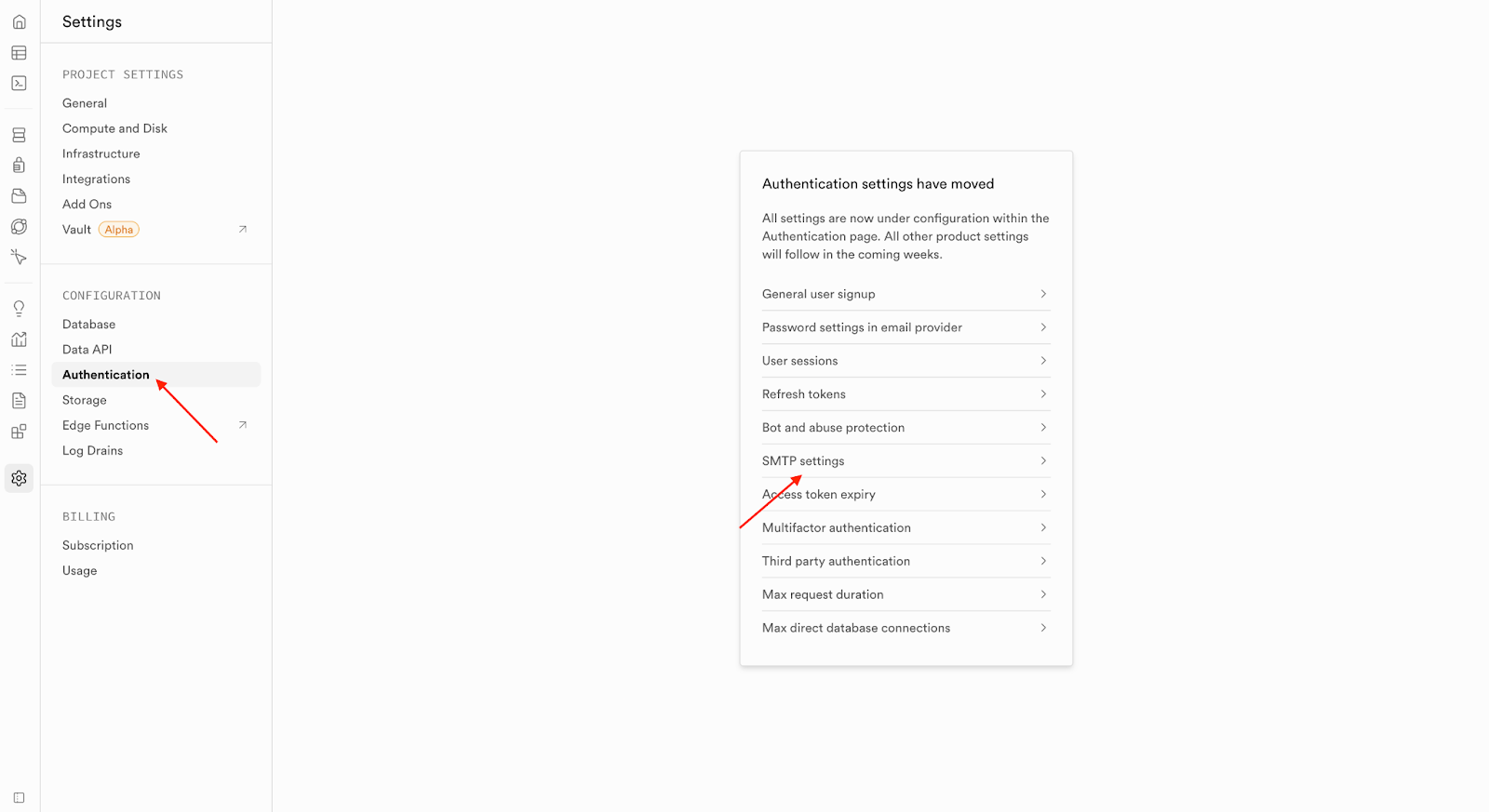
* Click on **Authentication** → **SMTP settings**.
* Click on **Emails** → **SMTP Settings** and enable the **Enable Custom SMTP** toggle. Update **Host**, **Port**, **Username**, and **Password** with your Mailtrap credentials, then click **Save changes**.
* Update the **Sender details** and **SMTP provider settings** like in the screenshot below, and hit **Save changes**.
#### **Monitor your email performance**
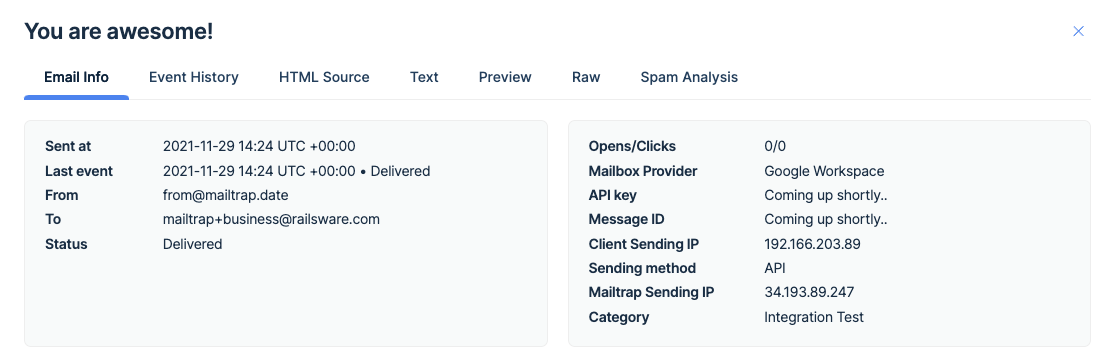
Once you send emails from your Supabase project, they should arrive in both your recipient's inbox and your **Mailtrap Email Logs**. There, you can see useful information such as delivery time, opens/clicks, email HTML source, [spam analysis](/email-sandbox/testing/spam-blacklist-reports.md), and more.
You can read more about **Mailtrap Email Logs** in our [dedicated article](/email-api-smtp/analytics/logs.md).
Additionally, you'll be able to see all important stats regarding your sent emails, such as opens, clicks, bounces, and more.
For more information on **Mailtrap Analytics**, [click here](/email-api-smtp/analytics/dashboard.md).
{% endstep %}
{% endstepper %}
---
# Agent Instructions
This documentation is published with GitBook. GitBook is the documentation platform designed so that both humans and AI agents can read, navigate, and reason over technical content effectively. Learn more at gitbook.com.
## Querying This Documentation
If you need additional information that is not directly available in this page, you can query the documentation dynamically by asking a question.
Perform an HTTP GET request on the current page URL with the `ask` query parameter, and the optional `goal` query parameter:
```
GET https://docs.mailtrap.io/guides/integrations/supabase/transactional-emails.md?ask=&goal=
```
`ask` is the immediate question: it should be specific, self-contained, and written in natural language.
`goal` is optional and describes the broader end goal you are ultimately trying to accomplish on behalf of the user. GitBook uses it to tailor the answer towards what is most useful for that goal.
The response will contain a direct answer to the question and relevant excerpts and sources from the documentation.
Use this mechanism when the answer is not explicitly present in the current page, you need clarification or additional context, or you want to retrieve related documentation sections.