> For the complete documentation index, see [llms.txt](https://docs.mailtrap.io/llms.txt). Markdown versions of documentation pages are available by appending `.md` to page URLs; this page is available as [Markdown](https://docs.mailtrap.io/guides/integrations/supabase/contacts-management.md).
# Sync Contacts with Supabase
Seamlessly sync your Supabase user base with Mailtrap to update email lists, create segments, launch personalized campaigns, and measure effectiveness.
You can seamlessly sync your Supabase user base with Mailtrap, which allows you to:
* Seamlessly update your email list
* Create segments based on user data
* Launch personalized email campaigns
* Measure campaign effectiveness
In this guide, you'll learn how to:
* Generate a Mailtrap API token
* Create contacts in Supabase and Mailtrap
* Update contacts in Supabase and Mailtrap
* Demo and test the integration
{% hint style="info" %}
You can read more about Contacts in our [dedicated article](broken://spaces/S3xyr7ba7aGO19rc8dSK/pages/nI0kTLZIiTYSL3AQM8H1).
{% endhint %}
## Generate a Mailtrap API token
Whether you want to only create contacts or update them via Mailtrap x Supabase, you'll first need a Mailtrap API token.
{% stepper %}
{% step %}
**Access API Tokens**
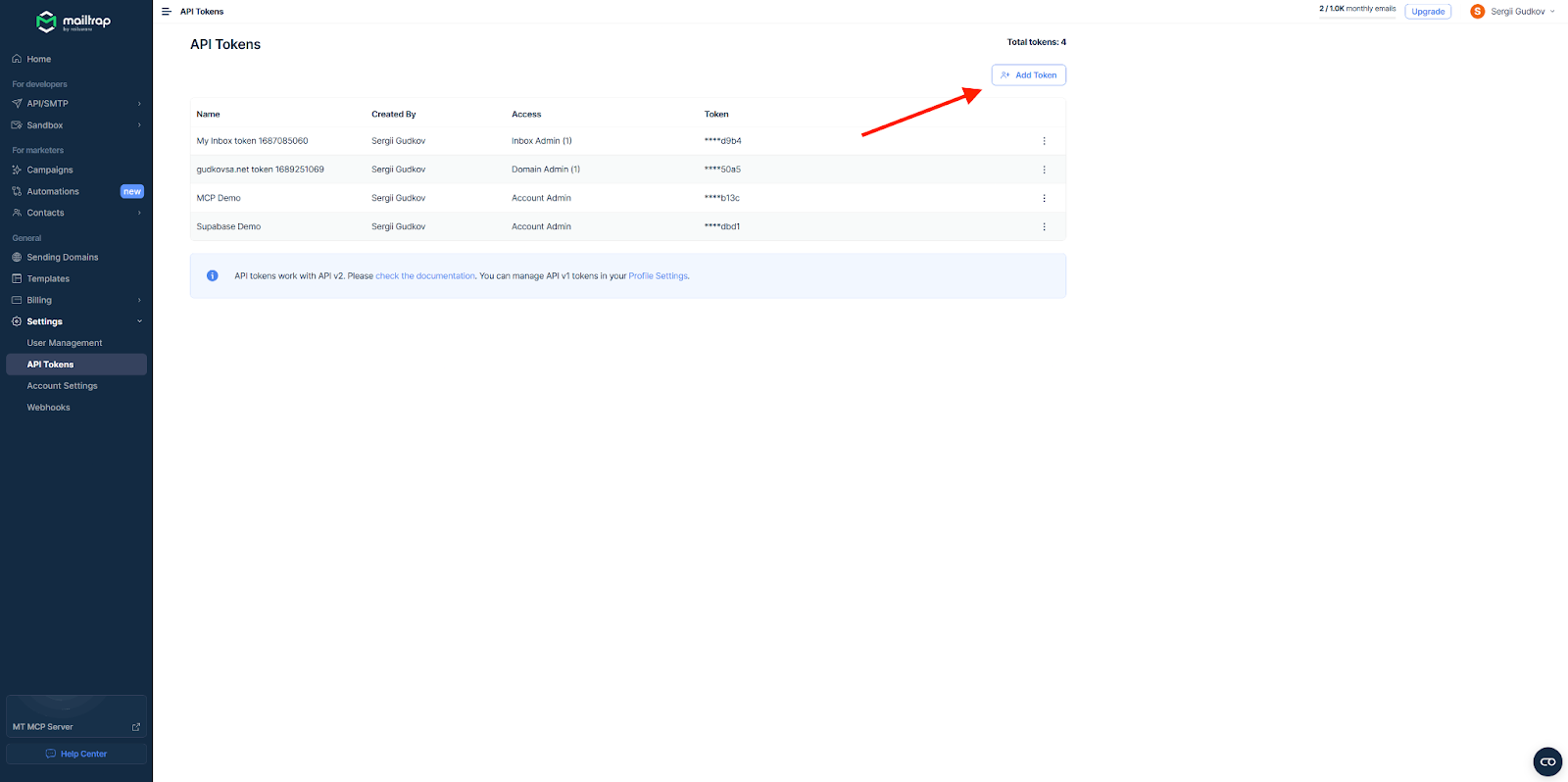
Go to **Settings** on the left side-bar menu, navigate to **API Tokens**, and click on **Add Token**.
{% endstep %}
{% step %}
**Configure Token Permissions**
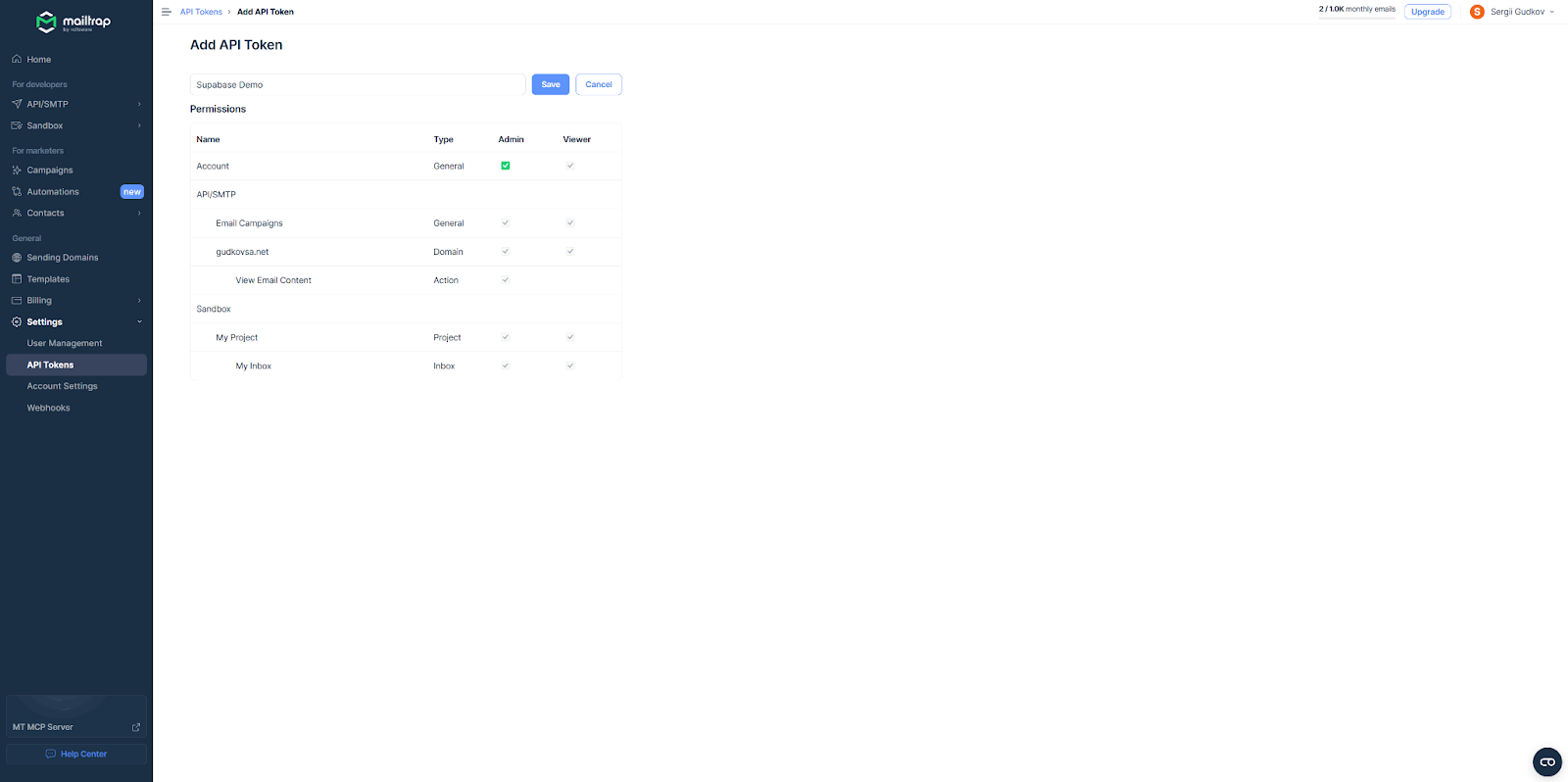
Enter the desired name, click on **Add Token**, tick the desired permission checkboxes, and hit **Save**.
{% endstep %}
{% step %}
**Copy and Store Token**
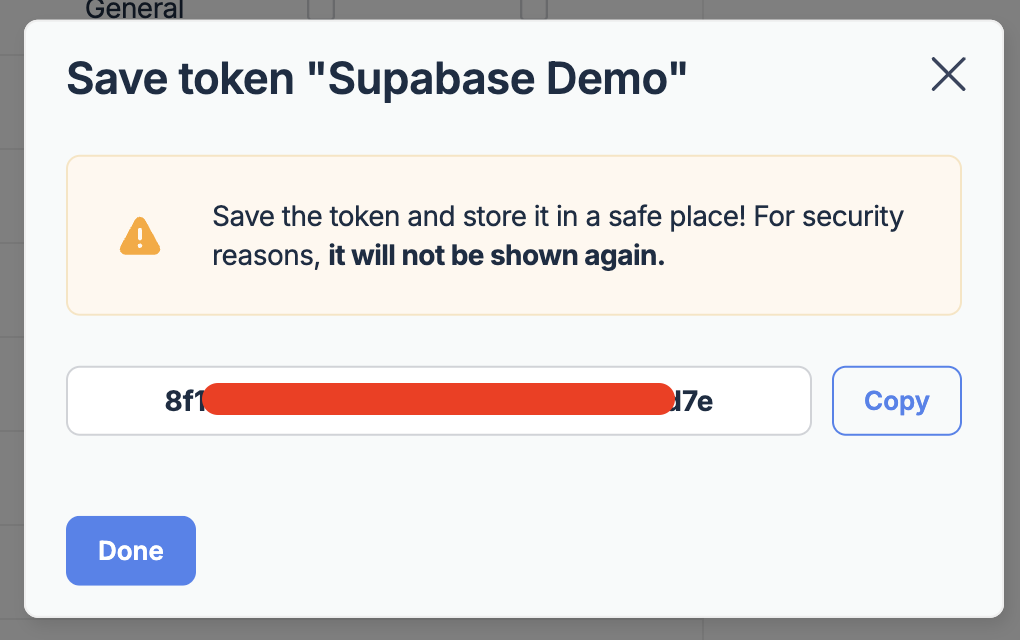
Copy the token and save it in a secure place.
{% endstep %}
{% endstepper %}
## Creating contacts
Before we start, let me briefly explain the workflow:
* A user registers in your app
* Their email appears not only in Supabase but also in the Contacts page
* Then, you can easily group the new contact into different lists, segments, etc.
### Step 1. Create an Edge Function in Supabase
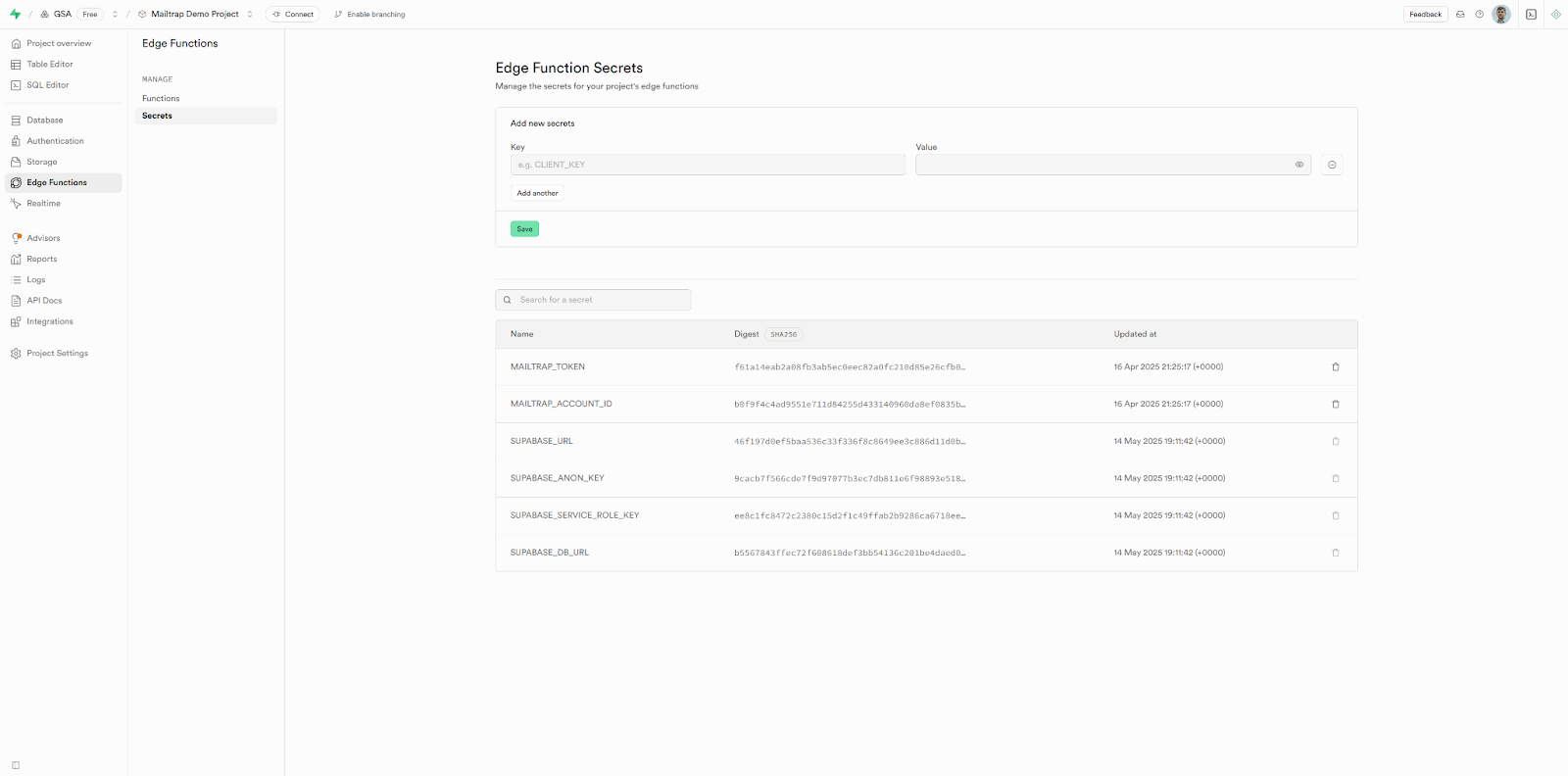
First, let's create an Edge Function containing our Mailtrap API token.
{% stepper %}
{% step %}
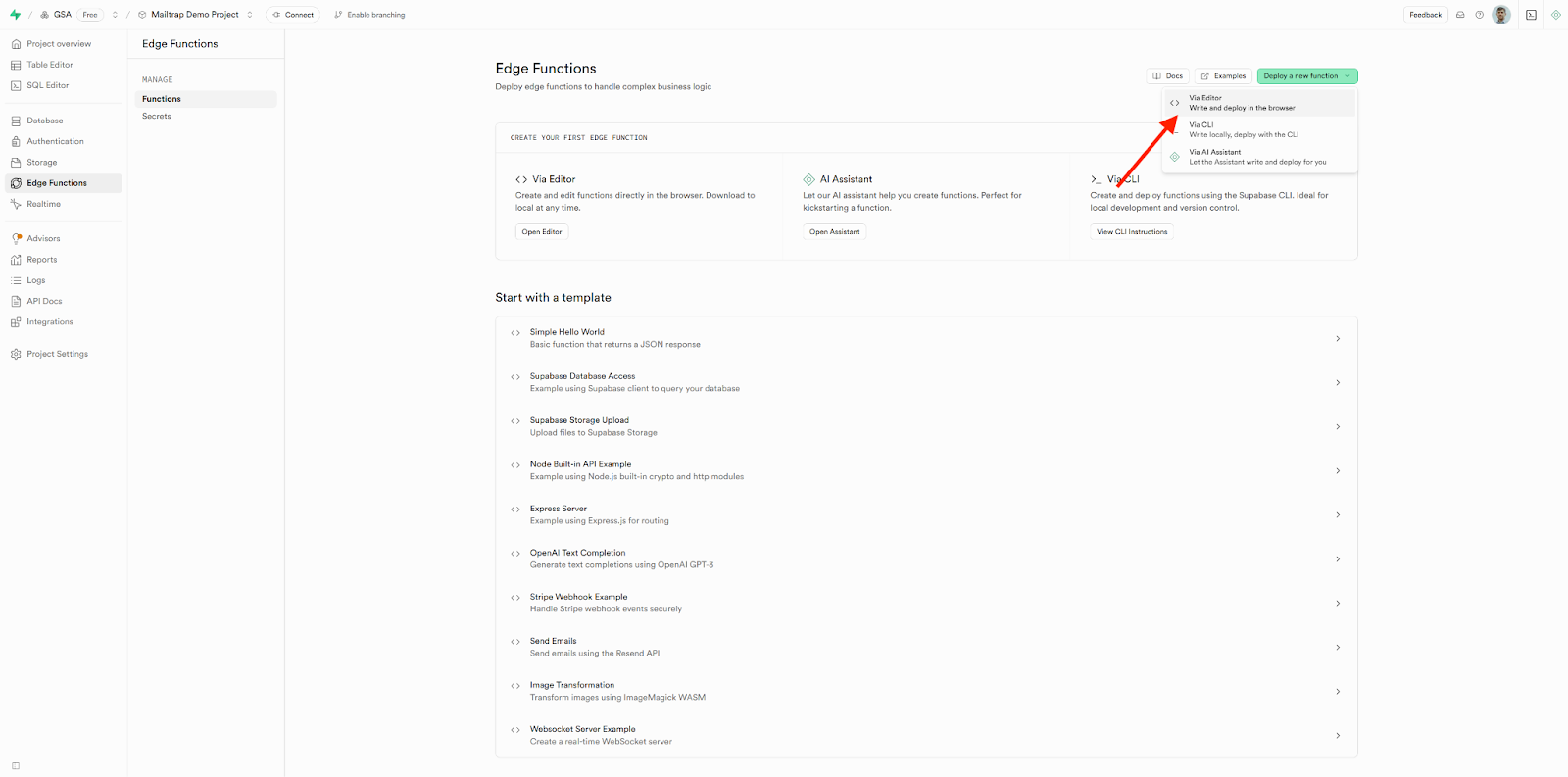
**Open Edge Functions**
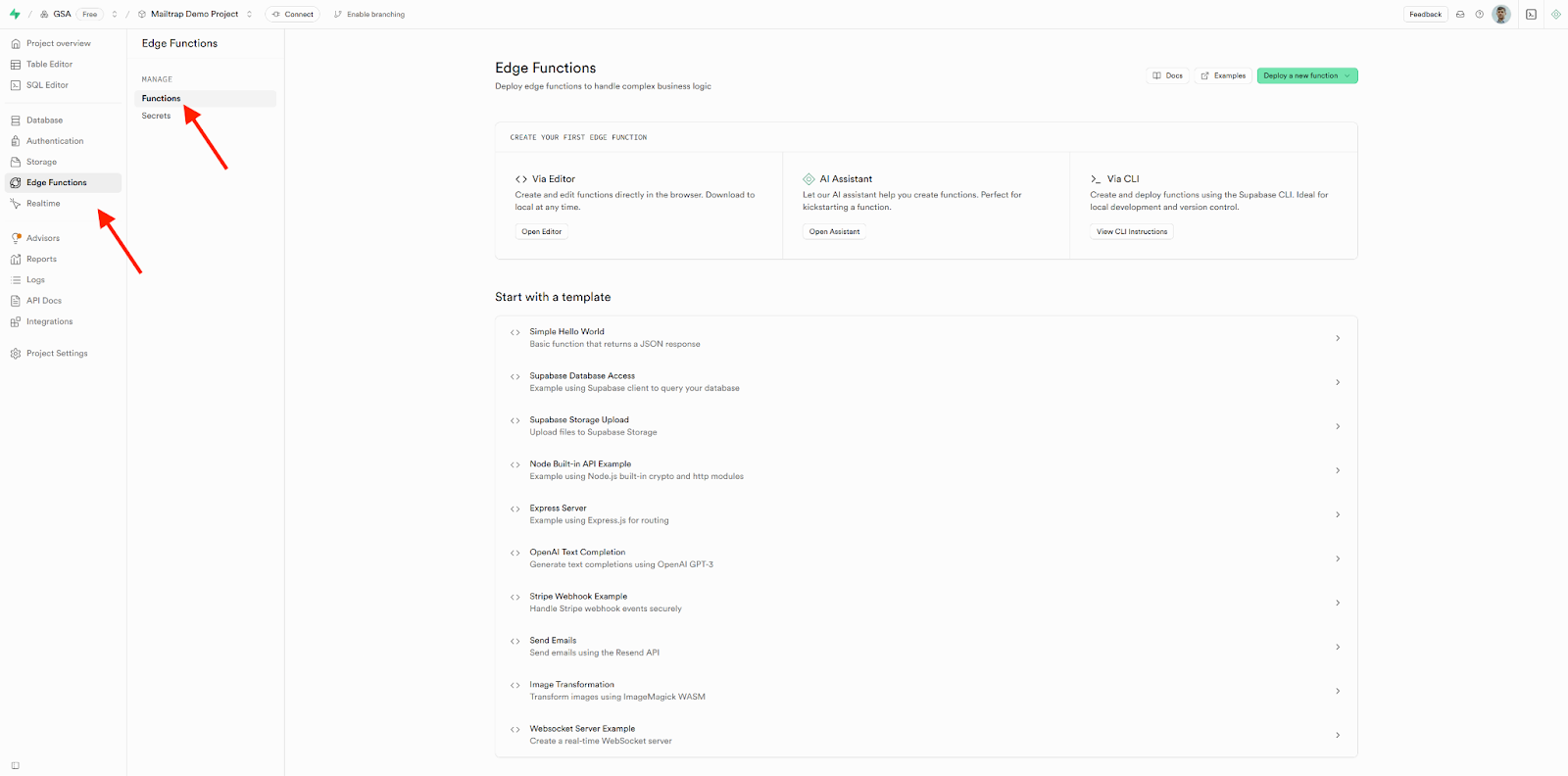
Open your Supabase [project dashboard](https://supabase.com/dashboard/projects) and go to **Edge Functions**.
{% endstep %}
{% step %}
**Deploy New Function**
Click on **Deploy a new Function** in the upper-right corner and select **Via Editor**.
{% endstep %}
{% step %}
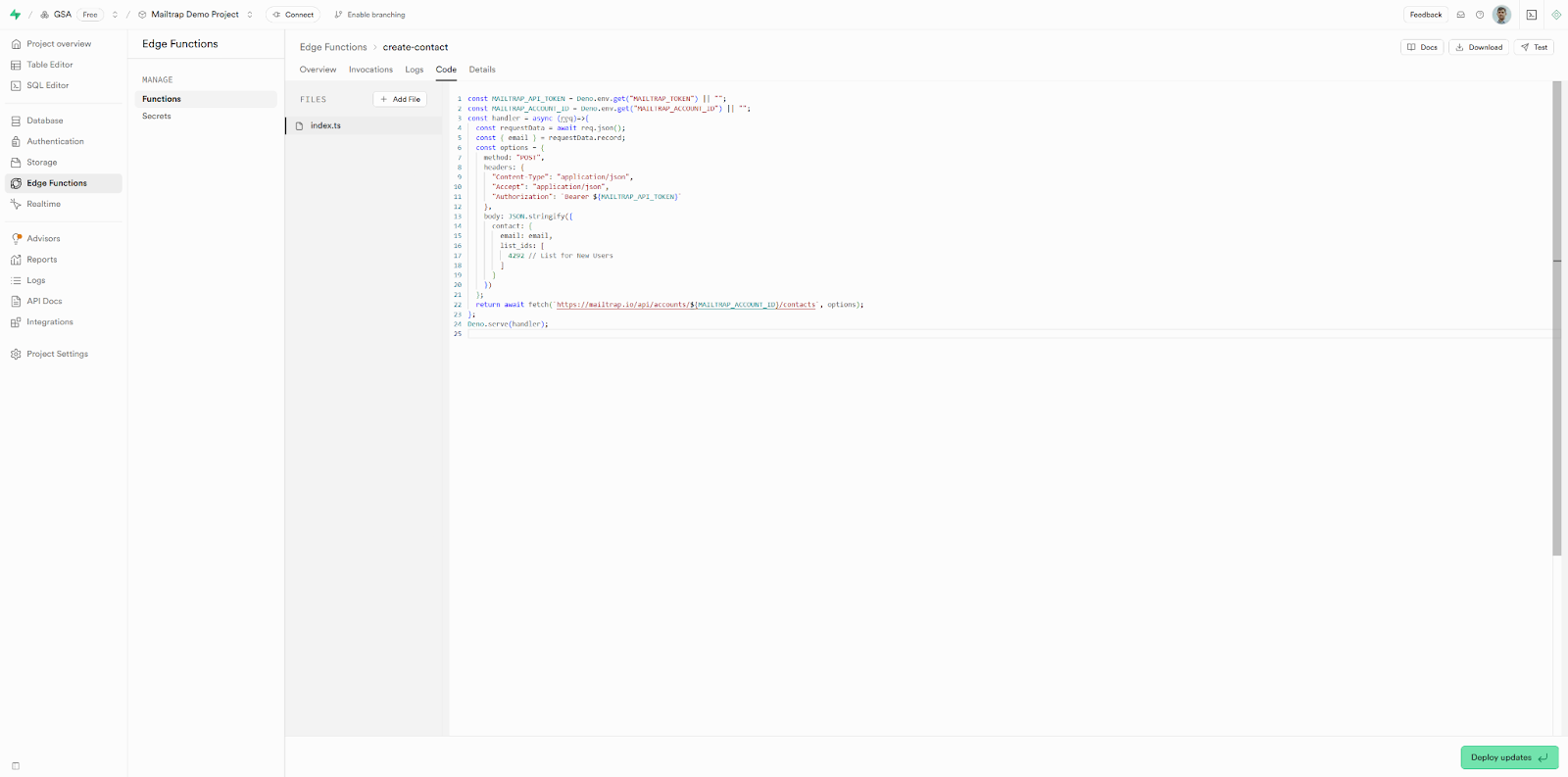
**Add Function Code**
Inside the function editor, you should see the default serverless function template.
Replace it with the following code snippet that will send user data to Contacts:
{% code title="create-contact Edge Function" %}
```javascript
const MAILTRAP_API_TOKEN = Deno.env.get("MAILTRAP_TOKEN") || "";
const MAILTRAP_ACCOUNT_ID = Deno.env.get("MAILTRAP_ACCOUNT_ID") || "";
const handler = async (req) => {
const requestData = await req.json();
const { email } = requestData.record;
const options = {
method: "POST",
headers: {
"Content-Type": "application/json",
"Accept": "application/json",
"Authorization": `Bearer ${MAILTRAP_API_TOKEN}`
},
body: JSON.stringify({
contact: {
email: email,
list_ids: [
4292 // List for New Users
]
}
})
};
return await fetch(`https://mailtrap.io/api/accounts/${MAILTRAP_ACCOUNT_ID}/contacts`, options);
};
Deno.serve(handler);
```
{% endcode %}
Replace the variable `list_ids:` value (4292 in this example) with the ID of the list where you want to add the contact.
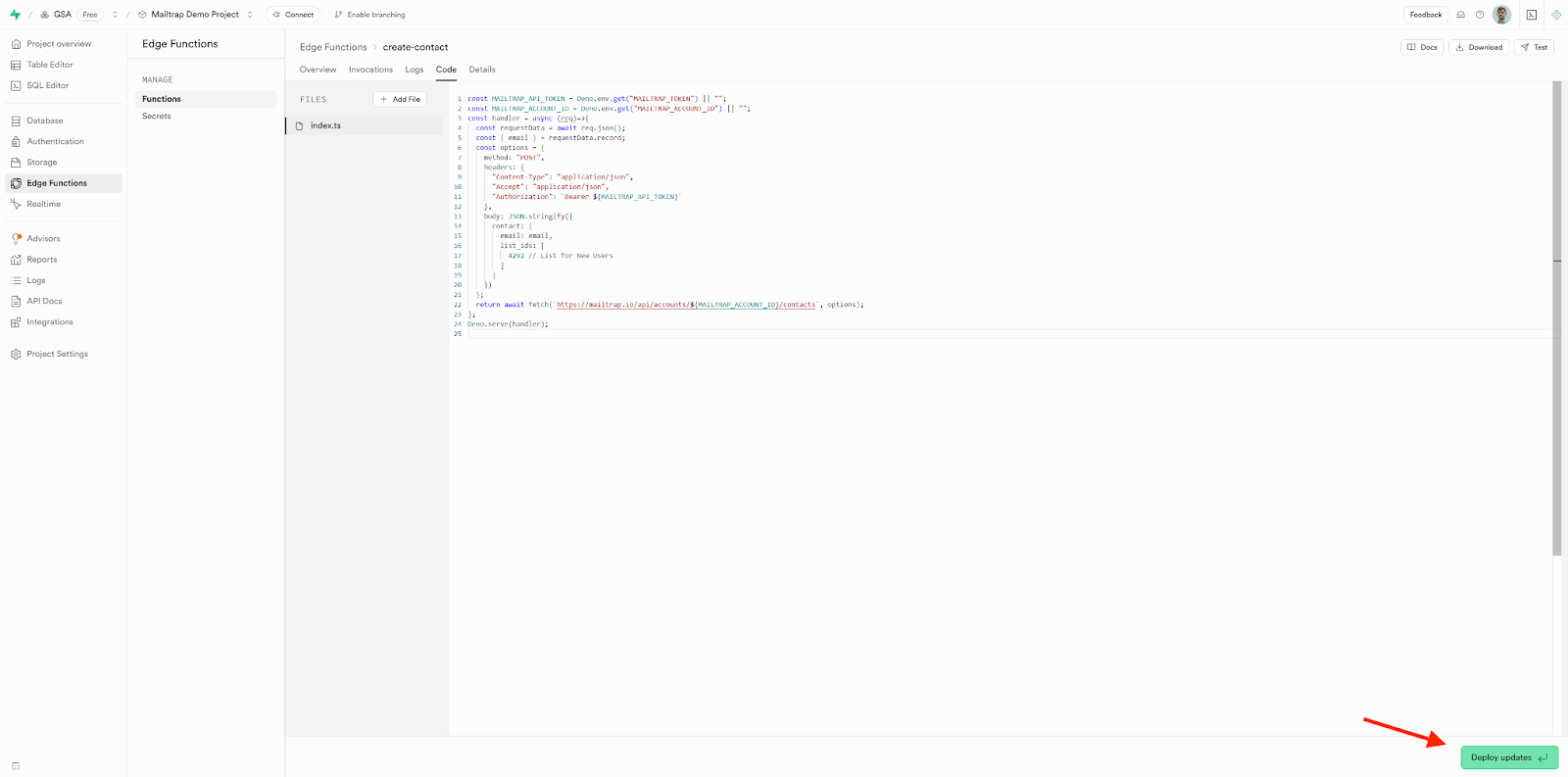
Then, click on **Deploy Function**.
{% endstep %}
{% step %}
**Verify Deployment**
Supabase will build and deploy the Edge Function.
{% endstep %}
{% endstepper %}
### Step 2. Set up webhooks for contact creation
Next, we will create a [Supabase Webhook](https://supabase.com/docs/guides/database/webhooks) to trigger the Edge Function we just created.
{% stepper %}
{% step %}
**Navigate to Database Webhooks**
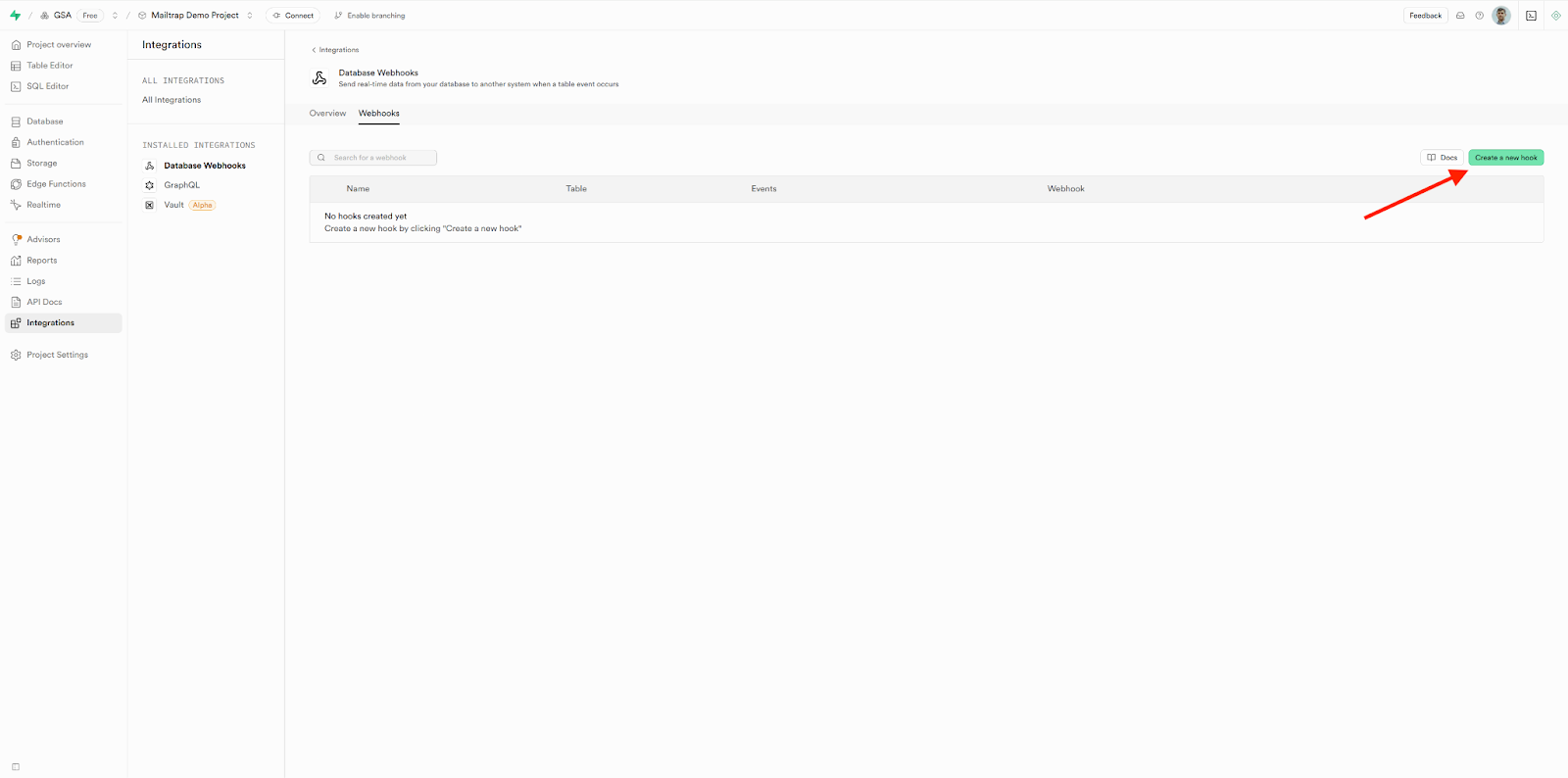
Open your Supabase Dashboard, go to **Database Webhooks**, and click on **Create a new hook**.
{% endstep %}
{% step %}
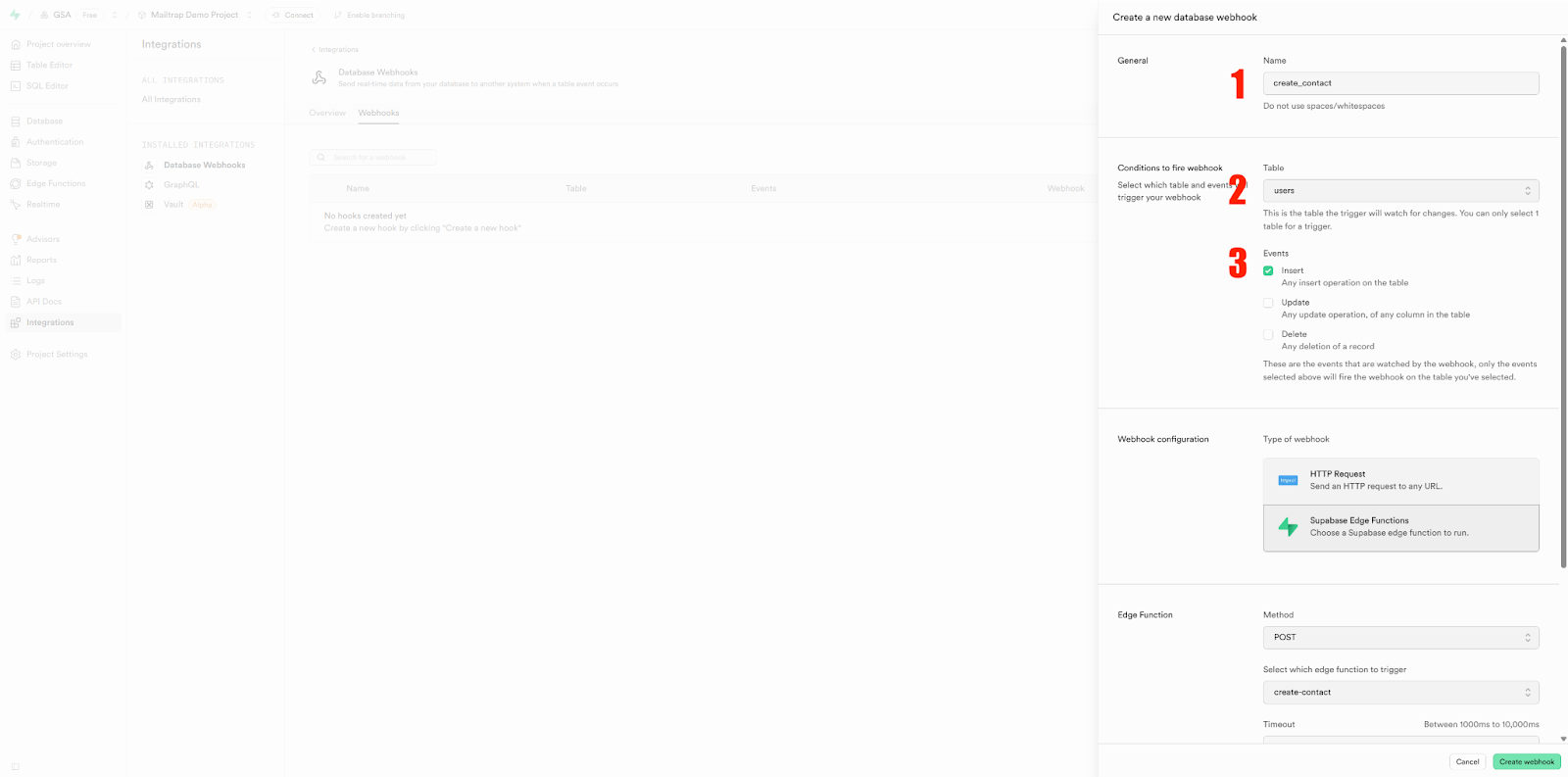
**Configure Basic Settings**
Configure the following:
* **Name**: create\_contact
* **Table**: users
* **Events**: ✅ Insert
{% endstep %}
{% step %}
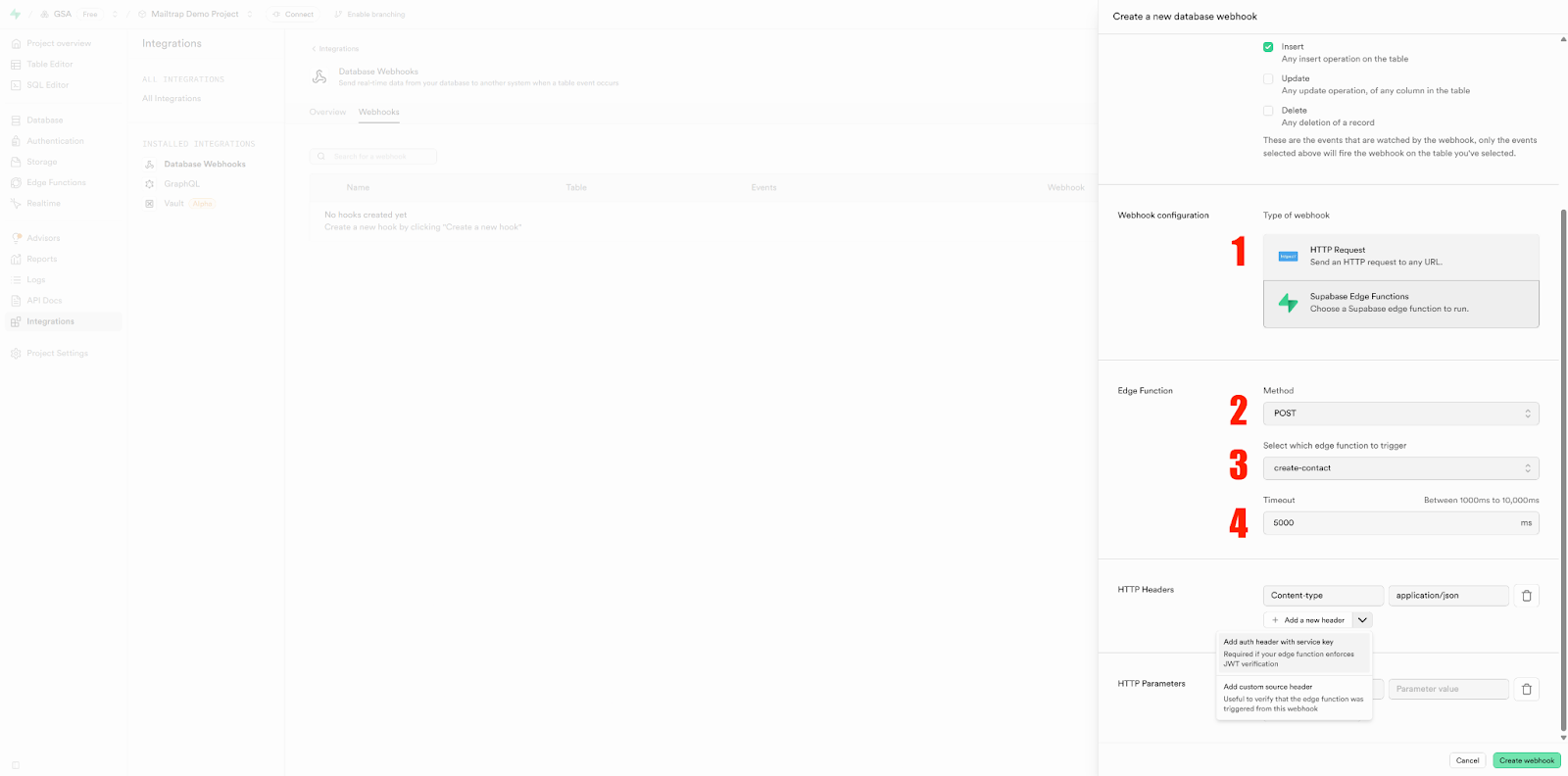
**Configure Webhook Type**
Configure the following:
* Choose **Supabase Edge Functions** under 'Webhook configuration'
* Go for **POST** under 'Method'
* Select the previously created function **create-contact**
* Set the desired timeout (e.g., 5000)
{% endstep %}
{% step %}
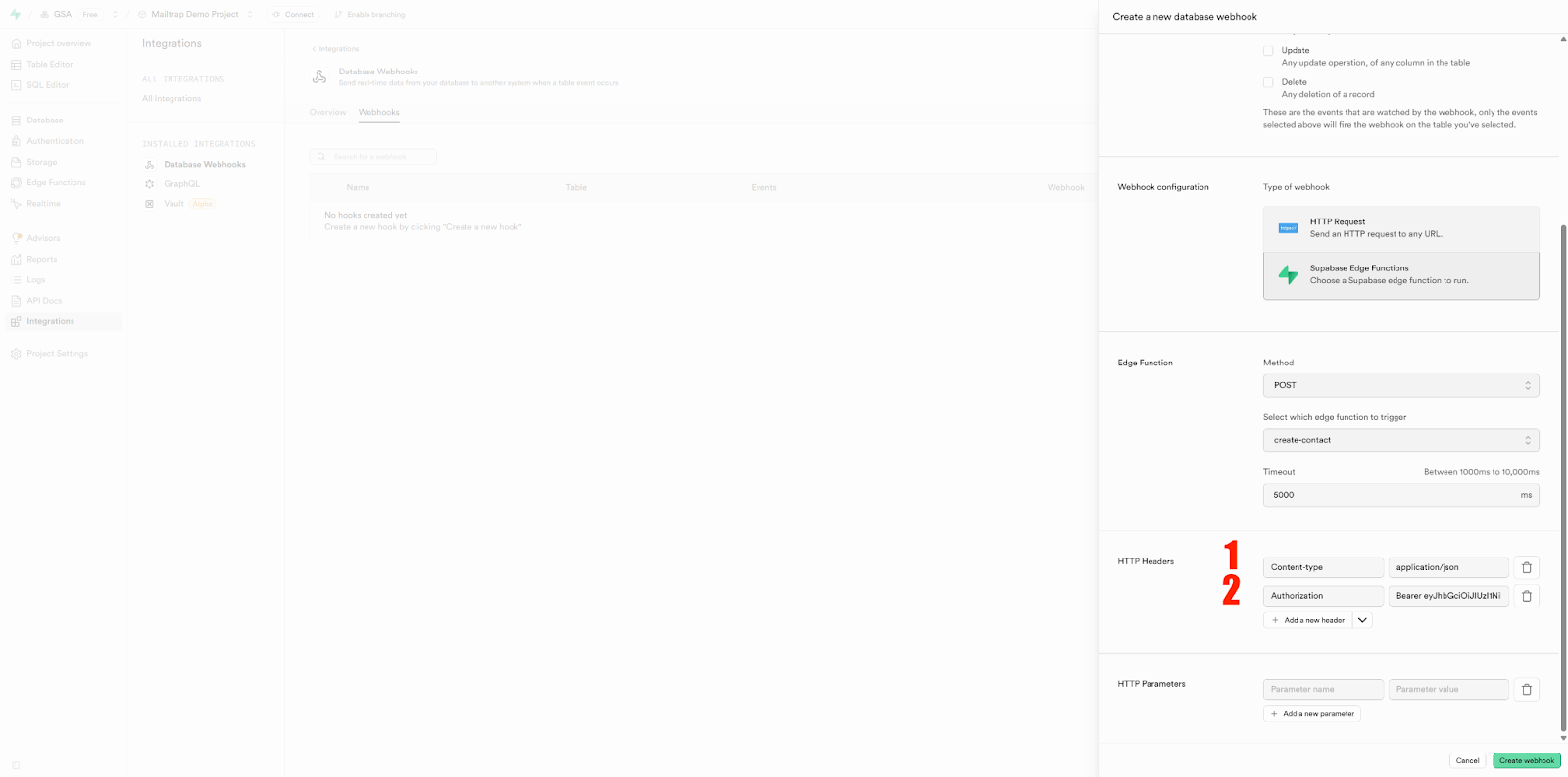
**Set HTTP Headers**
Set HTTP headers for Auth:
* **Content-type**: application/json
* **Authorization**: Bearer \[your-token]
Click **Create webhook** to activate it.
{% endstep %}
{% endstepper %}
## Updating contacts
Here, the flow is quite similar to creating contacts, with the major difference being the code we'll use.
How it works:
* A registered user updates their name/account info
* The newly updated info appears not only in Supabase but also in the Mailtrap Contacts page
* Then, you can send more personalized emails (e.g., name or state fields)
### Step 1. Create an edge function
Again, we start by creating an Edge Function and adding Mailtrap API token to it.
{% stepper %}
{% step %}
**Open Edge Functions**
Open your Supabase [project dashboard](https://supabase.com/dashboard/projects) and go to **Edge Functions**.
{% endstep %}
{% step %}
**Deploy New Function**
Click on **Deploy a new function** in the upper-right corner and select **Via Editor**.
{% endstep %}
{% step %}
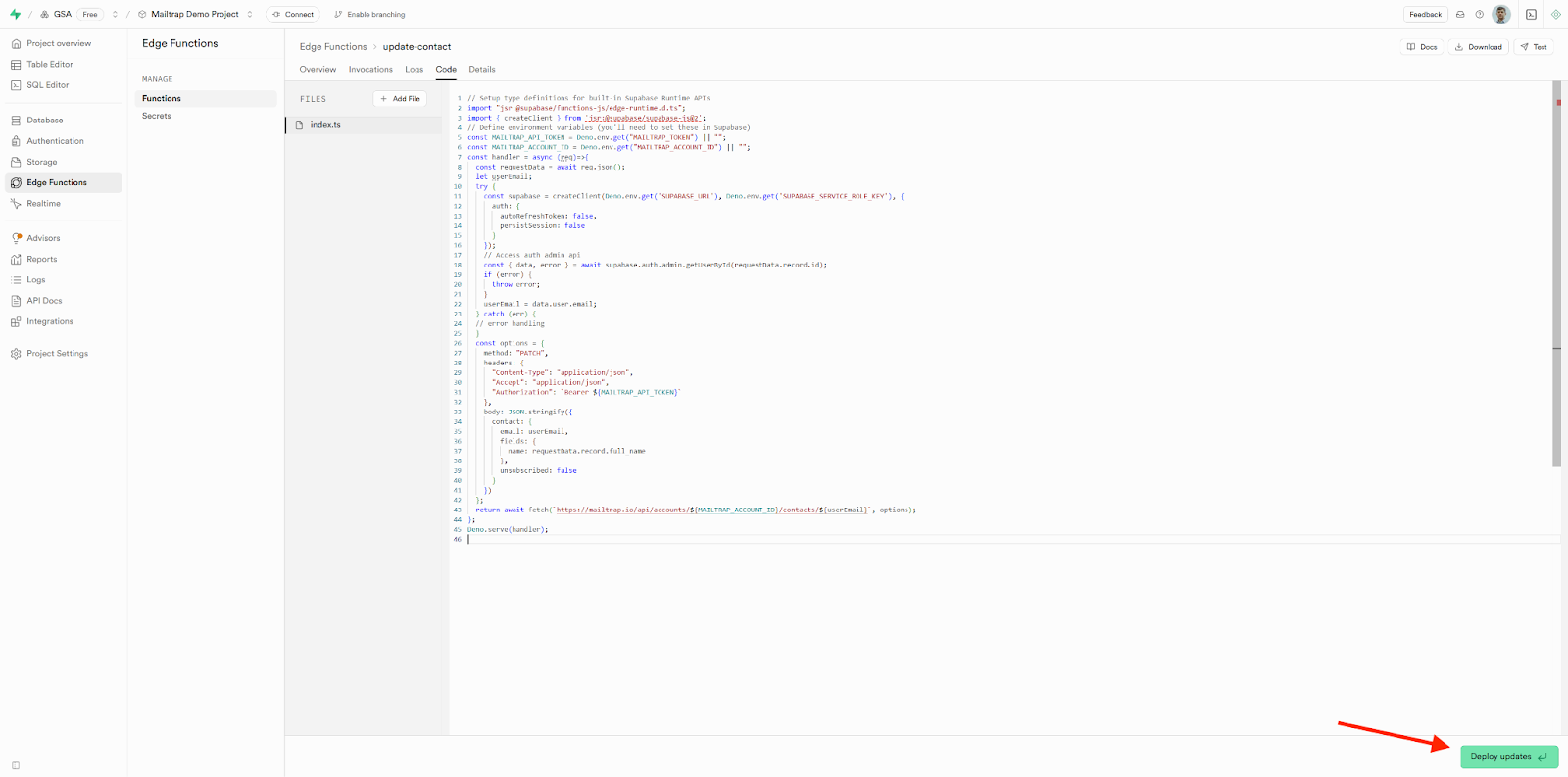
**Add Function Code**
Inside the function editor, you should see the default serverless function template.
Replace it with the following code snippet, which will:
* Receive user data from the webhook
* Call the Mailtrap API to update existing contact details
{% code title="update-contact Edge Function" %}
```javascript
// Setup type definitions for built-in Supabase Runtime APIs
import "jsr:@supabase/functions-js/edge-runtime.d.ts";
import { createClient } from 'jsr:@supabase/supabase-js@2';
// Define environment variables (you'll need to set these in Supabase)
const MAILTRAP_API_TOKEN = Deno.env.get("MAILTRAP_TOKEN") || "";
const MAILTRAP_ACCOUNT_ID = Deno.env.get("MAILTRAP_ACCOUNT_ID") || "";
const handler = async (req) => {
const requestData = await req.json();
let userEmail;
try {
const supabase = createClient(Deno.env.get('SUPABASE_URL'), Deno.env.get('SUPABASE_SERVICE_ROLE_KEY'), {
auth: {
autoRefreshToken: false,
persistSession: false
}
});
// Access auth admin api
const { data, error } = await supabase.auth.admin.getUserById(requestData.record.id);
if (error) {
throw error;
}
userEmail = data.user.email;
} catch (err) {
// error handling
}
const options = {
method: "PATCH",
headers: {
"Content-Type": "application/json",
"Accept": "application/json",
"Authorization": `Bearer ${MAILTRAP_API_TOKEN}`
},
body: JSON.stringify({
contact: {
email: userEmail,
fields: {
name: requestData.record.full_name
},
unsubscribed: false
}
})
};
return await fetch(`https://mailtrap.io/api/accounts/${MAILTRAP_ACCOUNT_ID}/contacts/${userEmail}`, options);
};
Deno.serve(handler);
```
{% endcode %}
And, of course, click on **Deploy updates/Deploy function**.
{% endstep %}
{% endstepper %}
### Step 2. Set up a webhook for updating contacts
{% stepper %}
{% step %}
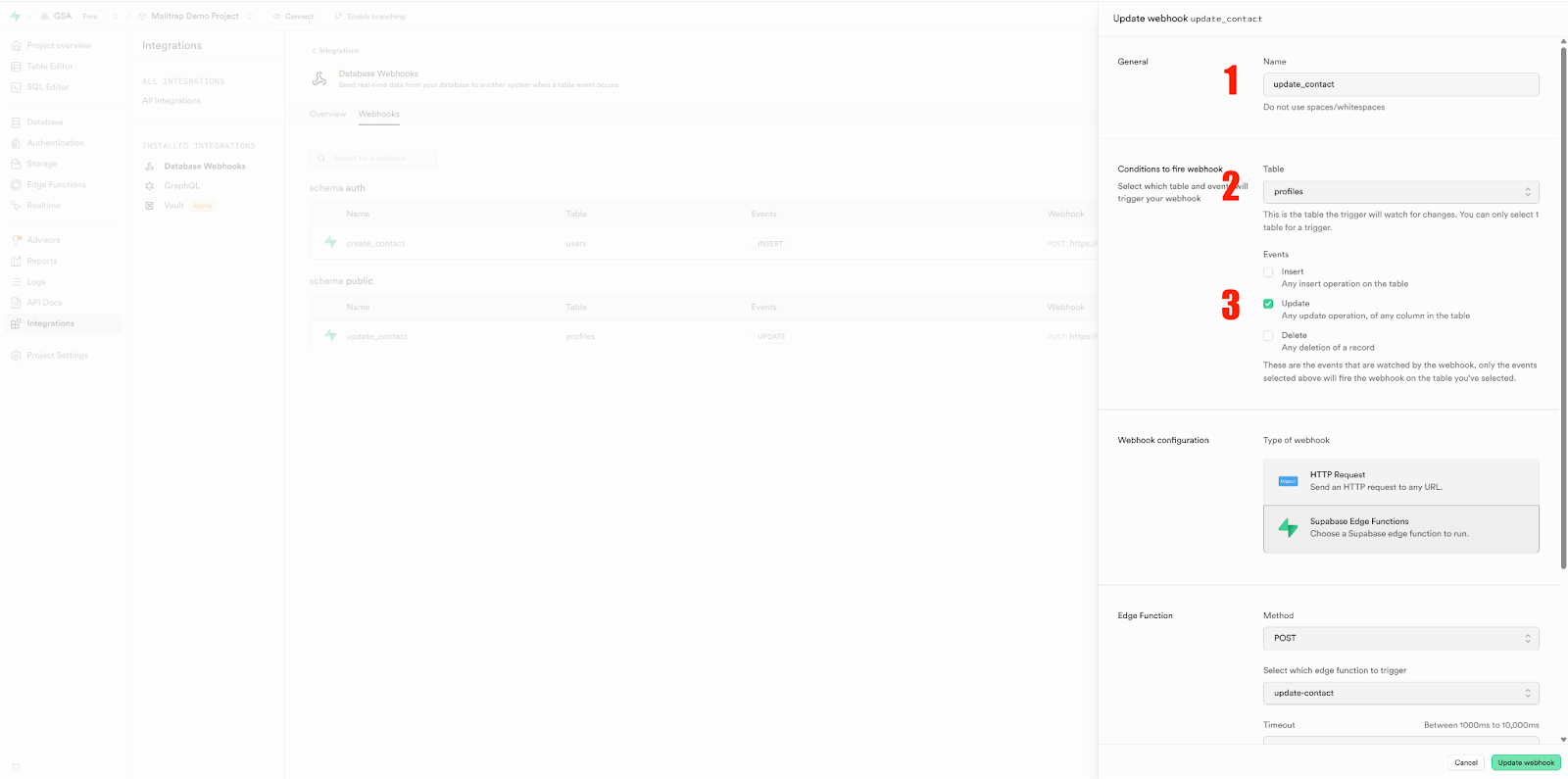
**Create Webhook**
If you don't already have a webhook for updating contacts, open your Supabase Dashboard, go to **Database Webhooks**, and click on **Create a new hook**.
Navigate to **Integrations** → **Webhooks** and configure the following:
* **Name**: update\_contact
* **Table**: profiles
* **Events**: ✅ Update
{% endstep %}
{% step %}
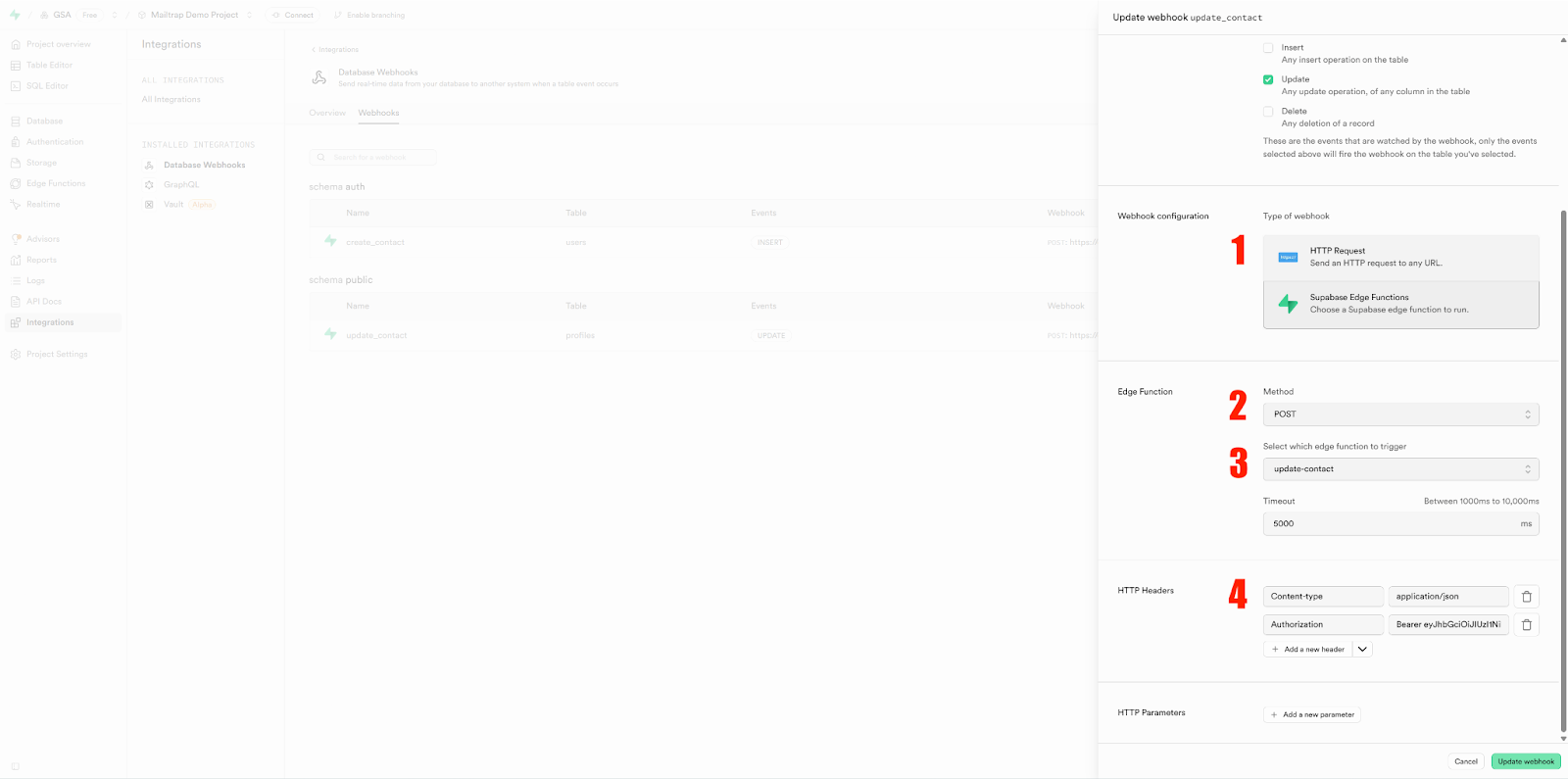
**Configure Webhook Settings**
Configure the following:
* **Type of webhook**: HTTP Request
* **Method**: POST
* **Edge Function**: Select the previously created **update-contact** function
* **Add HTTP Headers**:
* **Content-Type**: application/json
* **Authorization**: Bearer \[your-token]
{% endstep %}
{% endstepper %}
## Integration demo and testing
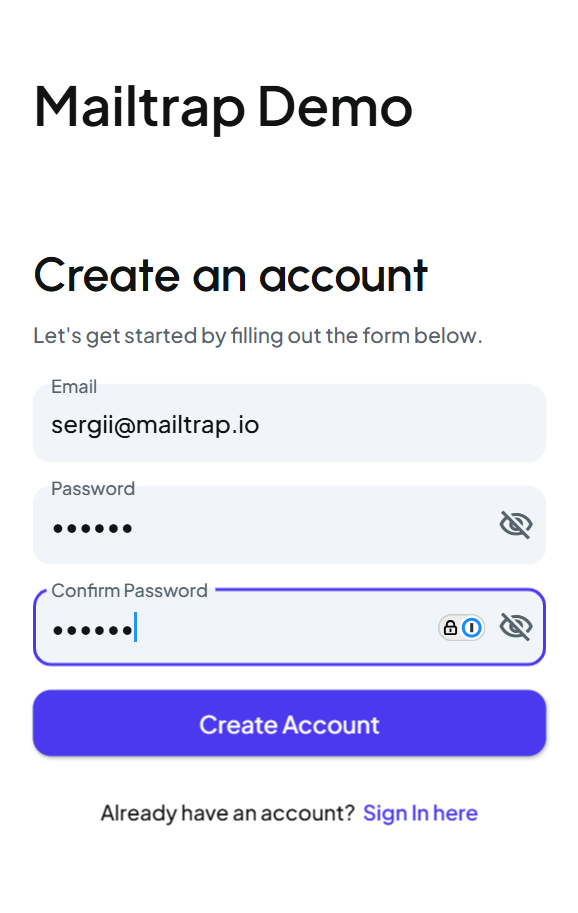
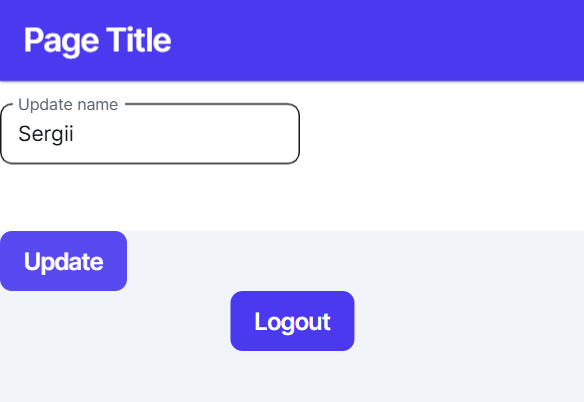
Finally, let's test our webhook configuration. For this example, I'll use a demo app created in FlutterFlow.
{% stepper %}
{% step %}
**Create Test Account**
First, create an account as if you were a new user.
{% endstep %}
{% step %}
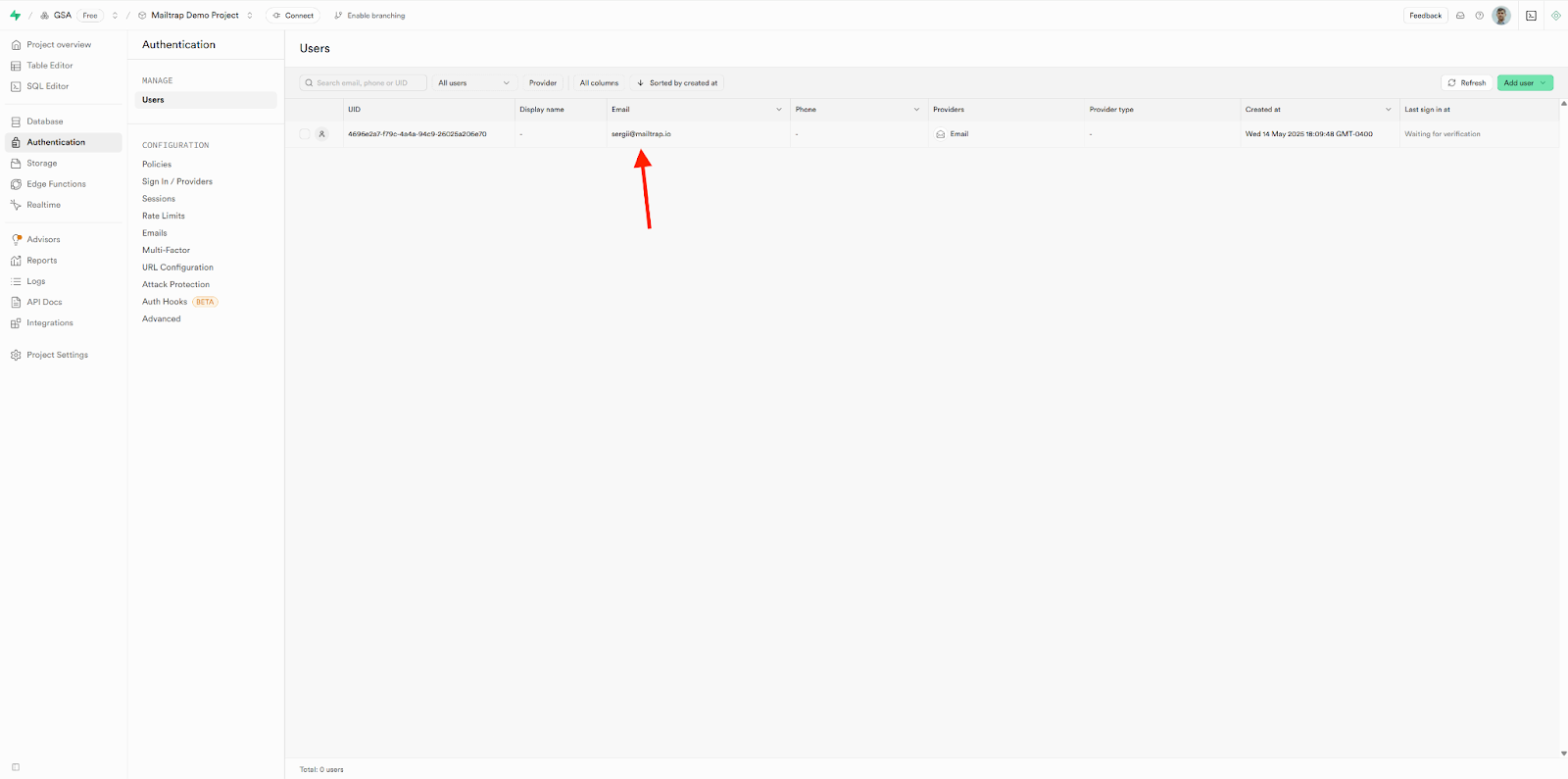
**Verify in Supabase**
A new user should appear in the **Users** page within your Supabase Project.
{% endstep %}
{% step %}
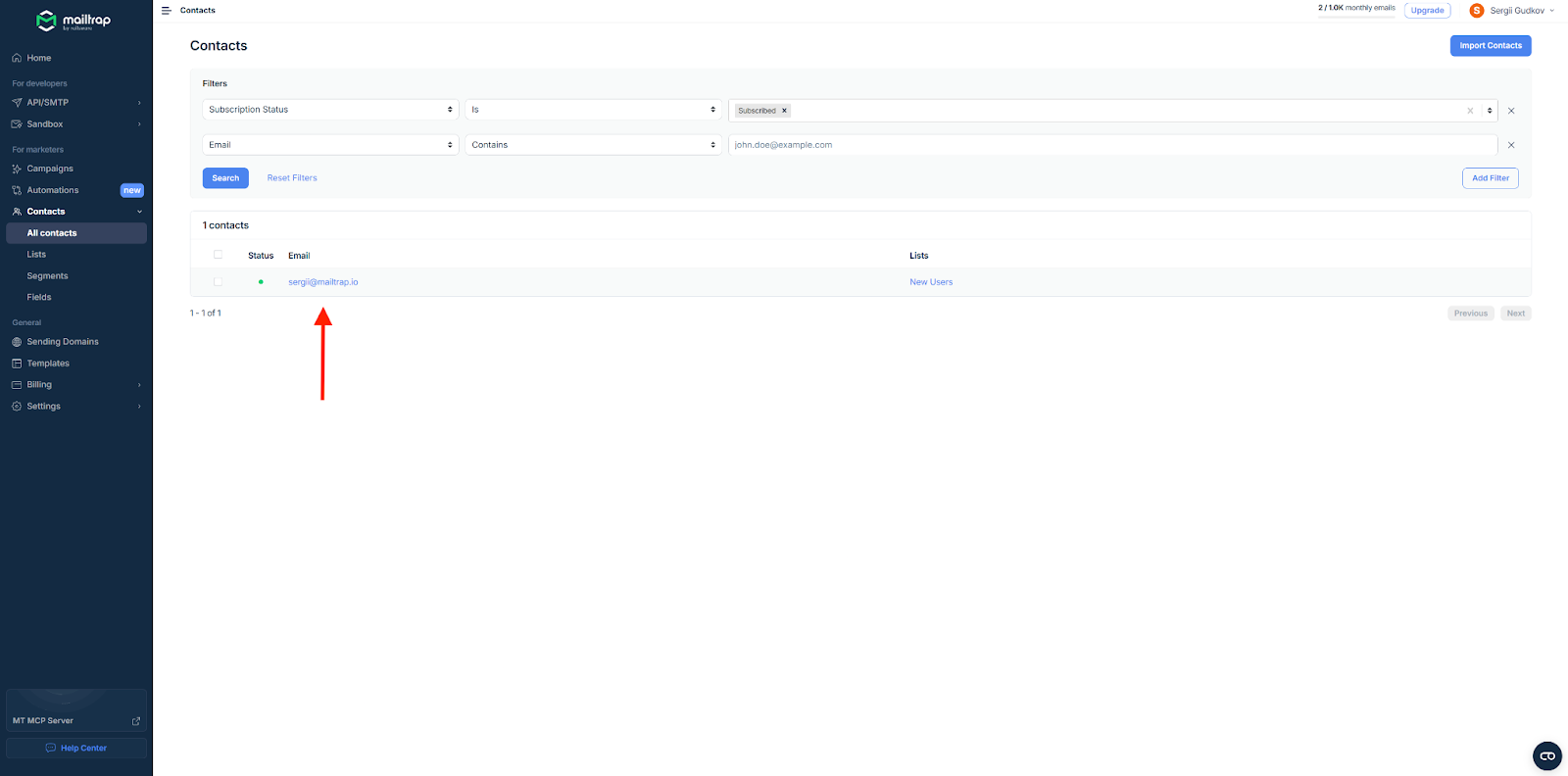
**Verify in Mailtrap**
At the same time, a new user also appears in your Mailtrap Contacts page.
{% endstep %}
{% step %}
**Check Initial Data**
Since the demo app only requires email and password upon registration, that's all the info the webhook sends to the Mailtrap Contacts page initially.
{% endstep %}
{% step %}
**Update Profile**
If you go to your demo app and update the profile name...
{% endstep %}
{% step %}
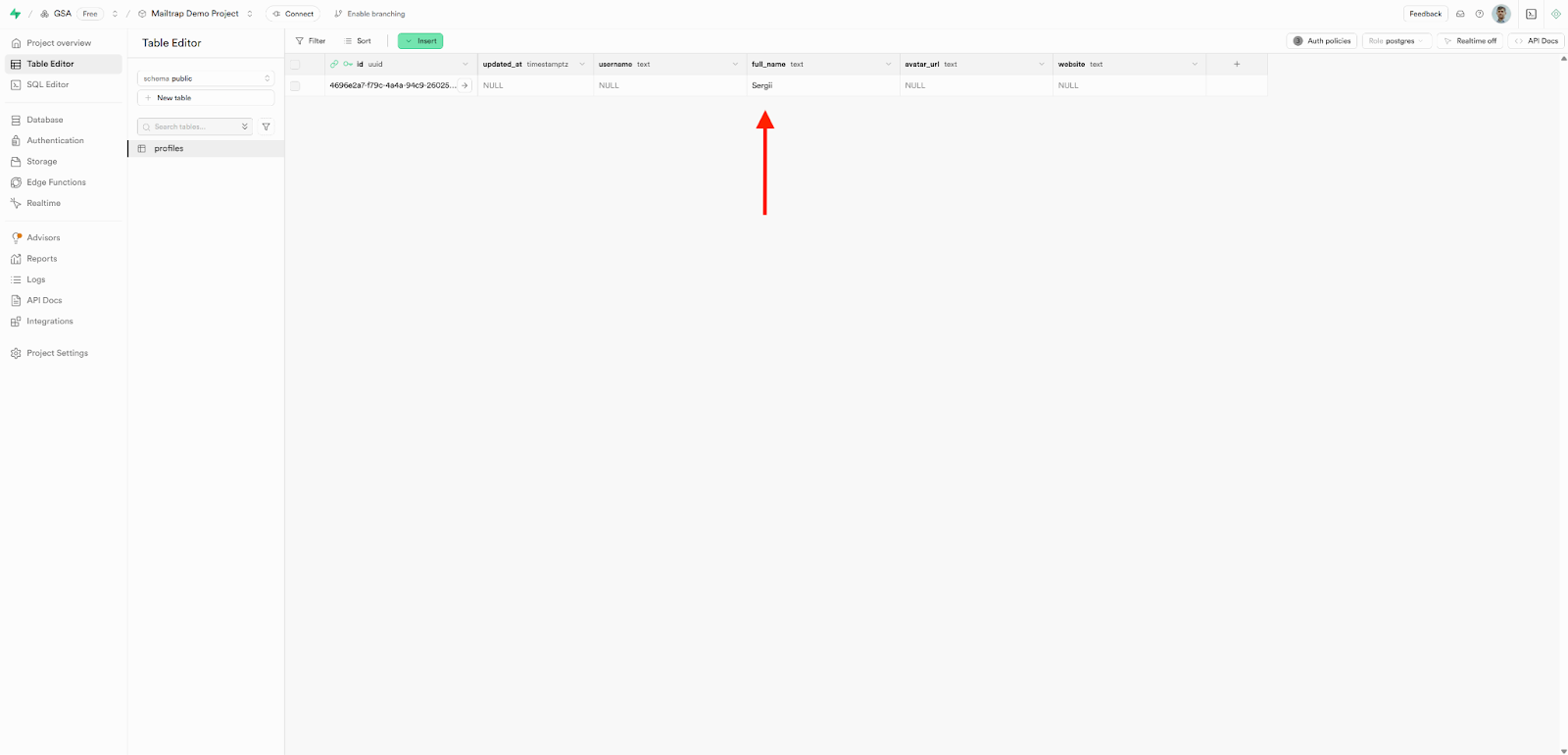
**Verify Update in Supabase**
It should get updated in your Supabase Project...
{% endstep %}
{% step %}
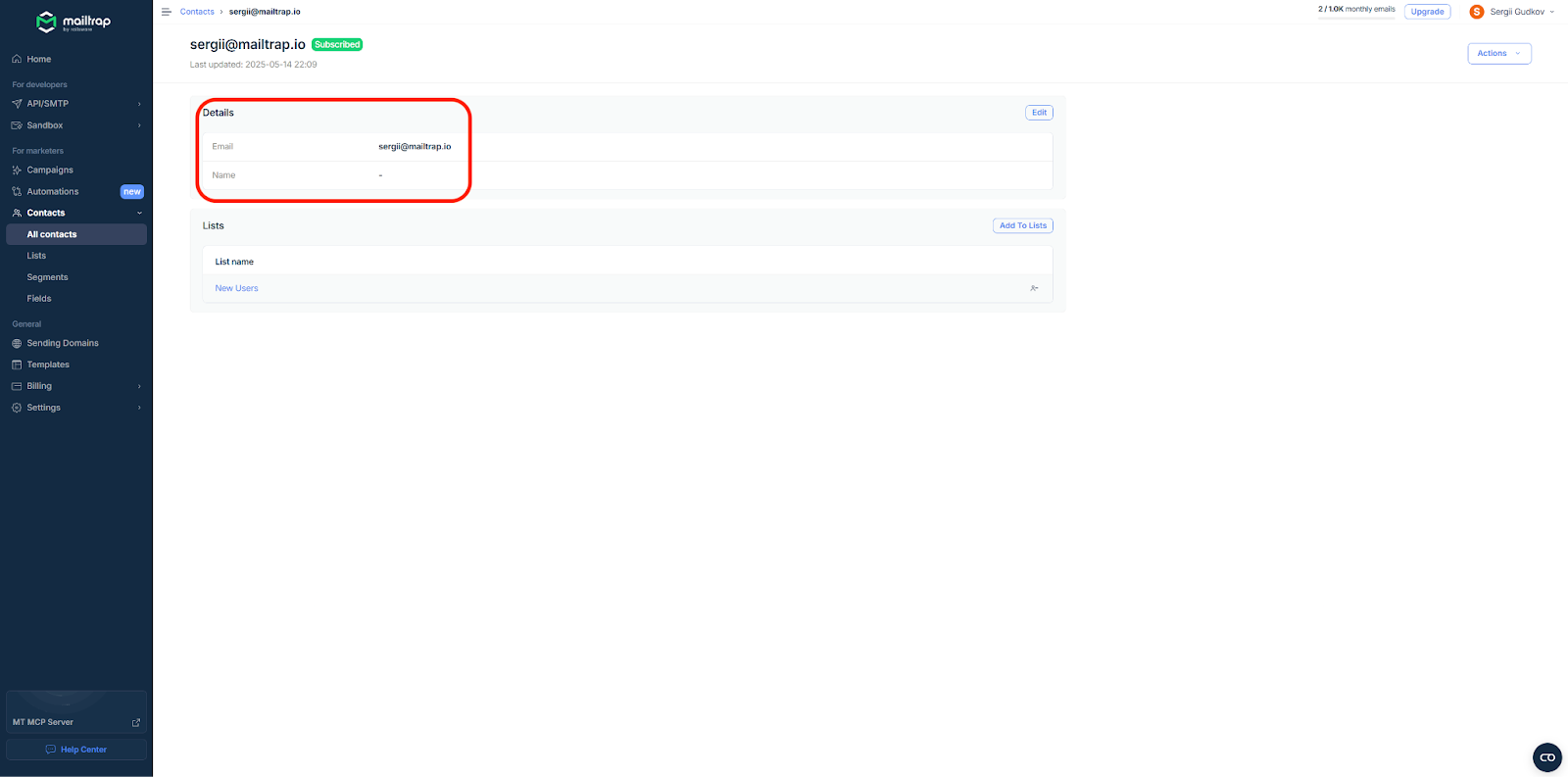
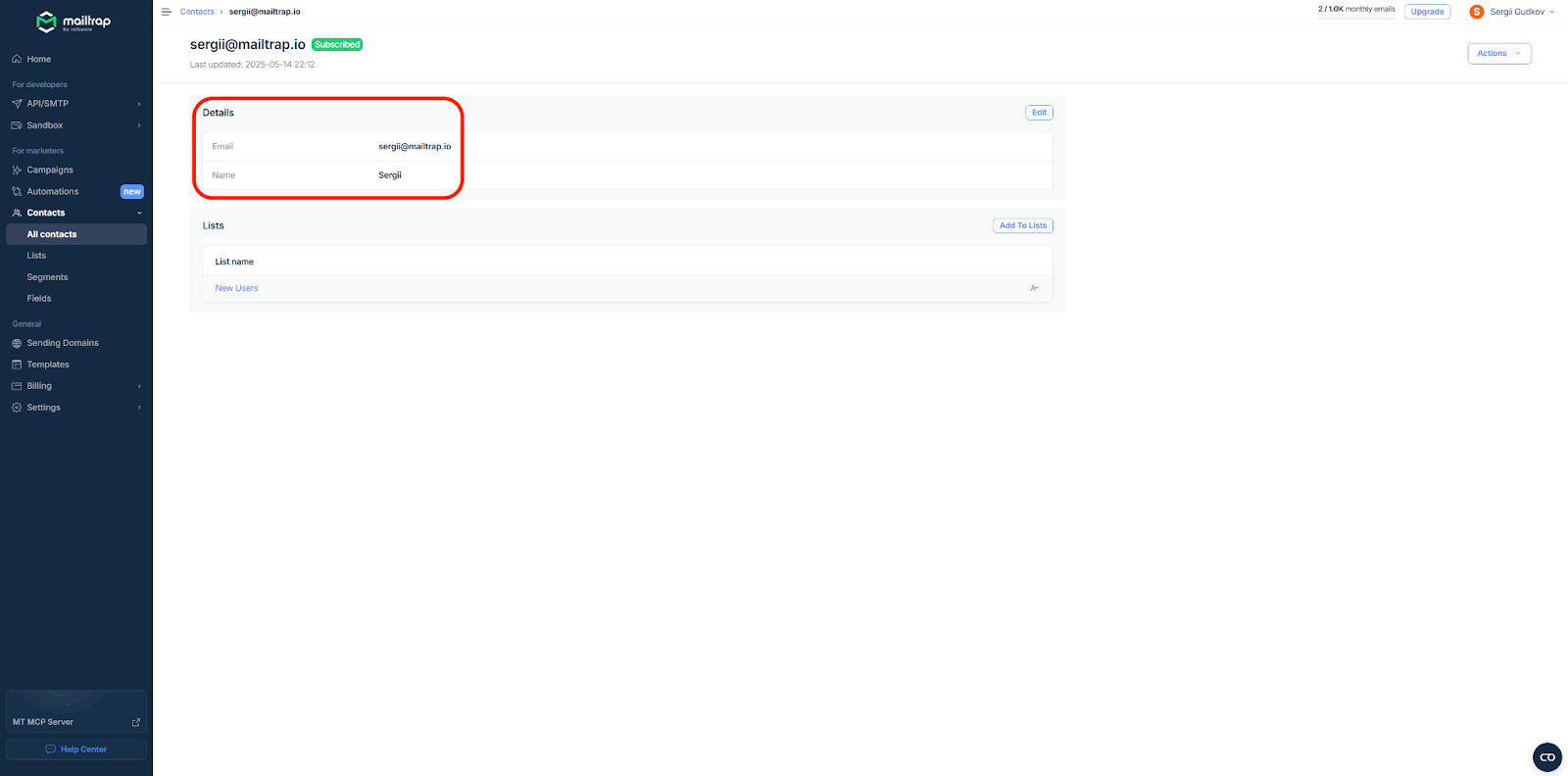
**Verify Update in Mailtrap**
And the Mailtrap Contacts Page, so everything works as intended!
Now, every time a new user logs in and updates their name, their information will be logged in your Mailtrap Contacts page. There, you can group them into lists, segment them accordingly, and use Fields to personalize your email campaigns further.
{% endstep %}
{% endstepper %}
---
# Agent Instructions
This documentation is published with GitBook. GitBook is the documentation platform designed so that both humans and AI agents can read, navigate, and reason over technical content effectively. Learn more at gitbook.com.
## Querying This Documentation
If you need additional information that is not directly available in this page, you can query the documentation dynamically by asking a question.
Perform an HTTP GET request on the current page URL with the `ask` query parameter, and the optional `goal` query parameter:
```
GET https://docs.mailtrap.io/guides/integrations/supabase/contacts-management.md?ask=&goal=
```
`ask` is the immediate question: it should be specific, self-contained, and written in natural language.
`goal` is optional and describes the broader end goal you are ultimately trying to accomplish on behalf of the user. GitBook uses it to tailor the answer towards what is most useful for that goal.
The response will contain a direct answer to the question and relevant excerpts and sources from the documentation.
Use this mechanism when the answer is not explicitly present in the current page, you need clarification or additional context, or you want to retrieve related documentation sections.