> For the complete documentation index, see [llms.txt](https://docs.mailtrap.io/llms.txt). Markdown versions of documentation pages are available by appending `.md` to page URLs; this page is available as [Markdown](https://docs.mailtrap.io/email-marketing/automations.md).
# Automations
Create automated email sequences to engage your contacts with triggers, actions, and rules.
The Automations feature allows you to create automated email sequences to engage your contacts.
Set up triggers, actions, and rules to automate your email sending.
## Use cases
Use integrations to add contacts into Mailtrap using API, SDKs, [Make.com](/guides/integrations/make.md), [Zapier](/guides/integrations/zapier.md), or [N8N](/guides/integrations/n8n.md).
{% tabs %}
{% tab title="Welcome Series" %}
**Use case**: Greet new contacts, set expectations, and share first-week tips. Perfect for onboarding new subscribers and making a great first impression.
**How to set it up**:
1. Trigger: Contact created
2. Add Send email steps with Time delays
3. Optionally: Conditional split by plan or locale
{% endtab %}
{% tab title="Onboarding Prompts" %}
**Use case**: Nudge users when a field changes (e.g., trial started, role/plan updated). Ideal for guiding users through product adoption milestones.
**How to set it up**:
1. Trigger: Contact field updated
2. Send email with next steps
3. Add to list "Onboarding" for later messages
{% endtab %}
{% tab title="Segment-Based Campaigns" %}
**Use case**: Deliver targeted content as people enter key lists. Great for webinar registrants, new customers, or list cleanup workflows.
**How to set it up**:
1. Trigger: Contact added to list (or removed from list)
2. Send email
3. Add/Remove from lists to manage follow-ups
{% endtab %}
{% tab title="Event-Driven Follow-ups" %}
**Use case**: React to product or billing events. Excellent for purchase confirmations, payment failures, or milestone celebrations.
**How to set it up**:
1. Trigger: API event received
2. Send email
3. Optionally: Update contact field and Conditional split based on event data
{% endtab %}
{% endtabs %}
## Functionality
### Available components
{% tabs %}
{% tab title="Triggers" %}
Some of the Entry points available in the automation builder include:
* **Contact created** — Starts when a new contact is added.
* **Contact field updated** — Fires when a specific field changes (e.g., email, last name, state, etc.).
* **Contact added to list** — Activates when a new user is added to your list.
* **Contact removed from list** — Triggers when a contact is removed from your list.
* **Contact custom event** — Starts when Mailtrap receives a custom API event.
{% hint style="info" %}
Each contact can only enter the same automation once every 24 hours.
{% endhint %}
{% endtab %}
{% tab title="Actions" %}
Here are the operations you can perform on your contacts in the automation builder:
* **Send email** — Deliver personalized messages to your contacts.
* **Update Contact Field** — Modify contact properties (e.g., email, last name, state, etc.).
* **Unsubscribe Contact** — Unsubscribe a contact from receiving your marketing emails.
* **Add to List(s)** — Assign a contact to one or more lists.
* **Remove from List(s)** — Remove a contact from one or more lists.
{% endtab %}
{% tab title="Rules" %}
To control the flow and timing of your automations, you can use:
* **Time delay** — Wait a specified amount of time before moving on to the next step.
* **Conditional Split** — Branch the workflow automation based on criteria (fields and events).
{% endtab %}
{% endtabs %}
## Triggering via API Event
"Contact custom event" trigger requires you to send an API event.
{% hint style="warning" %}
Event in the trigger settings should be equal to the event you pass via API.
{% endhint %}
Here is [description of the endpoint](https://docs.mailtrap.io/developers/promotional/contacts/contact-events).
{% code title="API Event Example" %}
```bash
curl -X POST https://api.mailtrap.io/contacts/{contact_id}/events \
-H "Authorization: Bearer YOUR_API_KEY" \
-H "Content-Type: application/json" \
-d '{
"event": "purchase_completed",
"data": {
"amount": 99.99,
"product": "Premium Plan"
}
}'
```
{% endcode %}
## Creating your first automation
{% @arcade/embed flowId="Dx8ZHy2PftErqy6vL4aA" url="" %}
To get started, navigate to the tab in your Mailtrap account or go to .
{% stepper %}
{% step %}
Define the name for your automation.
Choose a descriptive name that indicates the automation's purpose.
{% endstep %}
{% step %}
Set up an entry trigger and select when the automation should start.
For this example, we'll use the "Contact created" trigger. This means the automation will start whenever a new contact is added. After selecting the trigger type, click "Save".
{% endstep %}
{% endstepper %}
## Building your automation sequence
Now that you've set up the trigger, you can start adding steps to your automation.
{% stepper %}
{% step %}
Click the "Add Step" button to add your first action.
{% endstep %}
{% step %}
Select "Send Email" as your first action.
{% endstep %}
{% step %}
Customize your email content and settings.
Add your subject line, choose a template, and personalize with merge tags.
{% endstep %}
{% endstepper %}
### Adding delays and additional steps
To create a more complex sequence, you can add time delays and further actions.
{% stepper %}
{% step %}
Insert waiting periods between actions.
Configure the delay duration (minutes, hours, days, or weeks).
{% endstep %}
{% step %}
Continue building your sequence with additional messages or actions.
Repeat the process to add more emails, list assignments, or field updates.
{% endstep %}
{% endstepper %}
## Automation activation
Once you've built your automation sequence, it's time to activate it.
{% hint style="success" %}
**Before activating**
* Test with a small group first
* Review all email content
* Verify trigger conditions
* Check time delays
{% endhint %}
### Pausing and disabling
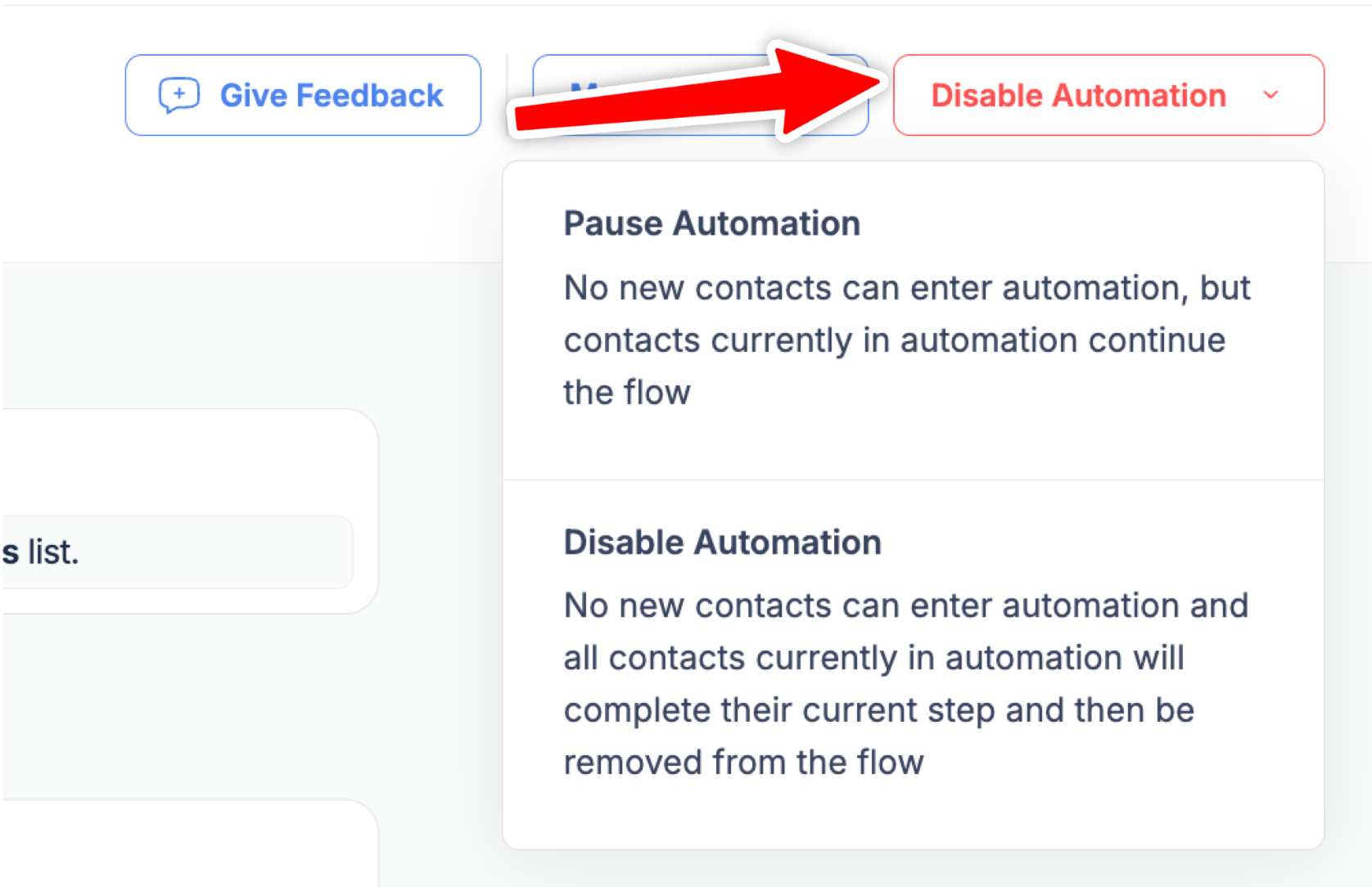
You can pause or disable your automation at any time.
{% tabs %}
{% tab title="Pause Automation" %}
**Temporary suspension**
* No new contacts can enter automation
* Contacts currently in automation continue the flow
* Use when making minor adjustments
{% endtab %}
{% tab title="Disable Automation" %}
**Complete shutdown**
* No new contacts can enter automation
* All contacts currently in automation will complete their current step
* Then removed from the flow
* Use for major changes or discontinuation
{% endtab %}
{% endtabs %}
## Stats — Monitoring automation performance
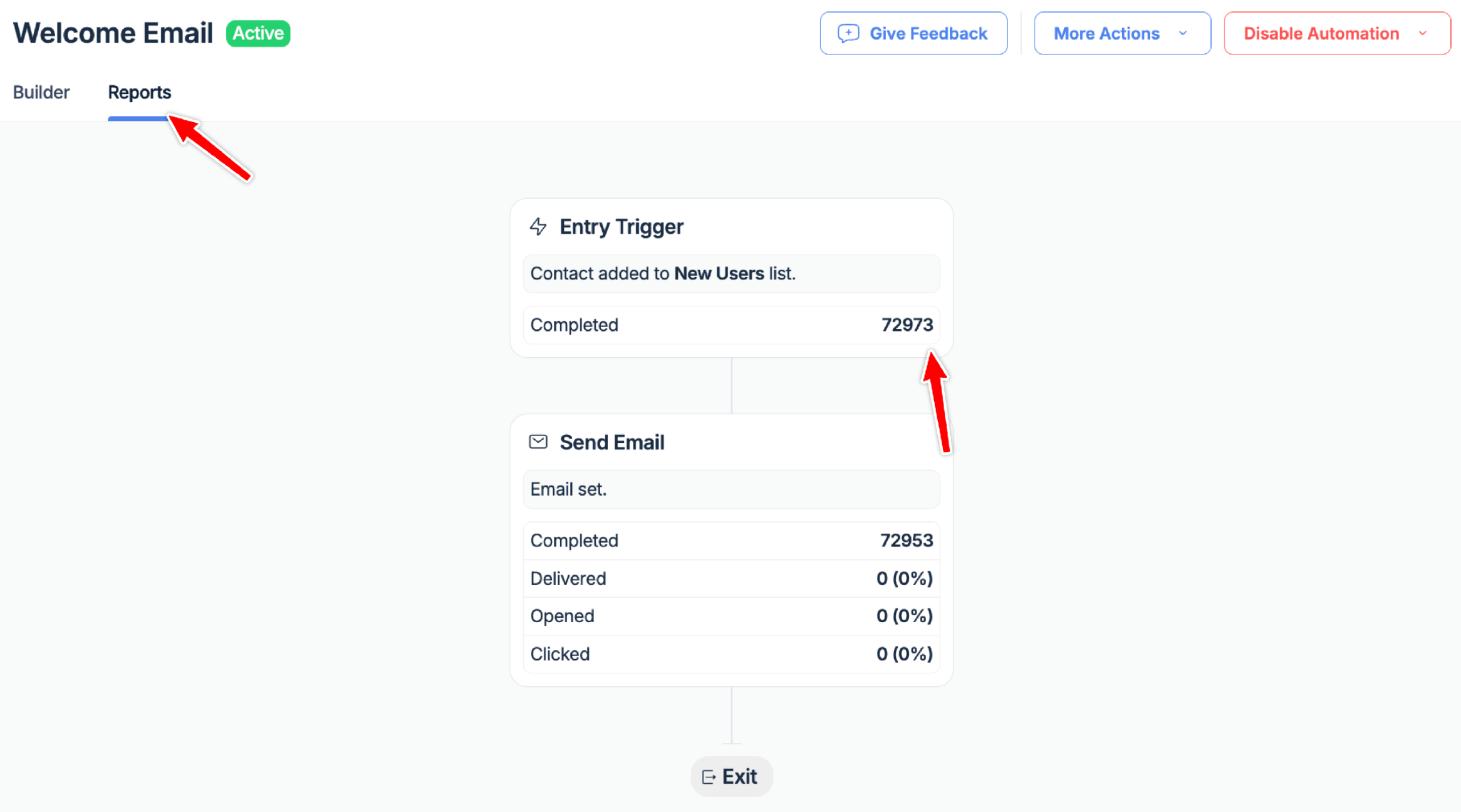
You can track the performance of your automation by clicking on the Reports tab within the automation builder.
**Available metrics**:
* Open rate per email
* Click rate per email
* Number of step completions
* Delivery rate
## Best practices
* **Start simple**: Begin with basic welcome series before complex flows.
* **Test thoroughly**: Use test contacts before going live.
* **Monitor performance**: Check reports weekly for optimization opportunities.
* **Segment wisely**: Use conditional splits for personalization.
* **Time delays**: Consider time zones and optimal send times.
* **Exit strategies**: Plan how contacts leave the automation.
## Limits
* Each contact can go through the same automation once in 24 hours.
* Each account can have up to 30 Automations.
* The maximum amount of automation runs for each plan is 250,000 per month.
---
# Agent Instructions
This documentation is published with GitBook. GitBook is the documentation platform designed so that both humans and AI agents can read, navigate, and reason over technical content effectively. Learn more at gitbook.com.
## Querying This Documentation
If you need additional information that is not directly available in this page, you can query the documentation dynamically by asking a question.
Perform an HTTP GET request on the current page URL with the `ask` query parameter, and the optional `goal` query parameter:
```
GET https://docs.mailtrap.io/email-marketing/automations.md?ask=&goal=
```
`ask` is the immediate question: it should be specific, self-contained, and written in natural language.
`goal` is optional and describes the broader end goal you are ultimately trying to accomplish on behalf of the user. GitBook uses it to tailor the answer towards what is most useful for that goal.
The response will contain a direct answer to the question and relevant excerpts and sources from the documentation.
Use this mechanism when the answer is not explicitly present in the current page, you need clarification or additional context, or you want to retrieve related documentation sections.