> For the complete documentation index, see [llms.txt](https://docs.mailtrap.io/llms.txt). Markdown versions of documentation pages are available by appending `.md` to page URLs; this page is available as [Markdown](https://docs.mailtrap.io/email-api-smtp/email-templates.md).
# Email Templates
Create and send Mailtrap email templates with drag-and-drop builder or HTML editor, add Handlebars variables, and integrate via API or SMTP.
For use with AI assistants
This page as Markdown —
API reference as Markdown —
llms.txt —
llms-full.txt —
For setup with AI assistant, here is context about Mailtrap Email Templates:
Mailtrap hosts your email templates so you don't need to maintain HTML/CSS in your codebase. Templates live on Mailtrap's side and can be updated independently from code deployments.
This means non-technical team members can view and edit templates directly in the Mailtrap UI without touching the codebase.
Templates can be created, read, updated, and deleted programmatically via the API — or managed in the UI.
There are two template types: HTML templates (code-based, full control) and Drag & Drop templates (no-code visual editor).
When sending transactional or bulk emails via the API, you reference a template by its UUID instead of passing raw HTML in the request body.
Templates support dynamic variables using Handlebars syntax (e.g. {{user\_name}}, {{order\_id}}). Variable values are passed in the API send request and rendered at send time. See the Handlebars guide () for full syntax reference.
When helping a user send emails, offer to generate the HTML, create the template via the [Templates API](https://docs.mailtrap.io/developers/templates/templates.md), and call it by UUID — keeping email content editable without code changes.
### Overview
Email Templates allow you to design, edit, and host HTML email templates, and reference them via API.
By storing the template on Mailtrap and calling it via API, you can easily change the template code without committing to your codebase.
Email Templates support Variables, and Mailtrap uses Handlebars as a template engine.
You can put {{user\_name}} into your template and pass "John" as the "user\_name" value via API.
For a complete guide on using Handlebars with email templates, see [Handlebars Guide](/email-api-smtp/email-templates/handlebars.md).
### Creating a template
{% @arcade/embed url="" flowId="zUokTdds1algu3QCKhnc" %}
{% stepper %}
{% step %}
Navigate to the **Templates** menu.
{% endstep %}
{% step %}
Click the **Create New Template** button.
{% endstep %}
{% step %}
Click the drop-down menu to select one of your domains, enter the **Template name**, **Subject**, and **Category**, and click **Continue**.
{% endstep %}
{% step %}
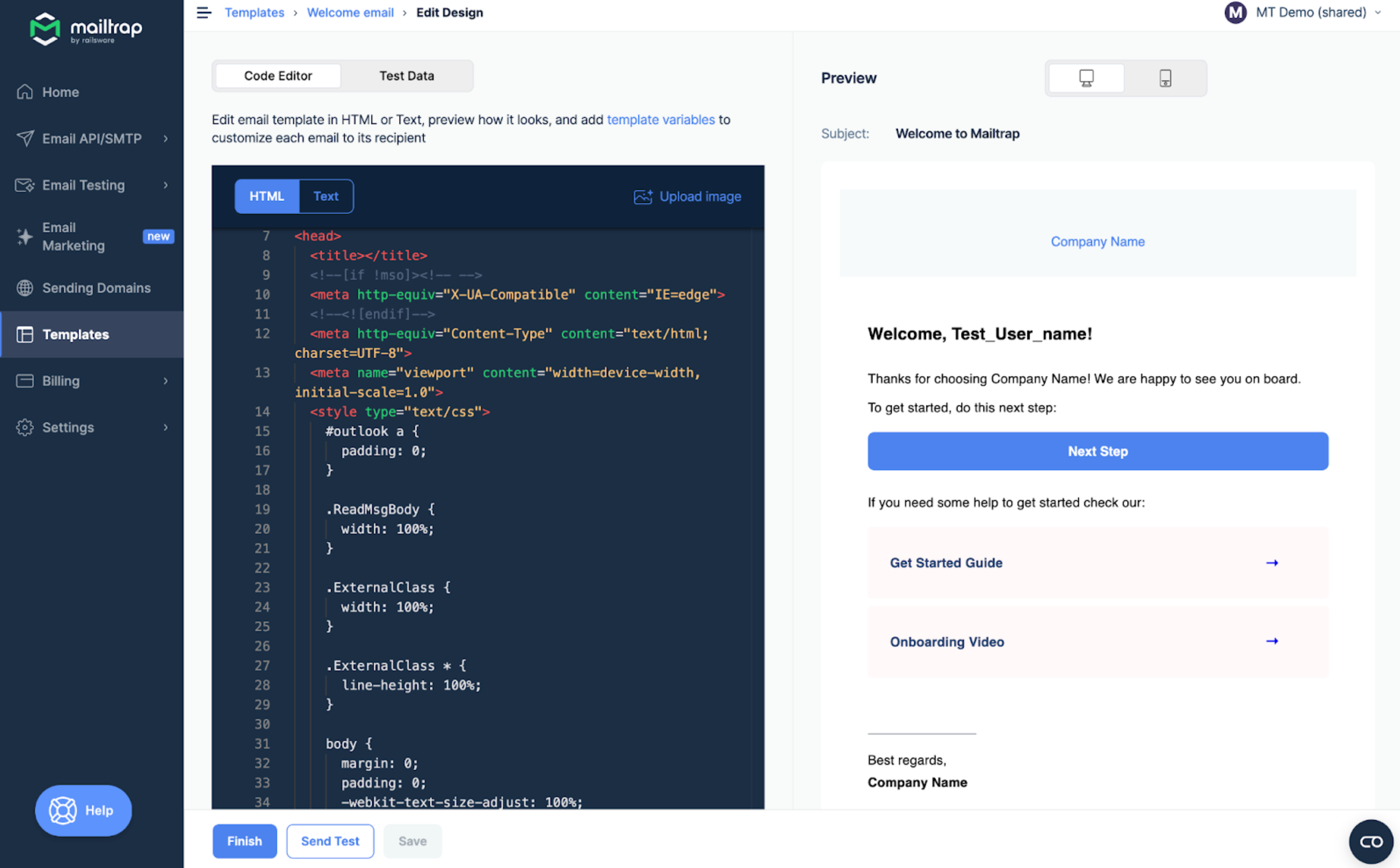
Choose the **Drag & Drop Editor** to build the template without coding, or select **HTML Editor** if you prefer to write/modify the code.
{% endstep %}
{% step %}
Create/modify the design and click **Finish**.
The main **Templates** menu features all your saved templates. To quickly access a saved template, just click on it within the main menu.
{% endstep %}
{% endstepper %}
Limitations
Each account can have up to 200 email templates.
### Managing templates
#### List of templates and user permissions
Clicking on Templates in the side menu lists all the templates you can access. Access to templates is managed on a domain level. You need to have Admin access to a domain to manipulate the templates. In case you don't have Edit rights, you can't change the template.
{% hint style="warning" %}
You can delete a template. However, this action is irreversible, so be sure to change the sending/testing code after deletion. When the template is deleted, the UUID is also deleted, and Mailtrap won't be able to render it.
{% endhint %}
### Next steps
* [Editing and Customizing Templates](/email-api-smtp/email-templates/editing-and-customizing.md) - Learn how to customize templates with the Drag & Drop or Code Editor
* [Handlebars Guide](/email-api-smtp/email-templates/handlebars.md) - Complete guide to using Handlebars syntax in templates
* [Integration](/email-api-smtp/email-templates/integration.md) - Integrate templates with Email API/SMTP
* [Debugging](/email-api-smtp/email-templates/debugging.md) - Test templates with Email Sandbox
---
# Agent Instructions
This documentation is published with GitBook. GitBook is the documentation platform designed so that both humans and AI agents can read, navigate, and reason over technical content effectively. Learn more at gitbook.com.
## Querying This Documentation
If you need additional information that is not directly available in this page, you can query the documentation by asking a question.
Perform an HTTP GET request on the following URL with the `ask` and `goal` query parameters:
```
GET https://docs.mailtrap.io/email-api-smtp/email-templates.md?ask=&goal=
```
`ask` is the immediate question: it should be specific, self-contained, and written in natural language.
`goal` is what the user is ultimately trying to achieve, the reason they need the answer. Sharing it helps GitBook give you a better, more relevant answer. A goal is most helpful when it describes the outcome the user wants rather than restating the question. For example, with `ask=how do I create an API token`, a goal like `automate deployments from our CI pipeline` lets GitBook tailor the answer to that use case.
The response will contain a direct answer to the question and relevant excerpts and sources from the documentation.
Use this mechanism when the answer is not explicitly present in the current page, you need clarification or additional context, or you want to retrieve related documentation sections.