> For the complete documentation index, see [llms.txt](https://docs.mailtrap.io/llms.txt). Markdown versions of documentation pages are available by appending `.md` to page URLs; this page is available as [Markdown](https://docs.mailtrap.io/email-marketing/campaigns/email-templates.md).
# Email Templates
Design, edit, and host HTML email templates and reference them via API.
Email Templates allow you to design, edit, and host HTML email templates.
By storing the template on Mailtrap and calling it via API, you can easily change the template code without committing to your codebase.
Email Templates support Variables, and Mailtrap uses Handlebars as a template engine. Your variable should match the `{{merge_tag}}` in your contact Fields.
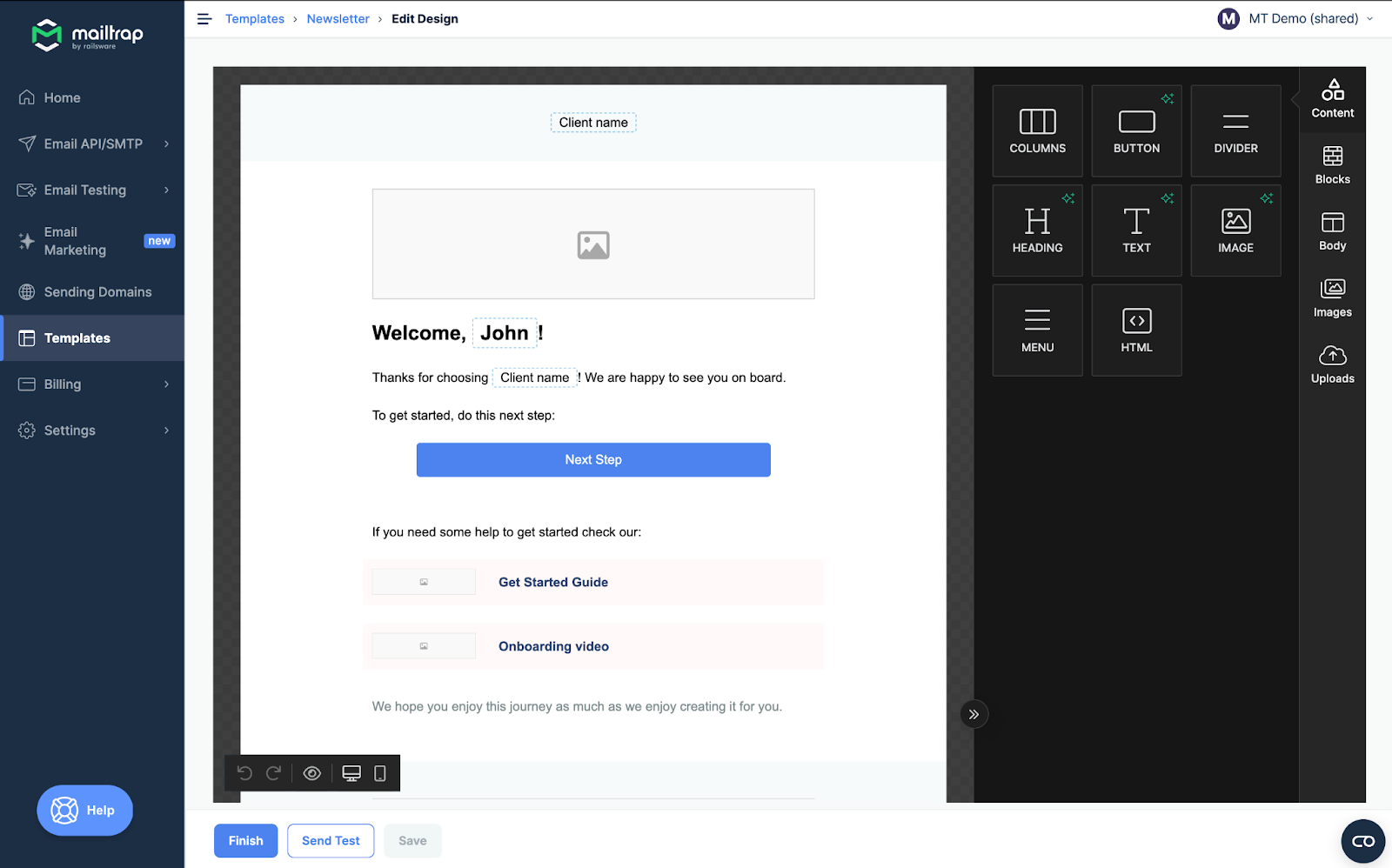
You can put `{{name}}` into your template and, as your contact has a field named "name" with the value "John", the template will display "John". In our visual builder, you'll see a list of your contact fields.
## Creating a template
{% @arcade/embed flowId="c9gFQdhM24VPlzXW2TSl" url="" %}
{% stepper %}
{% step %}
Navigate to the **Templates** menu.
{% endstep %}
{% step %}
Click the **Create New Template** button.
{% endstep %}
{% step %}
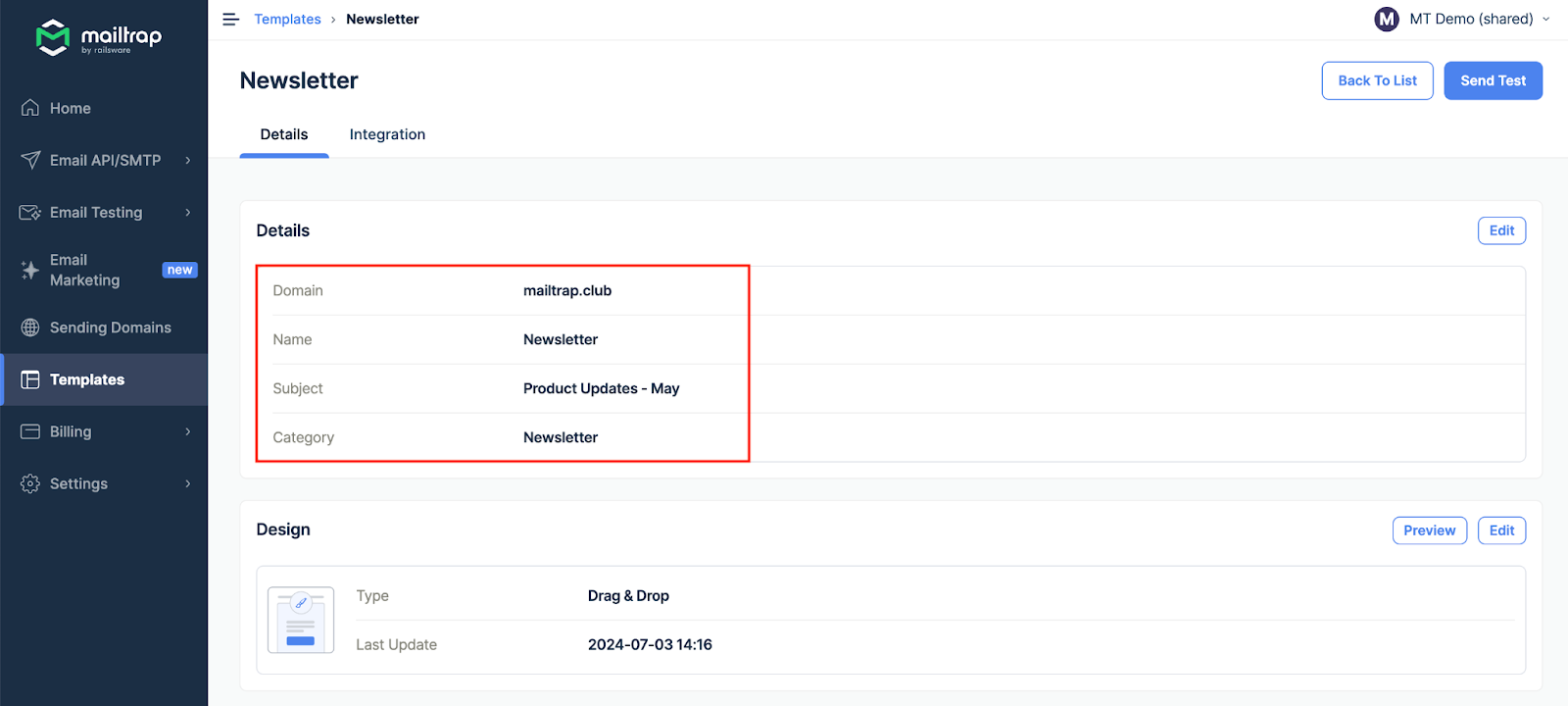
Click the drop-down menu to select one of your domains, enter the Template name, Subject, and Category, and click **Continue**.
{% endstep %}
{% step %}
Choose the **Drag & Drop Editor** to build the template without coding, or select **HTML Editor** if you prefer to write/modify the code.
{% endstep %}
{% step %}
Create/modify the design and click **Finish**.
{% hint style="info" %}
The main Templates menu features all your saved templates. To quickly access a saved template, just click on it within the main menu.
{% endhint %}
{% endstep %}
{% endstepper %}
Limitations
Each account can have up to 200 email templates.
## Editing and customizing templates
### Template details
Each template must have a name, subject, category, and an assigned domain. The subject also supports variables.
### Available editors
{% tabs %}
{% tab title="Drag & Drop Editor" %}
The drag-and-drop editor allows you to design templates without any coding.
{% endtab %}
{% tab title="Code Editor" %}
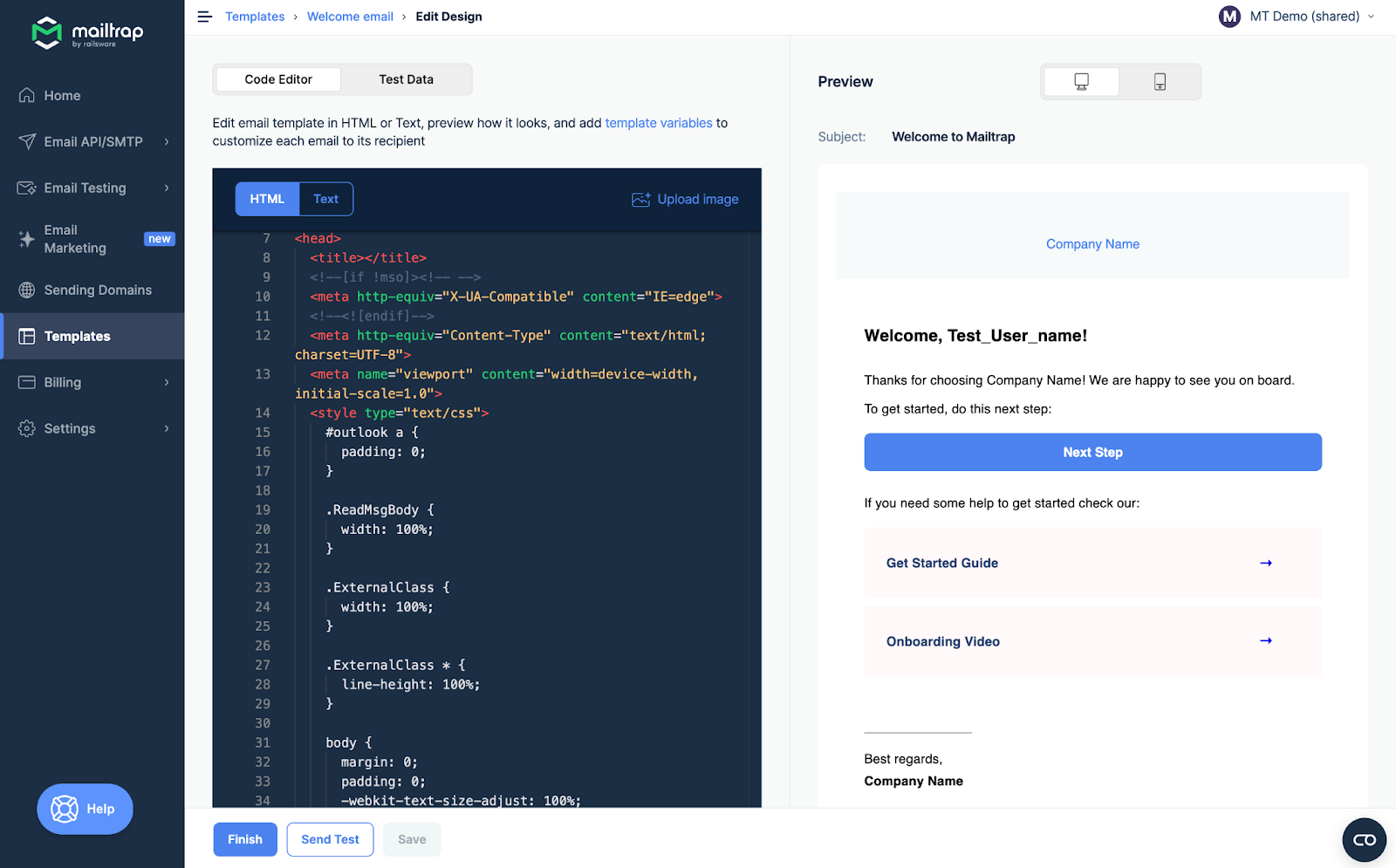
The Code Editor allows you to edit the HTML or text content, depending on the emails you want to send.
The editor supports Find and Replace options, and you can use **Cmd+F** or **Win+F** as a hotkey to reveal a quick search bar.
{% hint style="warning" %}
**Template Validation**
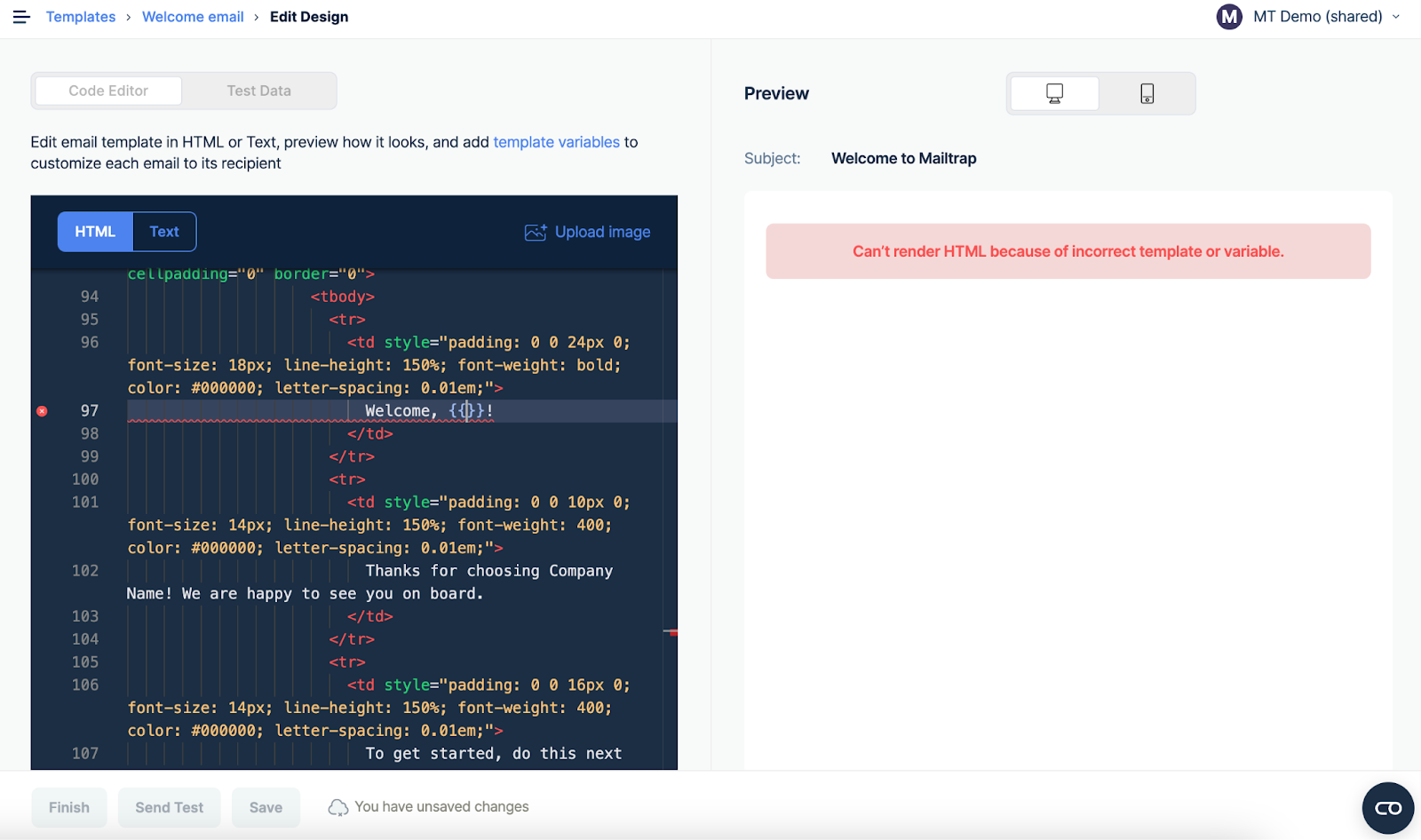
If your template has an error, Handlebars cannot render it. You'll see an error message in the Preview tab, and the RAW code with an error will be highlighted in the Editor.
You can't save a template with errors. Note that we don't validate HTML — only Handlebars syntax is validated.
{% endhint %}
{% endtab %}
{% endtabs %}
### Uploading images
{% @arcade/embed flowId="v0uTC2zslHSZKJNameNr" url="" %}
{% stepper %}
{% step %}
Click **Upload image** in the upper right corner of the Code Editor.
{% endstep %}
{% step %}
Hit the **Upload New** button in the following menu and choose an image from your local drive.
{% hint style="info" %}
**Image Requirements**
* Supported formats: JPG, PNG, and GIF
* Maximum file size: 2 MB
{% endhint %}
{% endstep %}
{% step %}
Once the image is uploaded, you will receive a confirmation notification. If the file format is unsupported or the image is too big, you will receive the corresponding error message.
{% endstep %}
{% step %}
Click the **Copy URL** button to copy the image URL to your clipboard, then click **Template** to return to the editing menu.
{% endstep %}
{% step %}
Proceed to add the image to the template body under the `` tag. You can preview it in the template as soon as the asset is added.
{% endstep %}
{% endstepper %}
### Test Data
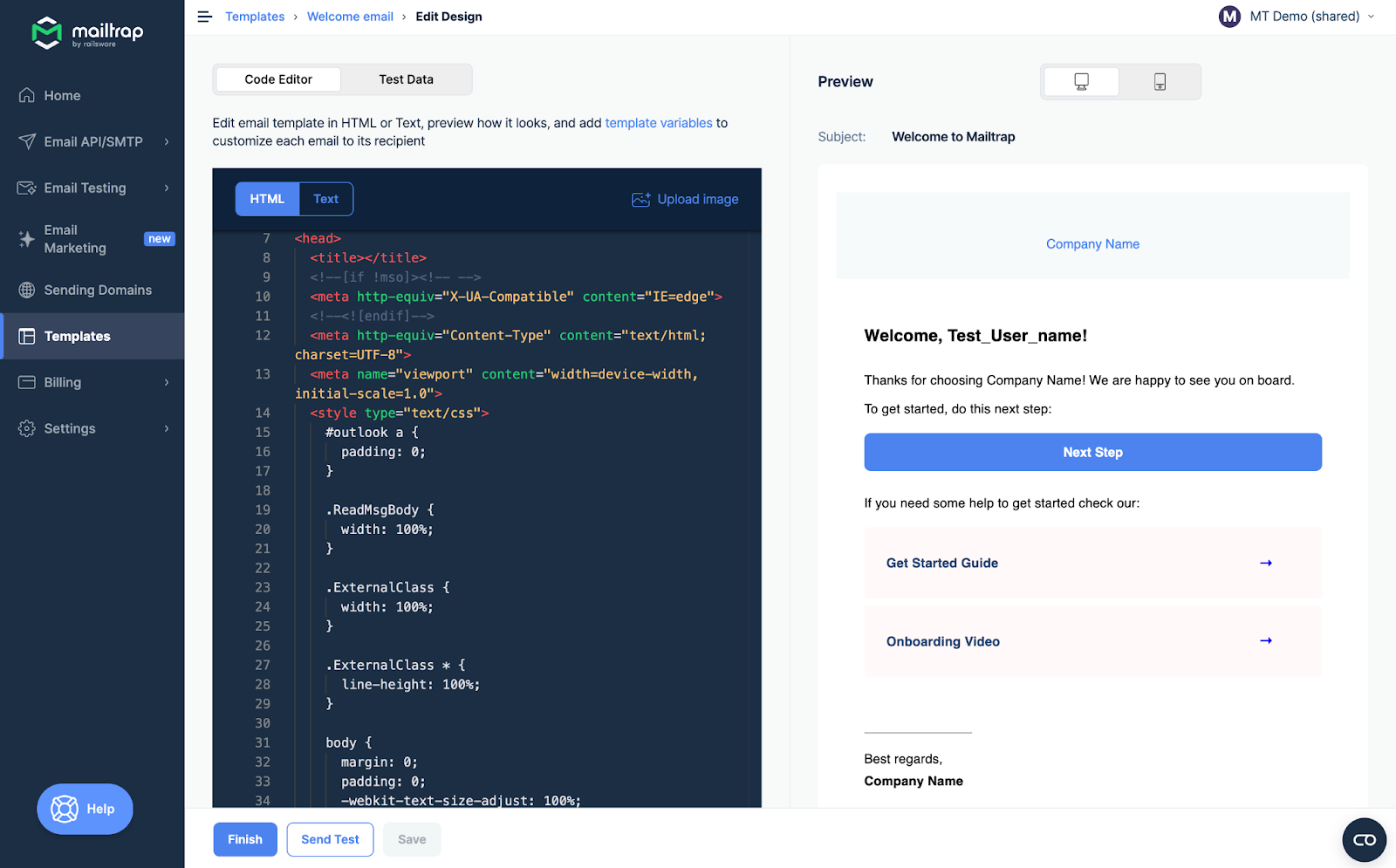
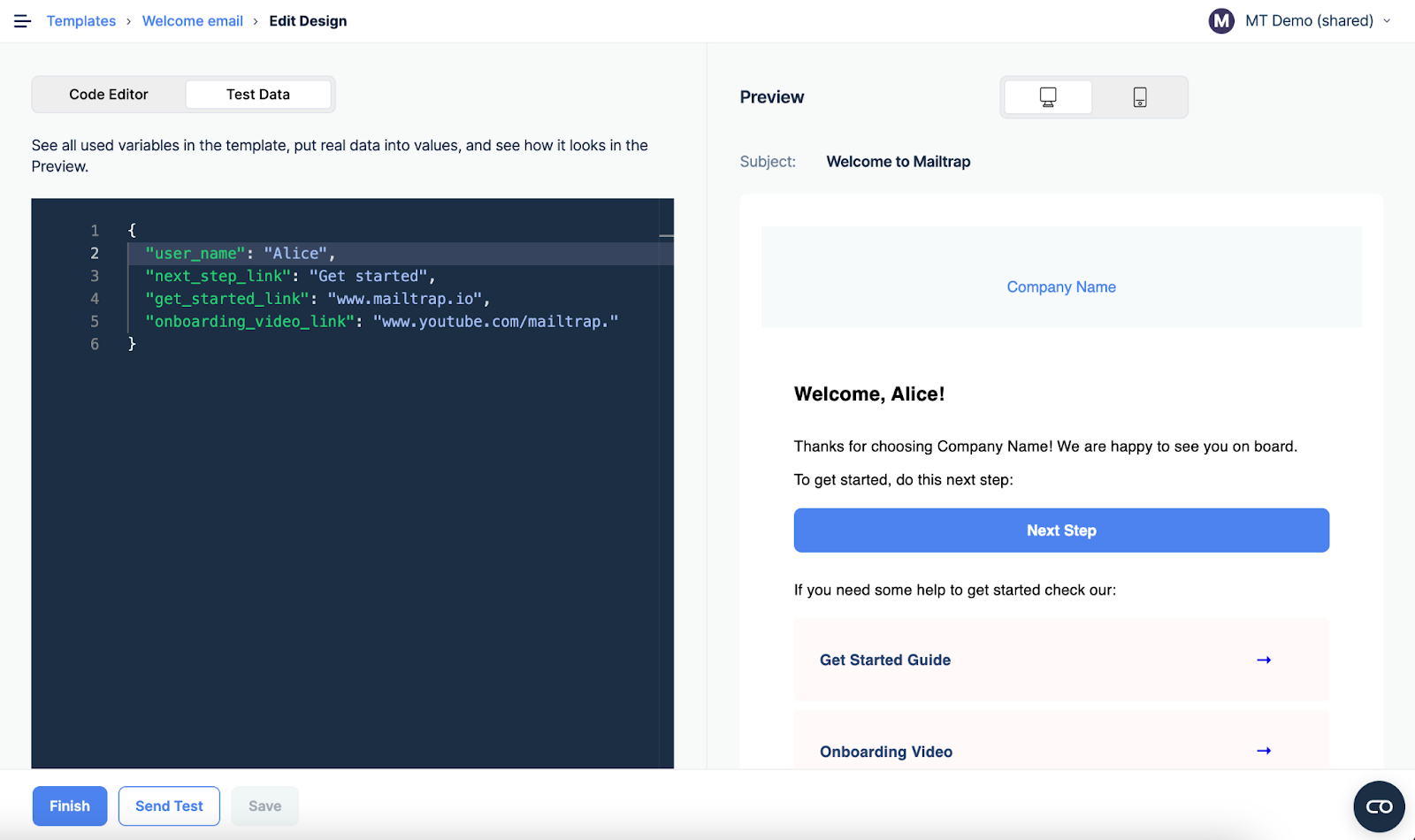
Code Editor automatically parses your template and shows all the variables found. The Test Data tab helps you preview the object variables.
{% hint style="info" %}
By default, as a value, we put a variable name and add the "Test\_" prefix.
{% endhint %}
### Sending test emails
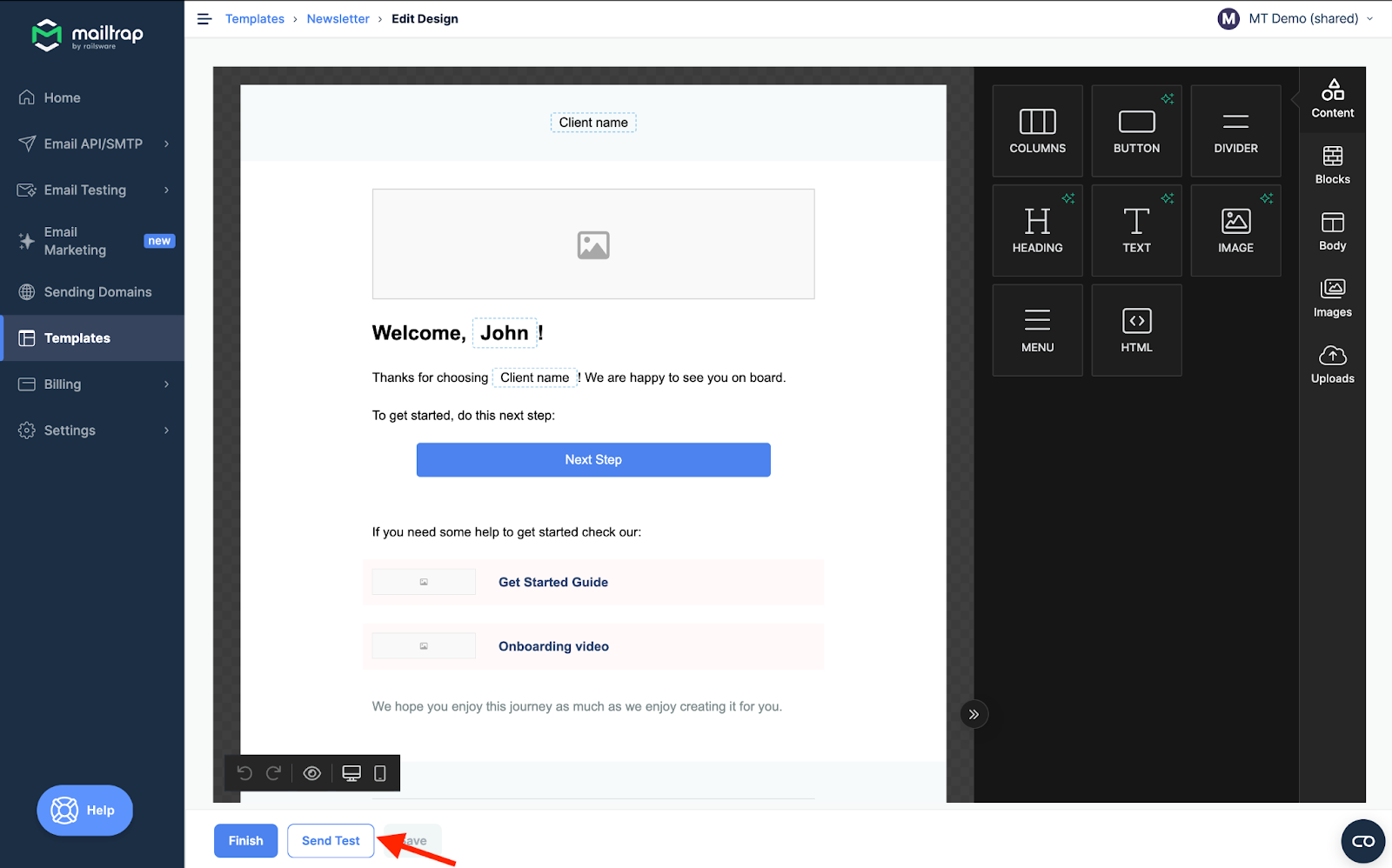
If you're using email templates in production, you can send a test email to the account owner's email address to run basic tests. Simply press the **Send Test** button.
{% hint style="warning" %}
**Test email requirements**
* Your domain must be verified to send a test.
* Each test email is billed over your quota.
{% endhint %}
---
# Agent Instructions
This documentation is published with GitBook. GitBook is the documentation platform designed so that both humans and AI agents can read, navigate, and reason over technical content effectively. Learn more at gitbook.com.
## Querying This Documentation
If you need additional information that is not directly available in this page, you can query the documentation dynamically by asking a question.
Perform an HTTP GET request on the current page URL with the `ask` query parameter, and the optional `goal` query parameter:
```
GET https://docs.mailtrap.io/email-marketing/campaigns/email-templates.md?ask=&goal=
```
`ask` is the immediate question: it should be specific, self-contained, and written in natural language.
`goal` is optional and describes the broader end goal you are ultimately trying to accomplish on behalf of the user. GitBook uses it to tailor the answer towards what is most useful for that goal.
The response will contain a direct answer to the question and relevant excerpts and sources from the documentation.
Use this mechanism when the answer is not explicitly present in the current page, you need clarification or additional context, or you want to retrieve related documentation sections.