# Click Tracking Blocked – SSL Cipher Error

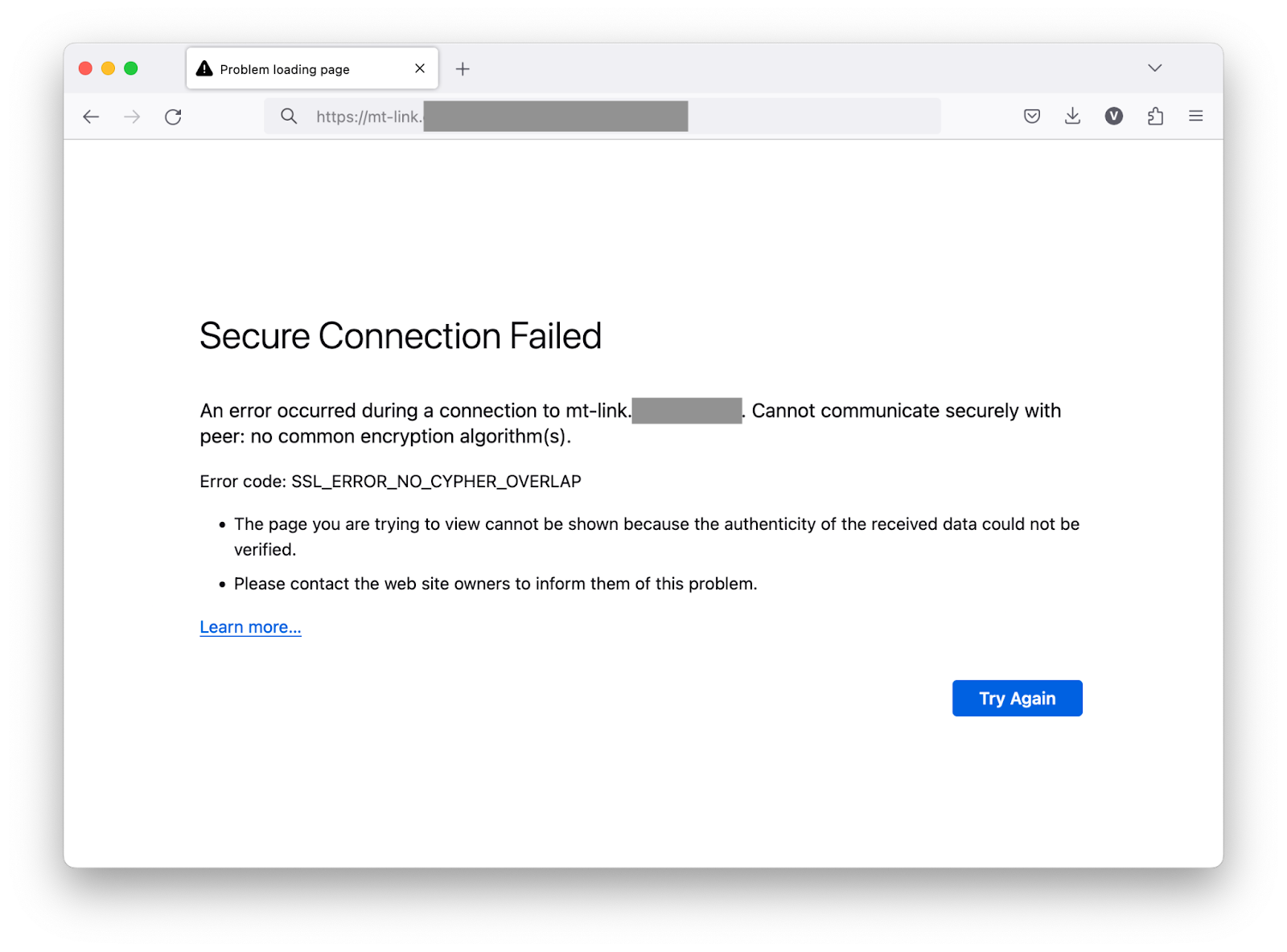
Click tracking or custom domain tracking issues include `SSL_ERROR_NO_CYPHER_OVERLAP` or `Error 1001` errors.

<figure><img src="/files/b8LlBonEMS3CVxFmt3fC" alt="Browser showing SSL_ERROR_NO_CYPHER_OVERLAP or Error 1001 when accessing custom tracking domain" width="563"><figcaption><p>Custom domain blocked: SSL error when accessing custom domain for click tracking</p></figcaption></figure>

### Understanding custom domain click tracking

Mailtrap allows you to use your own domain for click tracking. To achieve this:

1. You add an `mt-link` CNAME record during the domain setup process
2. Mailtrap issues a security certificate for the mt-link subdomain to ensure a secure connection
3. Certificates from **Let's Encrypt** and **Google Trust Services** are used

### Why your custom hostname was blocked

The primary cause for custom domain tracking issues is that some domains have a list of trusted Certificate Authorities (CAs) specified in **CAA records**.

{% hint style="warning" %}
If your CAA records don't include Google Trust Services and Let's Encrypt, Mailtrap won't be able to request certificates from them. This prevents click tracking from working because browsers can't establish a secure connection, hence the custom hostname issues.
{% endhint %}

### Checking your CAA records

You can check the CAA records for your domain using this command:

{% code title="Terminal" %}

```bash
dig CAA example.com
```

{% endcode %}

The output might look similar to this:

{% code title="Sample Output" %}

```
;; ANSWER SECTION:
example.com.   13990    IN    CAA    0 issue "globalsign.com"
example.com.   13990    IN    CAA    0 issuewild "globalsign.com"
```

{% endcode %}

In this example, the domain only allows GlobalSign to issue certificates, which is why Mailtrap cannot obtain a certificate.

### Solution: Update CAA records

You have two options:

**Option 1: Add required CAs (recommended)**

If you want to keep your existing CAA records, modify them to include Google Trust Services and Let's Encrypt:

{% code title="Required CAA Records" %}

```
# Google Trust Services
0 issue "pki.goog; cansignhttpexchanges=yes"

# Let's Encrypt
0 issue "letsencrypt.org"
```

{% endcode %}

**Option 2: Remove CAA restrictions**

If you don't need to restrict which CAs can issue certificates for your domain, you can remove the CAA records entirely.

### How to add CAA records

**CAA Record Configuration**

<table><thead><tr><th width="148.625">Field</th><th width="318.66015625">Value</th><th>Description</th></tr></thead><tbody><tr><td>Name</td><td>blank or <code>@</code>, depending on your provider</td><td></td></tr><tr><td>TTL</td><td>1 hour or any other appropriate TTL</td><td>Controls how long the record is valid.</td></tr><tr><td>Flag</td><td>0</td><td><code>0</code> means that no flags have been set. Please read your DNS provider's documentation for specific behavior.</td></tr><tr><td>Tag</td><td>issue</td><td>Allows the CA to issue certificates for this domain and its subdomains (e.g., mt-link subdomain).</td></tr><tr><td>Domain</td><td><code>pki.goog; cansignhttpexchanges=yes</code> <strong>OR</strong> <code>letsencrypt.org</code></td><td>Google Trust Services needs the additional parameter <code>cansignhttpexchanges=yes</code>.</td></tr></tbody></table>

{% hint style="info" %}
You'll need to create **two separate CAA records**: one for Google Trust Services and one for Let's Encrypt.
{% endhint %}

### Verification

After updating your CAA records:

{% stepper %}
{% step %}
**Wait for DNS propagation**

It can take several hours for the changes to your CAA records to propagate. This varies by DNS provider and TTL settings.
{% endstep %}

{% step %}
**Verify CAA records**

Run the `dig CAA example.com` command again to confirm the new records are in place.
{% endstep %}

{% step %}
**Test your mt-link subdomain**

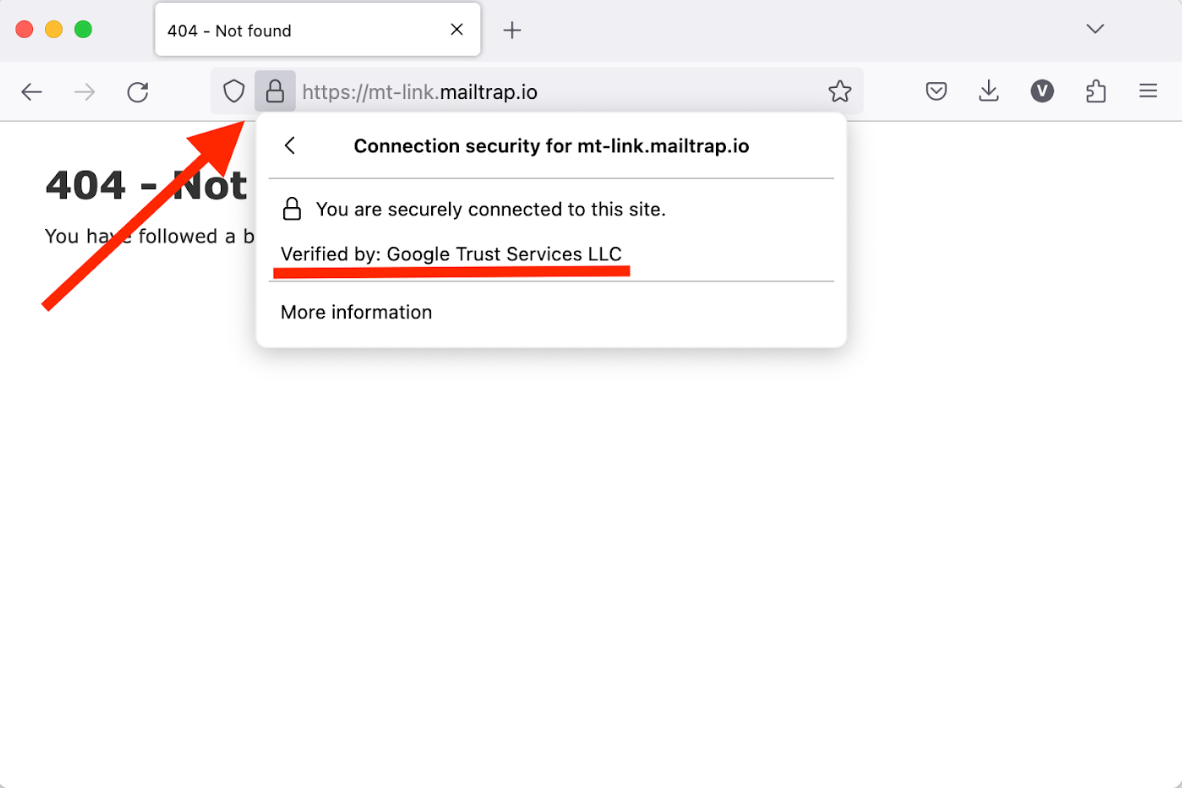
Once propagated, you should be able to access your mt-link subdomain without SSL errors:

<div align="left" data-with-frame="true"><figure><img src="/files/uQKmuAZPw4uuOOI4RgA1" alt="" width="375"><figcaption></figcaption></figure></div>
{% endstep %}
{% endstepper %}

### Additional resources

For DNS setup guides specific to your provider, see:

* AWS Route 53 Setup Guide
* Cloudflare DNS Setup Guide
* GoDaddy DNS Setup Guide

### Need help?

If you're still experiencing SSL errors after updating CAA records:

* Wait at least 24 hours for full DNS propagation
* Verify the records are correctly formatted (check for typos)
* Contact your DNS provider for CAA record support
* Reach out to Mailtrap support at <support@mailtrap.io>


---

# Agent Instructions: Querying This Documentation

If you need additional information that is not directly available in this page, you can query the documentation dynamically by asking a question.

Perform an HTTP GET request on the current page URL with the `ask` query parameter:

```
GET https://docs.mailtrap.io/email-api-smtp/help/troubleshooting/ssl-cipher-overlap-error.md?ask=<question>
```

The question should be specific, self-contained, and written in natural language.
The response will contain a direct answer to the question and relevant excerpts and sources from the documentation.

Use this mechanism when the answer is not explicitly present in the current page, you need clarification or additional context, or you want to retrieve related documentation sections.