> For the complete documentation index, see [llms.txt](https://docs.mailtrap.io/llms.txt). Markdown versions of documentation pages are available by appending `.md` to page URLs; this page is available as [Markdown](https://docs.mailtrap.io/email-api-smtp/advanced/webhooks.md).
# Webhooks
Set up webhooks to receive real-time notifications about email deliverability events and account activities within your Mailtrap account.
Webhooks allow you to receive all information about your deliverability and activities within your account (Audit Log) almost in real-time.
{% hint style="info" %}
IPv6 ranges are AWS-provided, not Mailtrap-owned, and they're available on request. Feel free to contact us at <_support@mailtrap.io>.\_
{% endhint %}
### Event types
**Sending events:**
* **Delivery** - Email successfully delivered
* **Bounce** - Permanent delivery failure
* **Soft bounce** - Temporary failure (will retry)
* **Spam complaint** - Recipient reported spam
* **Unsubscribe** - Recipient unsubscribed
* **Open** - Email was opened
* **Click** - Link was clicked
* **Suspension** - Message suspended
* **Reject** - Message rejected
**Audit Log events (available for enterprise only):**
* User login events
* Profile updates
* Permission changes
* And more
### How to set up webhooks
{% stepper %}
{% step %}
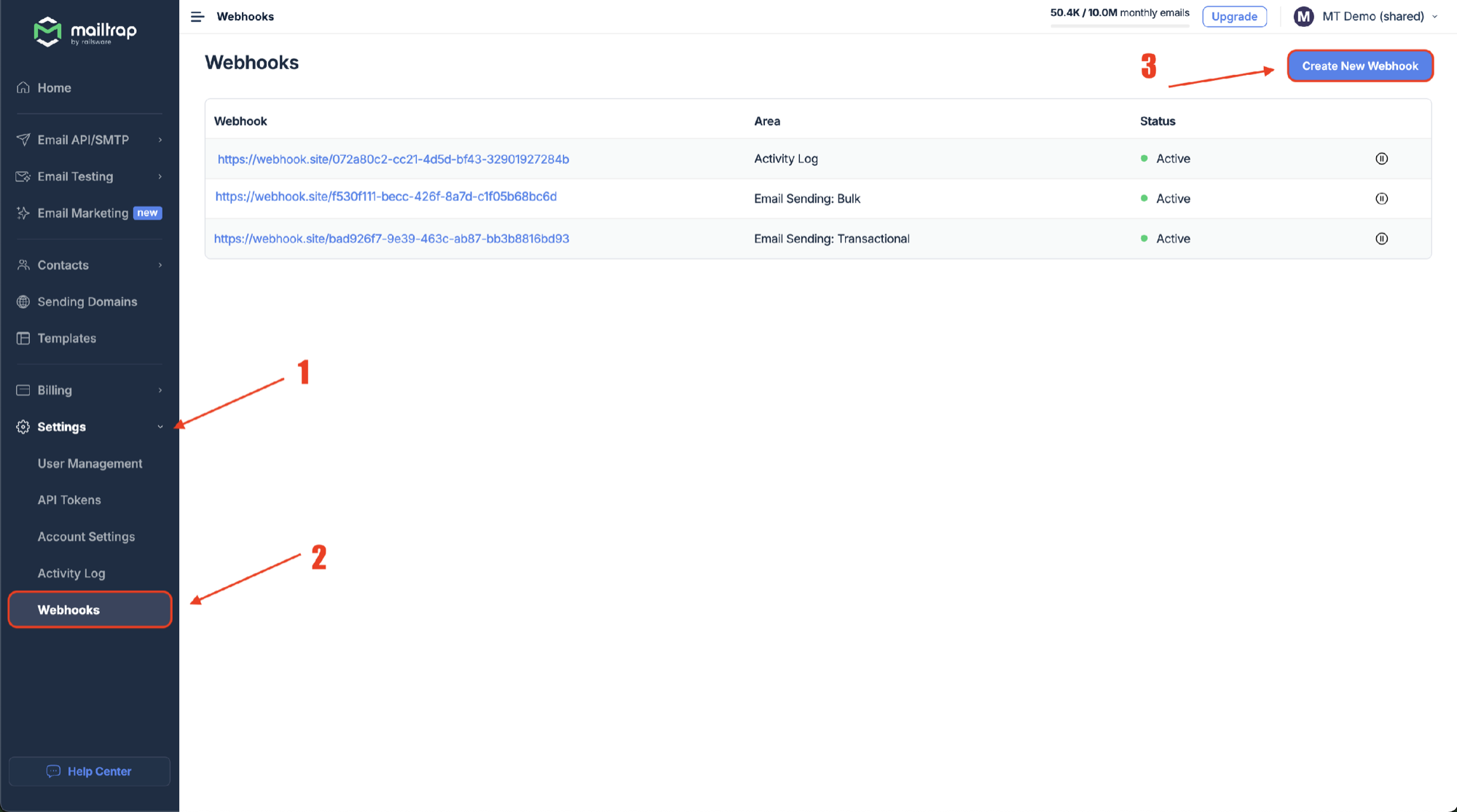
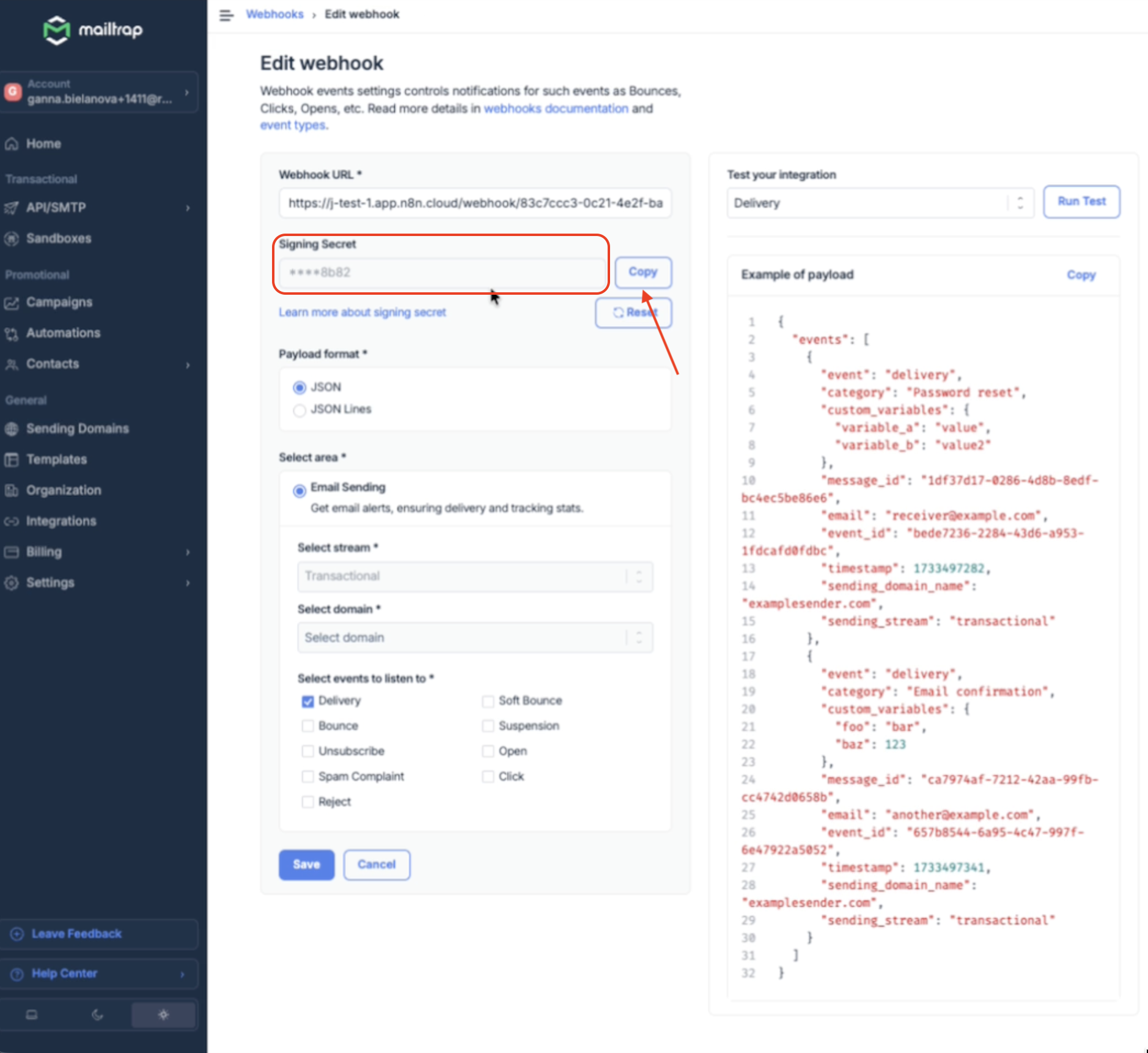
Navigate to **Settings** → **Webhooks** and click the **Create New Webhook** button.
{% endstep %}
{% step %}
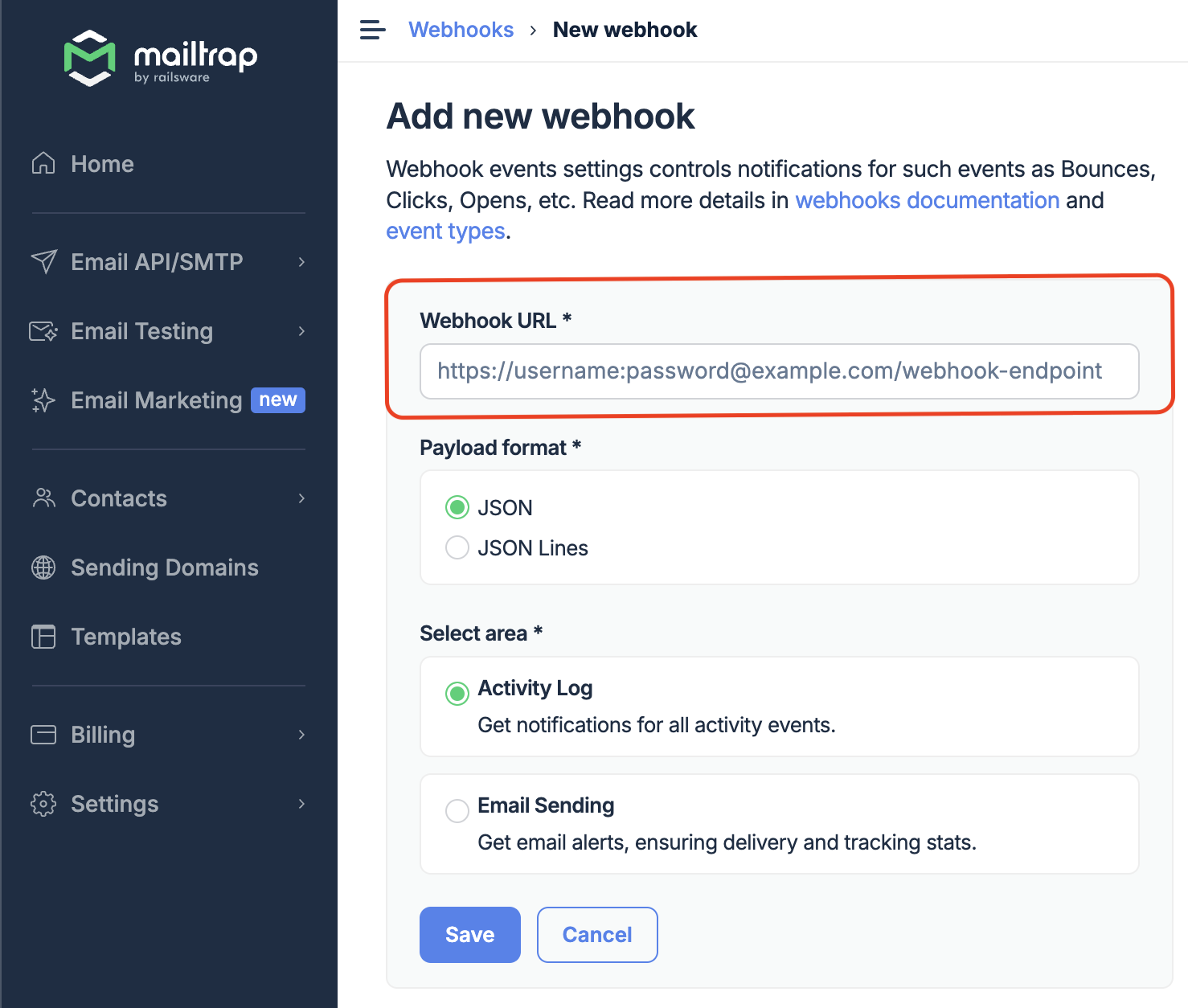
Enter a valid **Webhook URL**. Use a password and username as an extra security layer with basic authorization to prevent others from sending information to that endpoint. You can also use a token as a query parameter or use [webhook signature](https://docs.mailtrap.io/email-api-smtp/advanced/webhooks#webhook-signature-verification).
{% endstep %}
{% step %}
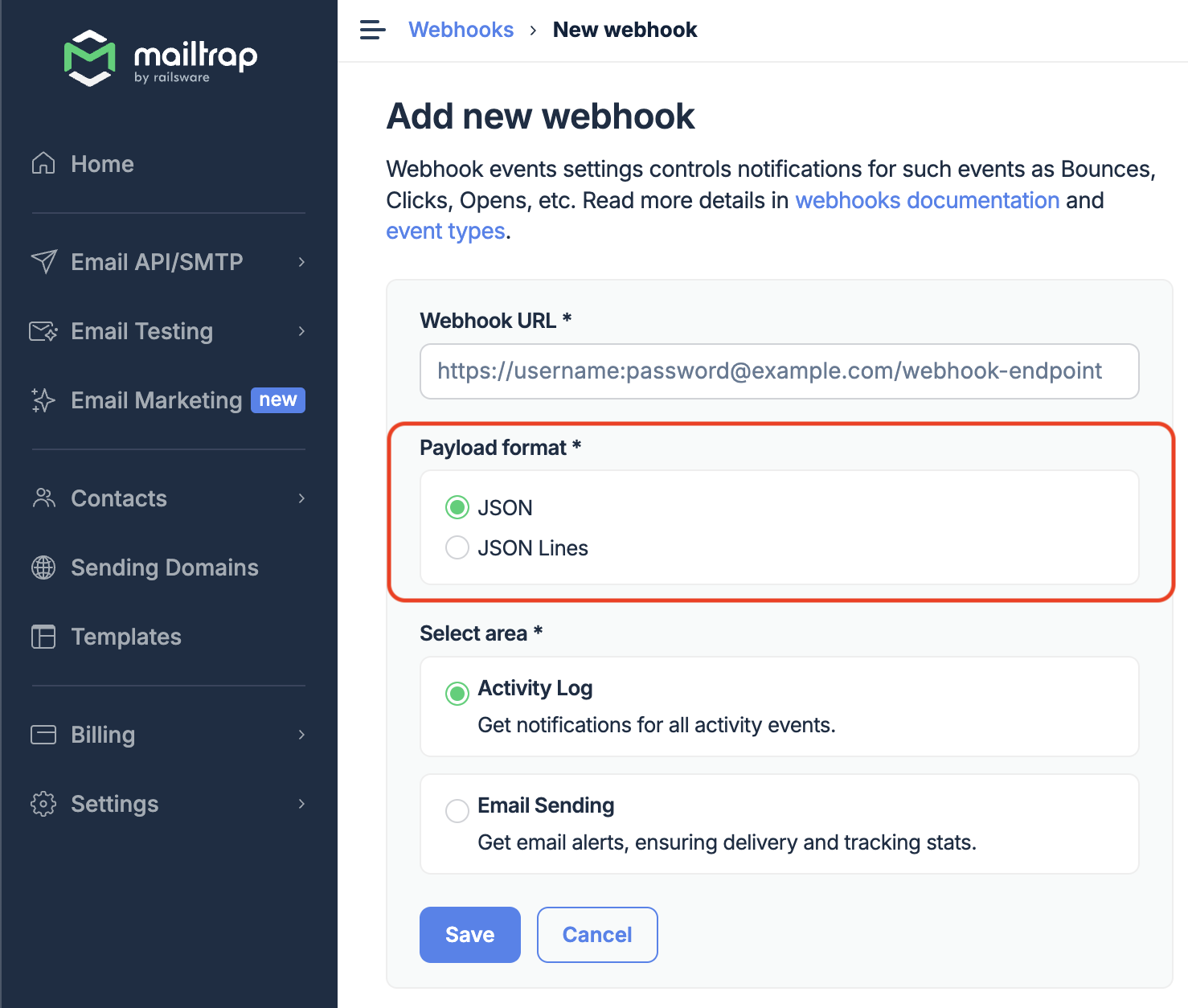
Choose the **Payload format** (JSON or JSON Lines).
Examples of payload:
{% tabs %}
{% tab title="JSON" %}
Events sent as a JSON object with an `events` array:
```json
{
"events": [
{"event": "delivery", "email": "user@example.com", ...}
]
}
```
{% endtab %}
{% tab title="JSON Lines" %}
Events sent as newline-delimited JSON:
```jsonl
{"event":"delivery","email":"user@example.com",...}
{"event":"open","email":"user@example.com",...}
```
{% endtab %}
{% endtabs %}
{% endstep %}
{% step %}
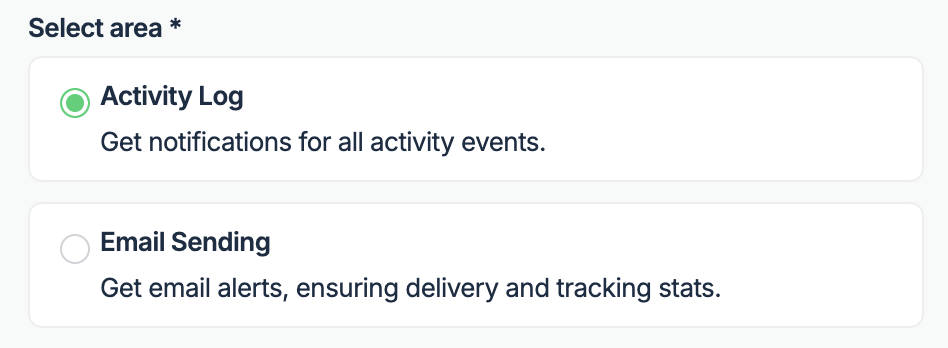
Select the webhooks area (**Audit Log** or **Email Sending**).
{% endstep %}
{% endstepper %}
**If you choose Audit Log**, you will receive events related to all activities within your account that are supported by the Audit Log.
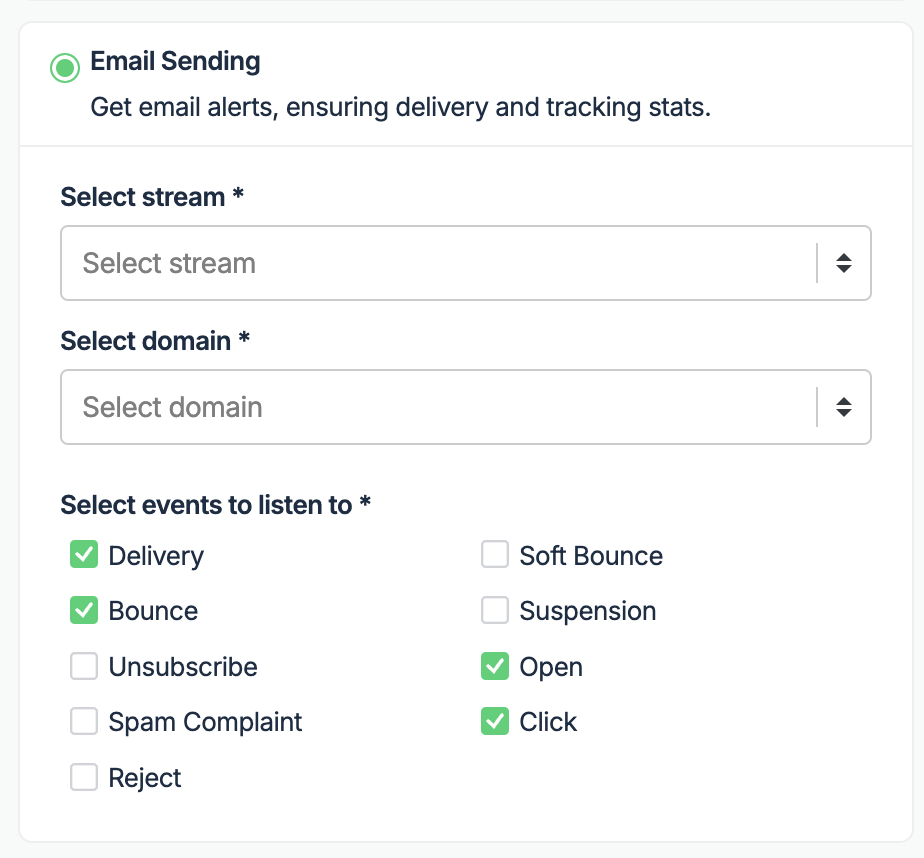
**If you choose Email Sending**, you'll also need to:
{% stepper %}
{% step %}
Choose the **Sending Stream** (Transactional or Bulk) for which you want to set up the webhooks.
{% hint style="info" %}
**Transactional Stream** is used to send user-triggered emails to one recipient at a time, while **Bulk Stream** is used to send promotional emails to multiple recipients at once.
{% endhint %}
{% endstep %}
{% step %}
Choose the **domain** you want to receive events' data for and select one or more [event types](/email-api-smtp/analytics/statuses-and-events.md) by ticking the corresponding checkbox.
{% endstep %}
{% step %}
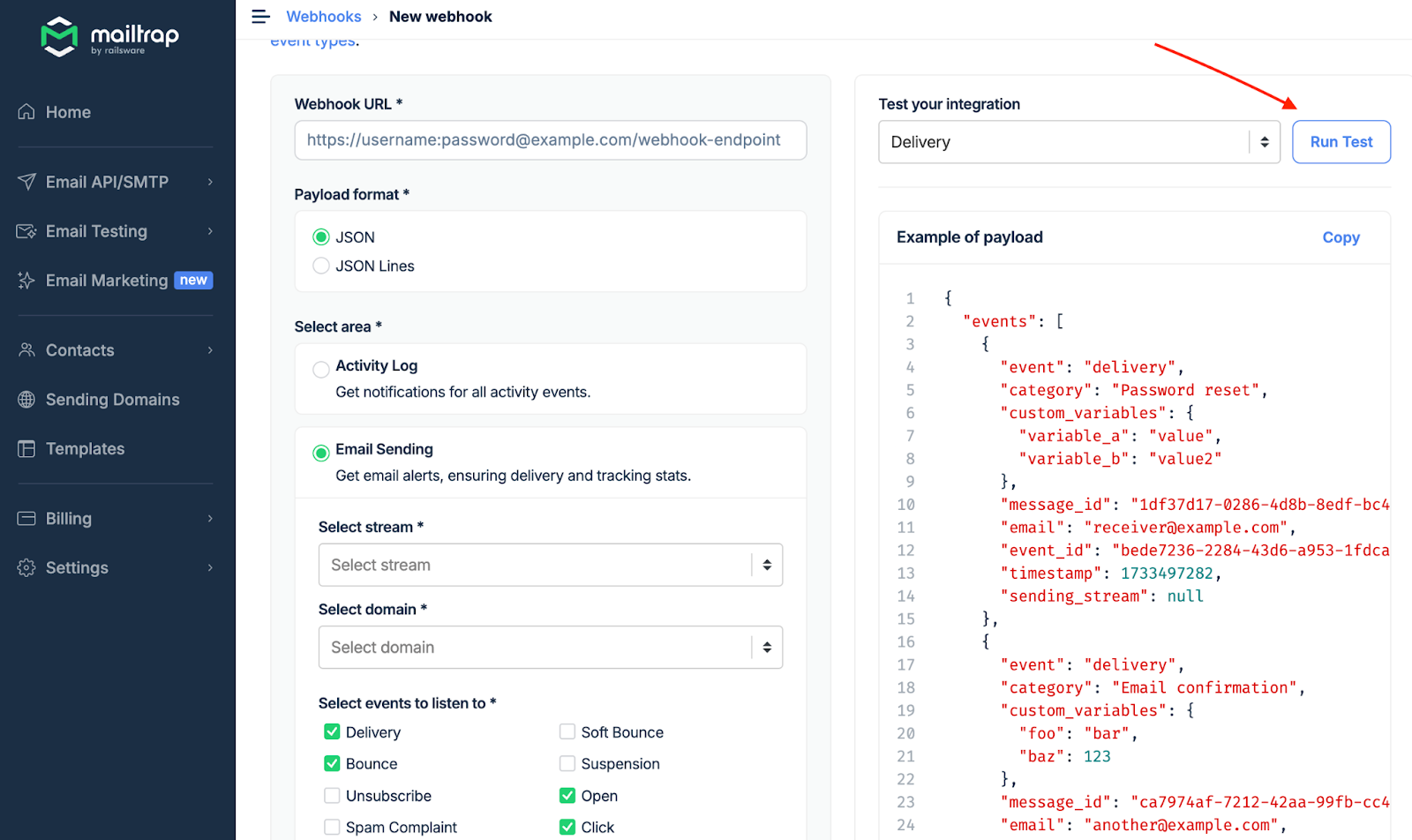
Click the **Run Test** button to test the webhook setup. The code represents a dummy payload of the webhook structure and how to read it correctly. If your endpoint responds with a 200 code, you'll see a confirmation in the app. All other response codes show an error during a test.
{% hint style="info" %}
One popular way to test webhooks outside your system is [Webhook.site](https://webhook.site/#!/view/d24cebd2-99cc-46f3-8685-c779017f39a0), but don't use it for production.
{% endhint %}
{% endstep %}
{% step %}
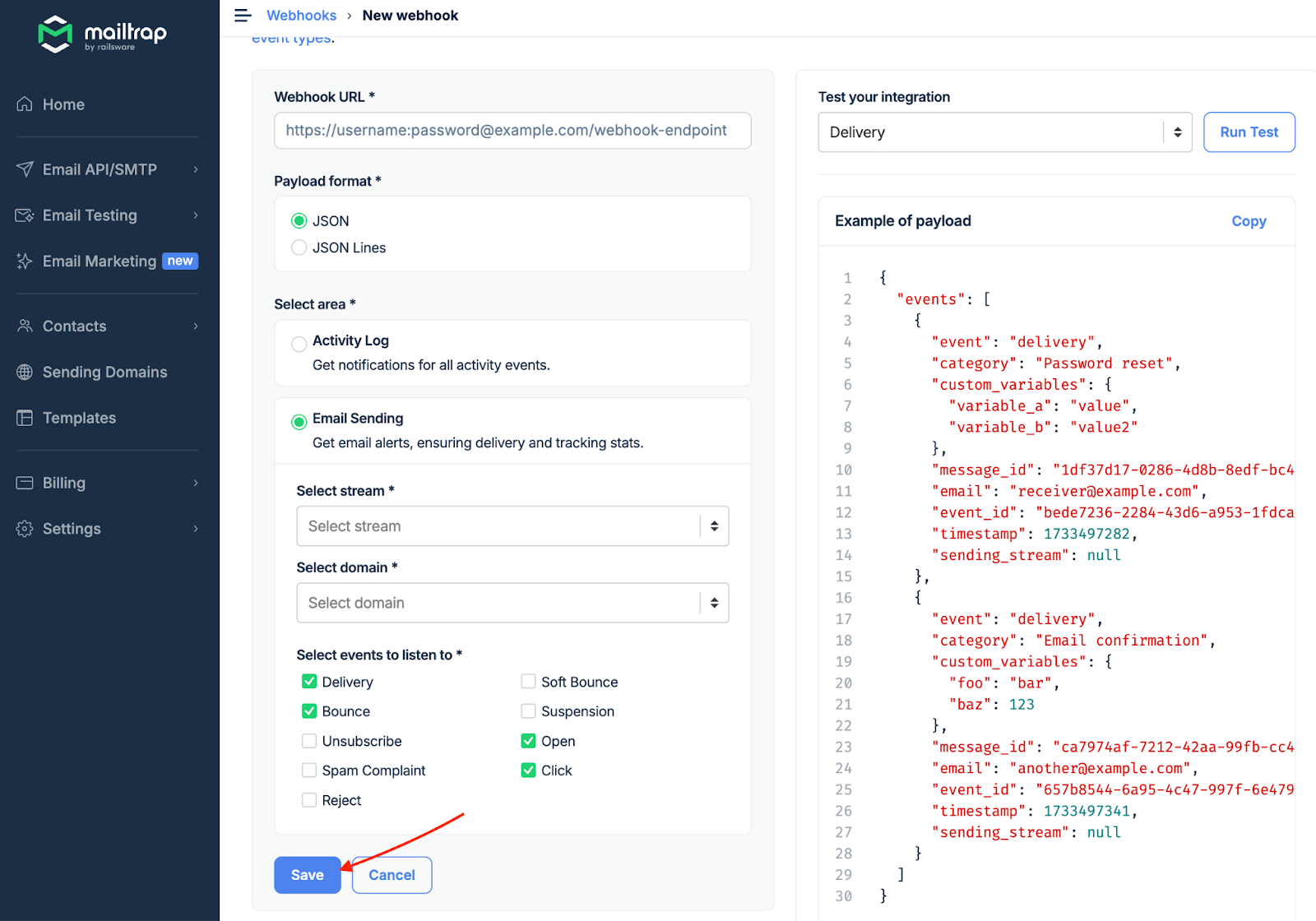
If the tests are successful, click the **Save** button. All information will be sent to your webhook endpoint.
{% hint style="info" %}
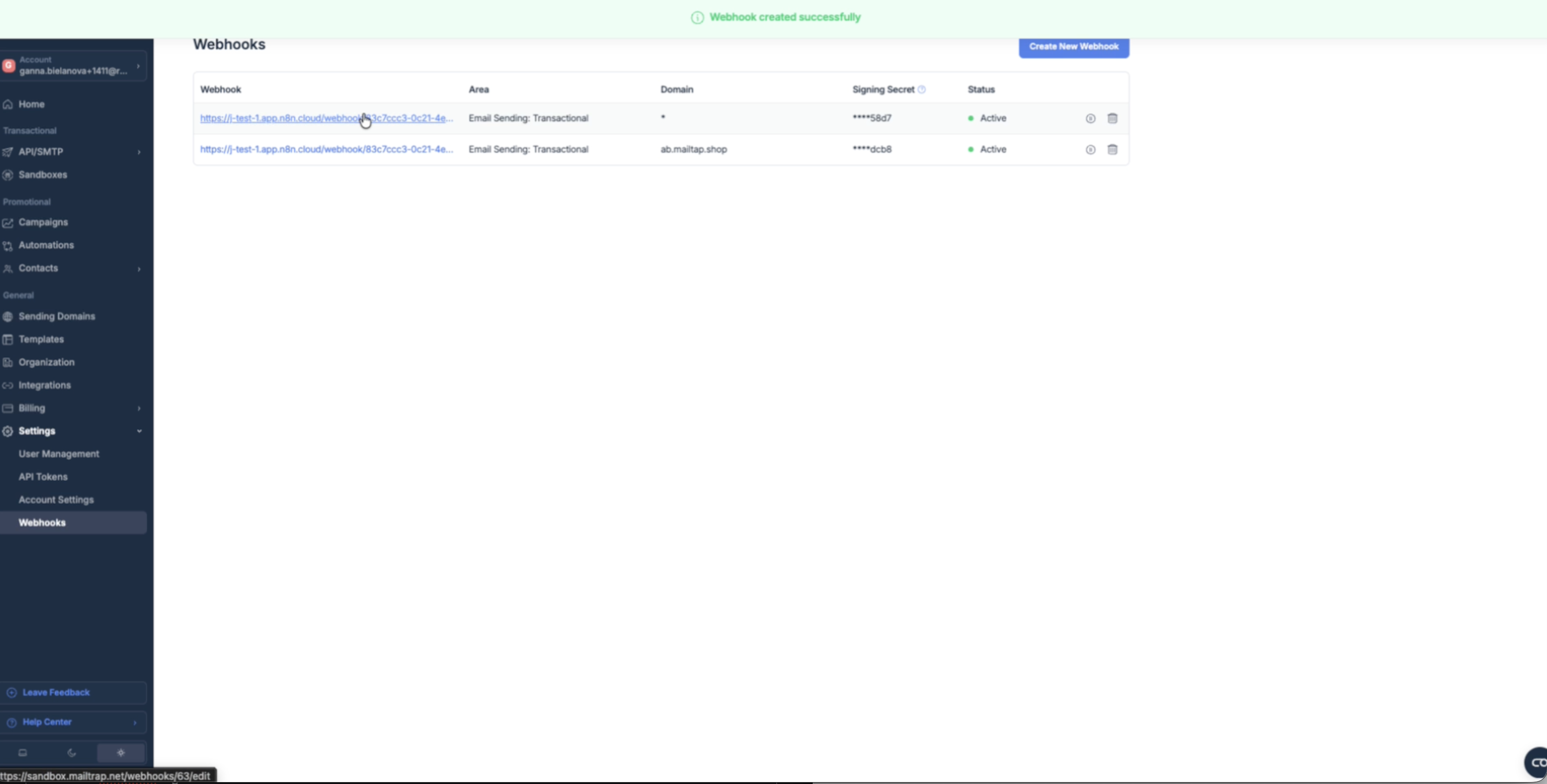
To edit, pause, or delete an active webhook, go back to the Webhooks tab and select the webhook you want to change.
{% endhint %}
{% endstep %}
{% endstepper %}
{% hint style="warning" %}
Mailtrap webhooks are delivered only on ports 443 (for HTTPS) or 80 (for HTTP). Please be sure to use these ports only.
{% endhint %}
### Receive events (JSON format)
Receive webhook events as a JSON object containing an array of events.
Set **Payload format: JSON** in your webhook settings.
Mailtrap sends a `POST` request to your webhook URL with events as a JSON object.
**Your endpoint should:**
* Accept `Content-Type: application/json`
* Return HTTP 200 to acknowledge receipt
* Process events asynchronously
#### Payload
**events** one of\[] optional
object · SendingWebhookEvent optional Email lifecycle webhook event
**event** string · enum required\ Event type\ Possible values: `delivery` `open` `click` `unsubscribe` `spam` `soft bounce` `bounce` `suspension` `reject`
**message\_id** string required\ Unique message ID
**sending\_stream** string · enum required\ Sending stream used\ Possible values: `transactional` `bulk`
**email** string required\ Recipient email address
**sending\_domain\_name** string required\ Sending domain name
**category** string optional\ Category assigned when sending
**custom\_variables** object optional\ Custom variables from the email
* **Other properties** string | number | boolean optional
**timestamp** integer required\ Unix epoch timestamp
**event\_id** string required\ Unique event ID (use for idempotency)
**reason** string optional\ Reason (for `suspension` and `reject` events)
**response** string optional\ Server response (for `soft bounce` and `bounce` events)
**response\_code** integer optional\ SMTP response code (for `soft bounce` and `bounce` events)
**bounce\_category** string optional\ Bounce category (for `soft bounce` and `bounce` events)
**ip** string optional\ User IP address (for `open`, `click`, `unsubscribe` events)
**user\_agent** string optional\ User agent (for `open`, `click`, `unsubscribe` events)
**url** string optional\ Clicked URL (for `click` events)
object · ActivityLogWebhookEvent optional Account activity webhook event (Enterprise only)
**event** string required\ Activity log event type\ Example: `activity_log.user.updated`
**description** string required\ User-friendly event description\ Example: `updated the user profile`
**actor** object required\ User or system that performed the action
* **id** integer optional\ Actor ID\ Example: `1`
* **type** string · enum optional\ Actor type\ Possible values: `user` `api_token`
* **name** string optional\ Actor name\ Example: `John Doe`
**resource** object optional\ Affected resource (optional)
* **id** string optional\ Resource ID\ Example: `1`
* **type** string · enum optional\ Resource type\ Possible values: `user` `api_token` `billing` `account` `sso_config` `sending_domain` `project` `inbox` `contact_list` contact\_field `contact_segment`
* **name** string optional\ Resource name\ Example: `John Doe`
**changes** object optional\ Changes made (optional)\ Example: `{"name":{"from":"John","to":"John Doe"}}`
* **Other properties** object optional
**timestamp** integer required\ Unix epoch timestamp\ Example: `1735830138`
**Responses**
| `200` | Return 200 to acknowledge successful receipt |
| ------------------------------------------ | -------------------------------------------------------- |
| `500` | Any other status triggers retry (40 retries every 5 min) |
**Payload**
{% tabs %}
{% tab title="Delivery" %}
```json
{
"events": [
{
"event": "delivery",
"timestamp": 1728669700,
"sending_stream": "transactional",
"category": "Password reset",
"custom_variables": {
"user_id": "123"
},
"message_id": "1df37d17-0286-4d8b-8edf-bc4ec5be86e6",
"email": "receiver@example.com",
"event_id": "bede7236-2284-43d6-a953-1fdcafd0fdbc",
"sending_domain_name": "examplesender.com"
}
]
}
```
{% endtab %}
{% tab title="Bounce" %}
```json
{
"events": [
{
"event": "bounce",
"timestamp": 1728669700,
"sending_stream": "transactional",
"message_id": "1df37d17-0286-4d8b-8edf-bc4ec5be86e6",
"email": "receiver@example.com",
"event_id": "bede7236-2284-43d6-a953-1fdcafd0fdbc",
"response": "[CS01] Message rejected due to local policy",
"response_code": 555,
"bounce_category": "spam",
"sending_domain_name": "examplesender.com"
}
]
}
```
{% endtab %}
{% tab title="Soft Bounce" %}
```json
{
"events": [
{
"event": "soft bounce",
"timestamp": 1728669700,
"sending_stream": "transactional",
"message_id": "1df37d17-0286-4d8b-8edf-bc4ec5be86e6",
"email": "receiver@example.com",
"event_id": "bede7236-2284-43d6-a953-1fdcafd0fdbc",
"response": "4.7.1 Temporary error, please retry",
"response_code": 451,
"bounce_category": "greylisting",
"sending_domain_name": "examplesender.com"
}
]
}
```
{% endtab %}
{% tab title="Spam" %}
```json
{
"events": [
{
"event": "spam",
"timestamp": 1728669700,
"sending_stream": "transactional",
"message_id": "1df37d17-0286-4d8b-8edf-bc4ec5be86e6",
"email": "receiver@example.com",
"event_id": "bede7236-2284-43d6-a953-1fdcafd0fdbc",
"sending_domain_name": "examplesender.com"
}
]
}
```
{% endtab %}
{% tab title="Suspension" %}
```json
{
"events": [
{
"event": "suspension",
"timestamp": 1728669700,
"sending_stream": "transactional",
"message_id": "1df37d17-0286-4d8b-8edf-bc4ec5be86e6",
"email": "receiver@example.com",
"event_id": "bede7236-2284-43d6-a953-1fdcafd0fdbc",
"reason": "Your account has reached its daily sending limit.",
"sending_domain_name": "examplesender.com"
}
]
}
```
{% endtab %}
{% tab title="Reject" %}
```json
{
"events": [
{
"event": "reject",
"timestamp": 1728669700,
"sending_stream": "transactional",
"message_id": "1df37d17-0286-4d8b-8edf-bc4ec5be86e6",
"email": "receiver@example.com",
"event_id": "bede7236-2284-43d6-a953-1fdcafd0fdbc",
"reason": "Recipient in suppression list. Reason: unsubscription",
"sending_domain_name": "examplesender.com"
}
]
}
```
{% endtab %}
{% tab title="Open" %}
```json
{
"events": [
{
"event": "open",
"timestamp": 1728669700,
"sending_stream": "transactional",
"message_id": "1df37d17-0286-4d8b-8edf-bc4ec5be86e6",
"email": "receiver@example.com",
"event_id": "bede7236-2284-43d6-a953-1fdcafd0fdbc",
"ip": "127.138.158.185",
"user_agent": "Mozilla/5.0 (Macintosh; Intel Mac OS X 10_15_7)",
"sending_domain_name": "examplesender.com"
}
]
}
```
{% endtab %}
{% tab title="Click" %}
```json
{
"events": [
{
"event": "click",
"timestamp": 1728669700,
"sending_stream": "transactional",
"message_id": "1df37d17-0286-4d8b-8edf-bc4ec5be86e6",
"email": "receiver@example.com",
"event_id": "bede7236-2284-43d6-a953-1fdcafd0fdbc",
"ip": "142.86.27.2",
"user_agent": "Mozilla/5.0 (Windows NT x.y; Win64; x64)",
"url": "https://mailtrap.io/email-api",
"sending_domain_name": "examplesender.com"
}
]
}
```
{% endtab %}
{% tab title="Unsubscribe" %}
```json
{
"events": [
{
"event": "unsubscribe",
"timestamp": 1728669700,
"sending_stream": "transactional",
"message_id": "1df37d17-0286-4d8b-8edf-bc4ec5be86e6",
"email": "receiver@example.com",
"event_id": "bede7236-2284-43d6-a953-1fdcafd0fdbc",
"sending_domain_name": "examplesender.com"
}
]
}
```
{% endtab %}
{% tab title="Audit Log User Login" %}
```json
{
"events": [
{
"event": "activity_log.user.login",
"description": "logged in with SSO",
"actor": {
"id": 1,
"type": "user",
"name": "John Doe"
},
"timestamp": 1735830138
}
]
}
```
{% endtab %}
{% tab title="Audit Log: Profile Update" %}
```json
{
"events": [
{
"event": "activity_log.user.updated",
"description": "updated the user profile",
"actor": {
"id": 1,
"type": "user",
"name": "John Doe"
},
"resource": {
"id": "1",
"type": "user",
"name": "John Doe"
},
"changes": {
"name": {
"from": "John",
"to": "John Doe"
}
},
"timestamp": 1735830138
}
]
}
```
{% endtab %}
{% endtabs %}
### Receive events (JSON Lines format)
Mailtrap sends a `POST` request to your webhook URL with events in [JSON Lines](https://jsonlines.org/) format.
Each line is a separate JSON object. Parse line by line.
**Your endpoint should:**
* Accept `Content-Type: application/jsonl`
* Return HTTP 200 to acknowledge receipt
* Process events asynchronously
**Payload**
object · SendingWebhookEvent optional Email lifecycle webhook event
**event** string · enum required\ Event type\ Possible values: `delivery` `open` `click` `unsubscribe` `spam` `soft bounce` `bounce` `suspension` `reject`
**message\_id** string required\ Unique message ID
**sending\_stream** string · enum required\ Sending stream used\ Possible values: `transactional` `bulk`
**email** string required\ Recipient email address
**sending\_domain\_name** string required\ Sending domain name
**category** string optional\ Category assigned when sending
**custom\_variables** object optional\ Custom variables from the email
* **Other properties** string | number | boolean optional
**timestamp** integer required\ Unix epoch timestamp
**event\_id** string required\ Unique event ID (use for idempotency)
**reason** string optional\ Reason (for `suspension` and `reject` events)
**response** string optional\ Server response (for `soft bounce` and `bounce` events)
**response\_code** integer optional\ SMTP response code (for `soft bounce` and `bounce` events)
**bounce\_category** string optional\ Bounce category (for `soft bounce` and `bounce` events)
**ip** string optional\ User IP address (for `open`, `click`, `unsubscribe` events)
**user\_agent** string optional\ User agent (for `open`, `click`, `unsubscribe` events)
**url** string optional\ Clicked URL (for `click` events)
object · ActivityLogWebhookEvent optional Account activity webhook event (Enterprise only)
**event** string required\ Activity log event type\ Example: `activity_log.user.updated`
**description** string required\ User-friendly event description\ Example: `updated the user profile`
**actor** object required\ User or system that performed the action
* **id** integer optional\ Actor ID\ Example: `1`
* **type** string · enum optional\ Actor type\ Possible values: `user` `api_token`
* **name** string optional\ Actor name\ Example: `John Doe`
**resource** object optional\ Affected resource (optional)
* **id** string optional\ Resource ID\ Example: `1`
* **type** string · enum optional\ Resource type\ Possible values: `user` `api_token` `billing` `account` `sso_config` `sending_domain` `project` `inbox` `contact_list` contact\_field `contact_segment`
* **name** string optional\ Resource name\ Example: `John Doe`
**changes** object optional\ Changes made (optional)\ Example: `{"name":{"from":"John","to":"John Doe"}}`
* **Other properties** object optional
**timestamp** integer required\ Unix epoch timestamp\ Example: `1735830138`
**Responses**
| `200` | Return 200 to acknowledge successful receipt |
| ------------------------------------------ | -------------------------------------------------------- |
| `500` | Any other status triggers retry (40 retries every 5 min) |
**Payload**
{% tabs %}
{% tab title="Delivery events" %}
```jsonl
{"event":"delivery","timestamp":1728669927,"sending_stream":"transactional","category":"Password reset","message_id":"1df37d17-0286-4d8b-8edf-bc4ec5be86e6","email":"receiver@example.com","event_id":"bede7236-2284-43d6-a953-1fdcafd0fdbc","sending_domain_name":"examplesender.com"}
{"event":"delivery","timestamp":1728669927,"sending_stream":"transactional","category":"Email confirmation","message_id":"ca7974af-7212-42aa-99fb-cc4742d0658b","email":"another@example.com","event_id":"657b8544-6a95-4c47-997f-6e47922a5052","sending_domain_name":"examplesender.com"}
```
{% endtab %}
{% tab title="Bounce events" %}
```jsonl
{"event":"bounce","timestamp":1728669927,"sending_stream":"transactional","message_id":"1df37d17-0286-4d8b-8edf-bc4ec5be86e6","email":"receiver@example.com","event_id":"bede7236-2284-43d6-a953-1fdcafd0fdbc","response":"[CS01] Message rejected","response_code":555,"bounce_category":"spam","sending_domain_name":"examplesender.com"}
```
{% endtab %}
{% tab title="Mixed events" %}
```jsonl
{"event":"delivery","timestamp":1728669927,"message_id":"abc-123","email":"user1@example.com","event_id":"evt-1","sending_stream":"transactional","sending_domain_name":"example.com"}
{"event":"open","timestamp":1728669930,"message_id":"abc-123","email":"user1@example.com","event_id":"evt-2","sending_stream":"transactional","ip":"192.168.1.1","sending_domain_name":"example.com"}
{"event":"click","timestamp":1728669935,"message_id":"abc-123","email":"user1@example.com","event_id":"evt-3","sending_stream":"transactional","url":"https://example.com","sending_domain_name":"example.com"}
```
{% endtab %}
{% endtabs %}
### Audit Log event structure
Audit Log events include the following fields:
* **event** — The event type
* Example: `activity_log.user.updated`
* **description** — The event description. Meant to be a user-friendly representation of the event type.
* Example: `updated the user profile`
* **actor** — Object representing the actor who executed the action or if the action was performed by the system actor.
* Example: `{"id":1,"type":"user","name":"Jack"}` or `{"name":"Mailtrap"}`
* **resource** — Optional object representing the resource affected by the action
* Example: `{"id":17,"type":"sandbox","name":"Main"}`
* **changes** — Optional object representing the changes made to the resource
* Example: `{"name":{"from":"John","to":"John Doe"}}`
* **timestamp** — The timestamp in Unix epoch format
* Example: `1735830138`
All stats are built on the events, and you get most event information from the Mailtrap UI.
### Retry schedule and batches
#### Retry schedule
If your endpoint is down and doesn't respond with 200 OK, we'll retry multiple times. The scheduling logic is as follows:
* **Retry** - 40 retries every 5 minutes. The webhook will be considered failed if we don't receive 200 OK with all retries. If the webhook fails, we'll pause it and notify you by email. You'll need to check its settings and resume it manually.
* **Timeout** - 30 seconds. If your endpoint doesn't respond within that time, the webhook event batch will go to the retry schedule.
#### Batches
Webhooks are delivered in batches, so a single request can contain multiple events. This reduces the number of requests to your endpoint and lowers load on your infrastructure.
Mailtrap can include up to 500 events per delivery. Events are collected and sent every 30 seconds (if there are events to deliver).
The batch format depends on the webhook payload type you choose:
* **JSON**: events are sent as a JSON array in a single payload.
* **JSON Lines**: events are sent as one JSON object per line (not wrapped in an array).
### Webhook Signature Verification
Mailtrap signs all webhook requests to ensure they originate from Mailtrap and haven't been tampered with.
#### Overview
Mailtrap uses [HMAC-SHA256](https://tools.ietf.org/html/rfc2104) to sign webhook payloads. Each webhook has a unique signing secret that you can use to verify the authenticity of incoming requests.
### How it works
* Signature Header – Mailtrap includes a \`Mailtrap-Signature\` header in every webhook request.
* Signature Algorithm – The signature is computed using HMAC-SHA256.
* Signature Format – The signature is a hexadecimal-encoded string.
* Signing Secret – Each webhook has a unique signing secret (32 hex characters).
### Getting your signing secret
The signing secret is automatically generated when you create a webhook. You can view and manage your signing secret in the Mailtrap UI:
{% stepper %}
{% step %}
#### Find the webhook you want to configure in to your webhooks settings
{% endstep %}
{% step %}
#### The signing secret will be displayed in the webhook details
Then, you can:
* Copy the secret to use in your verification code.
* Reset it at any time from the UI if you wish to (i.e., for security reasons).
**Important**: When you reset the signing secret, the old secret becomes invalid immediately. Make sure to update your verification code with the new secret.
{% endstep %}
{% endstepper %}
#### Verifying the signature
To verify a webhook signature, you need to:
1. Extract the \`Mailtrap-Signature\` header from the incoming request
2. Get the raw request body (as bytes/string, not parsed JSON)
3. Compute HMAC-SHA256 using your signing secret and the raw body
4. Compare the computed signature with the header value using a constant-time comparison
**Important notes:**
* **Use the raw request body** – Do not parse the JSON first. Use the raw bytes/string exactly as received.
* **Constant-time comparison** – Always use a constant-time comparison function to prevent timing attacks.
* `Content-Type` – The signature is computed on the raw body regardless of Content-Type (JSON or JSONL)
#### Code examples
{% tabs %}
{% tab title="Ruby" %}
```ruby
ruby
require 'openssl'
def verify_webhook_signature(request_body, signature_header, signing_secret)
return false if signature_header.blank? || request_body.blank?
computed_signature = OpenSSL::HMAC.hexdigest(
OpenSSL::Digest.new('sha256'),
signing_secret,
request_body
)
# Use secure_compare for constant-time comparison
Rack::Utils.secure_compare(computed_signature, signature_header)
end
```
{% endtab %}
{% tab title="Rails controller" %}
```ruby
def webhook_received
signature = request.headers['Mailtrap-Signature']
body = request.raw_post
signing_secret = 'your_signing_secret_here'
unless verify_webhook_signature(body, signature, signing_secret)
head :bad_request
return
end
# Process the webhook...
end
```
{% endtab %}
{% tab title="Python" %}
```python
import hmac
import hashlib
def verify_webhook_signature(request_body, signature_header, signing_secret):
if not signature_header or not request_body:
return False
computed_signature = hmac.new(
signing_secret.encode('utf-8'),
request_body.encode('utf-8'),
hashlib.sha256
).hexdigest()
# Use hmac.compare_digest for constant-time comparison
return hmac.compare_digest(computed_signature, signature_header)
```
{% endtab %}
{% tab title="Flask" %}
```python
from flask import request
@app.route('/webhook', methods=['POST'])
def webhook_received():
signature = request.headers.get('Mailtrap-Signature')
body = request.get_data(as_text=True)
signing_secret = 'your_signing_secret_here'
if not verify_webhook_signature(body, signature, signing_secret):
return '', 400
# Process the webhook...
return '', 200
```
{% endtab %}
{% tab title="Node.js / Express" %}
```javascript
const crypto = require('crypto');
function verifyWebhookSignature(requestBody, signatureHeader, signingSecret) {
if (!signatureHeader || !requestBody) {
return false;
}
const computedSignature = crypto
.createHmac('sha256', signingSecret)
.update(requestBody, 'utf8')
.digest('hex');
// Use crypto.timingSafeEqual for constant-time comparison
const signatureBuffer = Buffer.from(signatureHeader, 'hex');
const computedBuffer = Buffer.from(computedSignature, 'hex');
if (signatureBuffer.length !== computedBuffer.length) {
return false;
}
return crypto.timingSafeEqual(signatureBuffer, computedBuffer);
}
// Usage in Express
app.post('/webhook', express.raw({ type: 'application/json' }), (req, res) => {
const signature = req.headers['mailtrap-signature'];
const body = req.body.toString('utf8');
const signingSecret = 'your_signing_secret_here';
if (!verifyWebhookSignature(body, signature, signingSecret)) {
return res.status(400).send('Invalid signature');
}
// Process the webhook...
res.status(200).send('OK');
});
```
{% endtab %}
{% tab title="Express" %}
```javascript
app.post('/webhook', express.raw({ type: 'application/json' }), (req, res) => {
const signature = req.headers['mailtrap-signature'];
const body = req.body.toString('utf8');
const signingSecret = 'your_signing_secret_here';
if (!verifyWebhookSignature(body, signature, signingSecret)) {
return res.status(400).send('Invalid signature');
}
// Process the webhook...
res.status(200).send('OK');
});
```
{% endtab %}
{% tab title="PHP" %}
```php
How it works
All SMTP sending exits through proxy instances with Elastic IPs from these ranges. Webhook traffic (audit logs, transactional events, test webhooks) routes through NAT gateways pinned to the same ranges.
To whitelist, add these to your firewall's inbound rules:
```
# IPv4 CIDR blocks - covers both sending and webhooks
45.158.83.0/24
5.181.200.0/24
# Or, for webhooks only (specific IPs)
45.158.83.129
45.158.83.130
# Protocols
TCP - SMTP (port 25/587/465) for sending
TCP - HTTPS (port 443) for webhooks
```
{% hint style="info" %}
For automated firewall provisioning (Terraform, CloudFlare, AWS Security Groups), use the machine-readable endpoint:
{% endhint %}
When to use it
* Your webhook endpoint sits behind a firewall that blocks unknown IPs.
* Your security team requires an explicit allowlist for all inbound traffic.
* You're automating infrastructure and need static CIDRs for IaC templates.
* You're in a regulated industry (finance, healthcare, insurance) with strict network policies.
Limitations
* IPv6 ranges are AWS-provided, not Mailtrap-owned—available on request.
* Specific sending IPs may change; whitelist the full /24 range rather than individual addresses.
---
# Agent Instructions
This documentation is published with GitBook. GitBook is the documentation platform designed so that both humans and AI agents can read, navigate, and reason over technical content effectively. Learn more at gitbook.com.
## Querying This Documentation
If you need additional information that is not directly available in this page, you can query the documentation dynamically by asking a question.
Perform an HTTP GET request on the current page URL with the `ask` query parameter, and the optional `goal` query parameter:
```
GET https://docs.mailtrap.io/email-api-smtp/advanced/webhooks.md?ask=&goal=
```
`ask` is the immediate question: it should be specific, self-contained, and written in natural language.
`goal` is optional and describes the broader end goal you are ultimately trying to accomplish on behalf of the user. GitBook uses it to tailor the answer towards what is most useful for that goal.
The response will contain a direct answer to the question and relevant excerpts and sources from the documentation.
Use this mechanism when the answer is not explicitly present in the current page, you need clarification or additional context, or you want to retrieve related documentation sections.