> For the complete documentation index, see [llms.txt](https://docs.mailtrap.io/llms.txt). Markdown versions of documentation pages are available by appending `.md` to page URLs; this page is available as [Markdown](https://docs.mailtrap.io/account-and-organization/management/organization-and-sub-accounts.md).
# Organization & Sub-Accounts
Manage complex setups with Mailtrap Organization & Sub‑Accounts. Learn about centralized billing, isolated workspaces, permissions, and how to create and migrate sub-accounts.
### Overview
The **Organization & Sub-Accounts** structure is designed to help you manage complex setups involving multiple teams, clients, environments, or products - all under a single Organization.
Each **sub-account** functions as a fully isolated workspace with its own set of projects, sending domains, email templates, stats, credentials (SMTP/API), and even team members. This separation ensures that data, permissions, and sending behavior in one sub‑account will never affect the others.
At the same time, your **Organization** acts as the central hub:
* **Centralized billing** lets you keep all sub‑accounts under one subscription plan and one invoice.
* **Shared quota pools** apply across all sub‑accounts using Email API/SMTP, Email Campaigns or Email Sandbox, making it easy to allocate resources flexibly.
* **Org-level permissions** give users access to all current and future sub‑accounts by default - ideal for admins or managers.
* **Sub-account-level permissions** can be assigned when you need to restrict access to just selected environments or clients.
* **Clear separation of data**. Projects, templates, stats, and domains stay neatly separated between sub‑accounts.
* **Deliverability isolation**. Each sub‑account's sending reputation stays isolated. If one goes off track, others remain unaffected.
* **Smooth migration of accounts**. Existing standalone accounts can be converted to sub‑accounts, bringing over settings, stats, and domains seamlessly.
This structure is ideal whether you're working with:
* **API/SMTP**
* **Email Campaigns**
* **Email Sandbox**
No matter the product, sub‑accounts remain consistently isolated and manageable.
Additionally, if your teams or clients shift over time, you can **transfer sub‑accounts between Organizations** without losing historical data, settings, or domain authentications. Our support team can guide you through this process to make it smooth and safe.
{% hint style="info" %}
The Organization & Sub‑Accounts feature is available only on **Business** and **Enterprise** Email Sending or Sandbox plans. If you don't see this option in your user panel, you may need to upgrade your plan to access it.
{% endhint %}
{% hint style="warning" %}
If your account is currently using Braintree as the payment gateway, you'll need to migrate to Stripe in order to enable and use the Organization & Sub‑Accounts feature.
{% endhint %}
### When to use Organization & Sub-accounts
Use Organization & Sub‑accounts to:
* Isolate own projects or products.
* Serve multiple clients or brands without overlap.
* Control access for different teams, business units or clients.
* Prevent issues in one sub‑account affecting others.
* Keep email stats, templates, or sender configurations isolated.
### Creating a sub-account
{% stepper %}
{% step %}
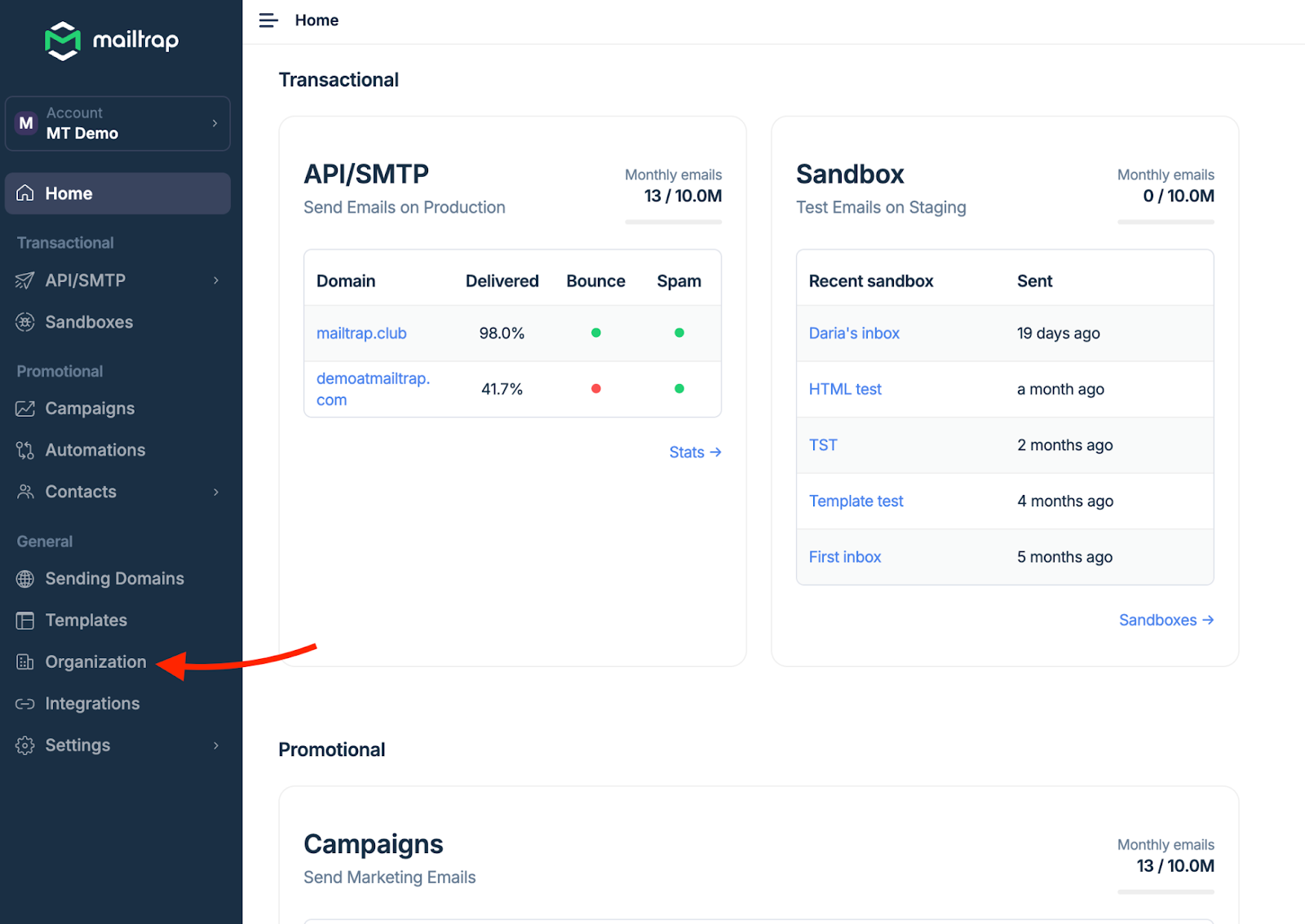
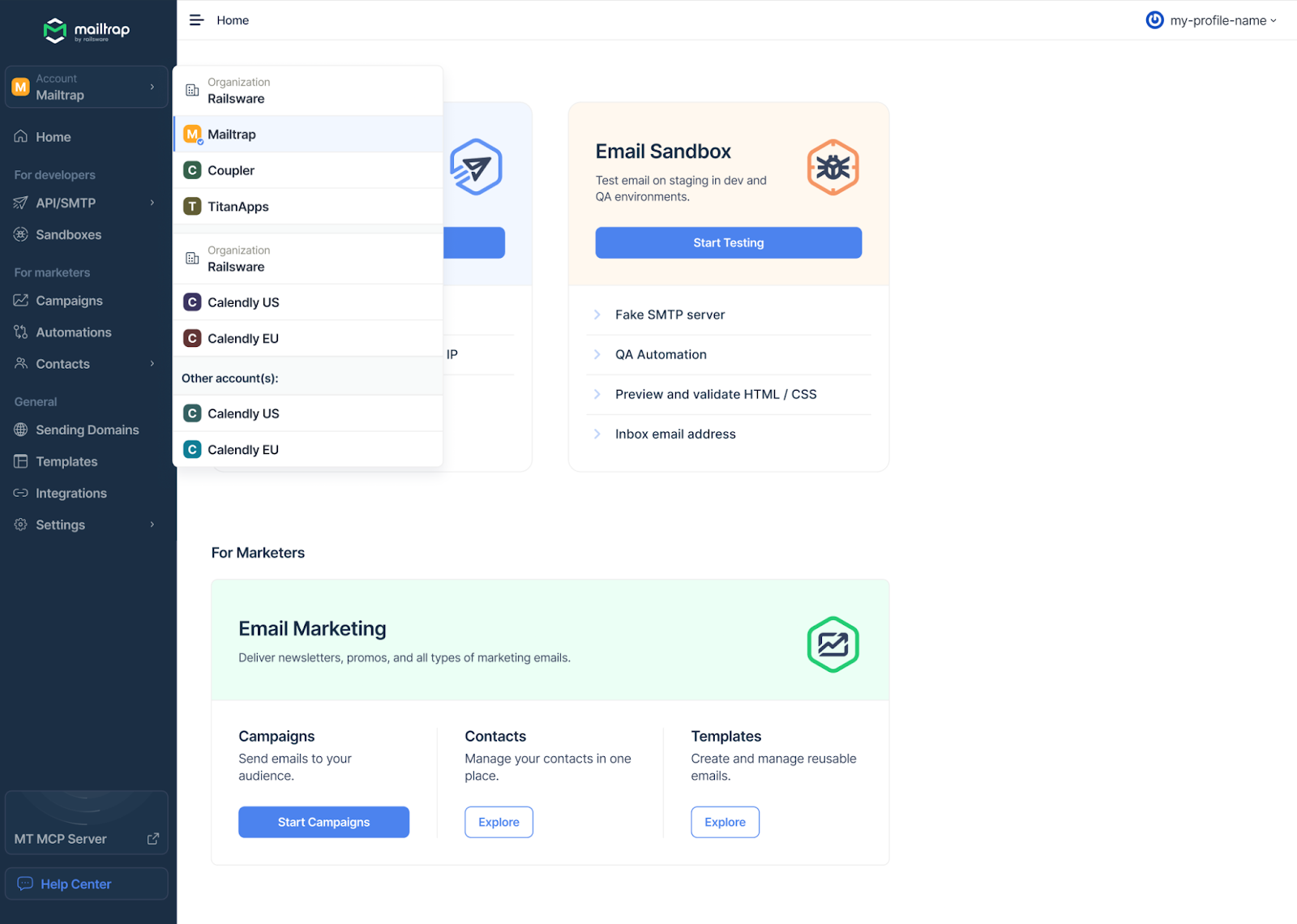
Go to the left-side menu and select **Organization**. This will open the **Organization** panel.
{% endstep %}
{% step %}
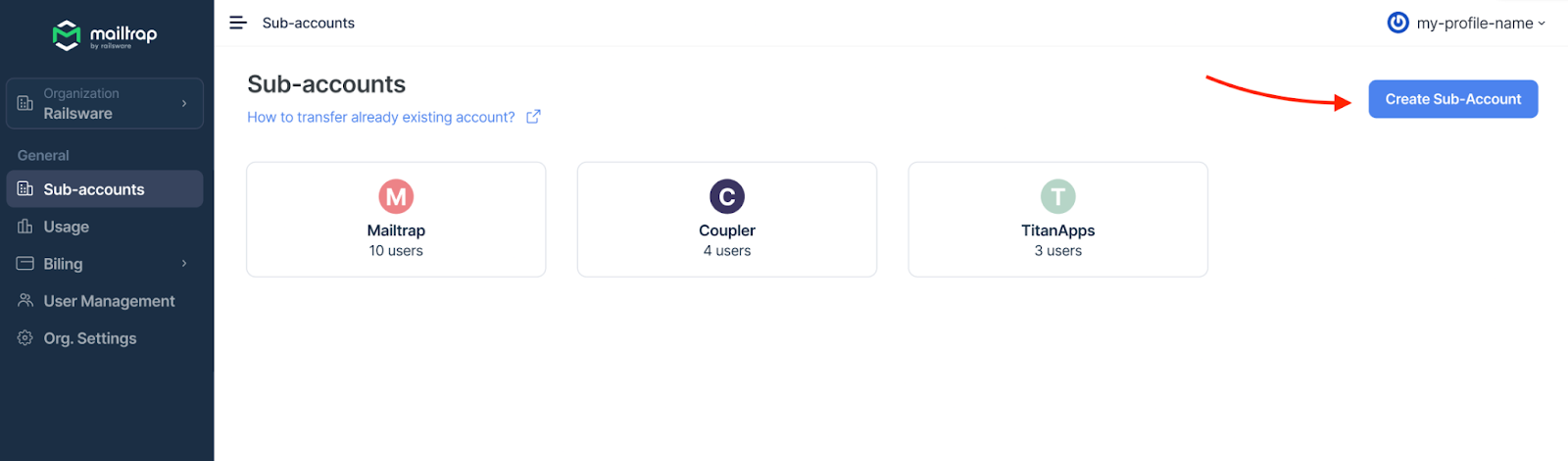
Click **Sub-accounts** menu item and **Create Sub-Account** button.
{% endstep %}
{% step %}
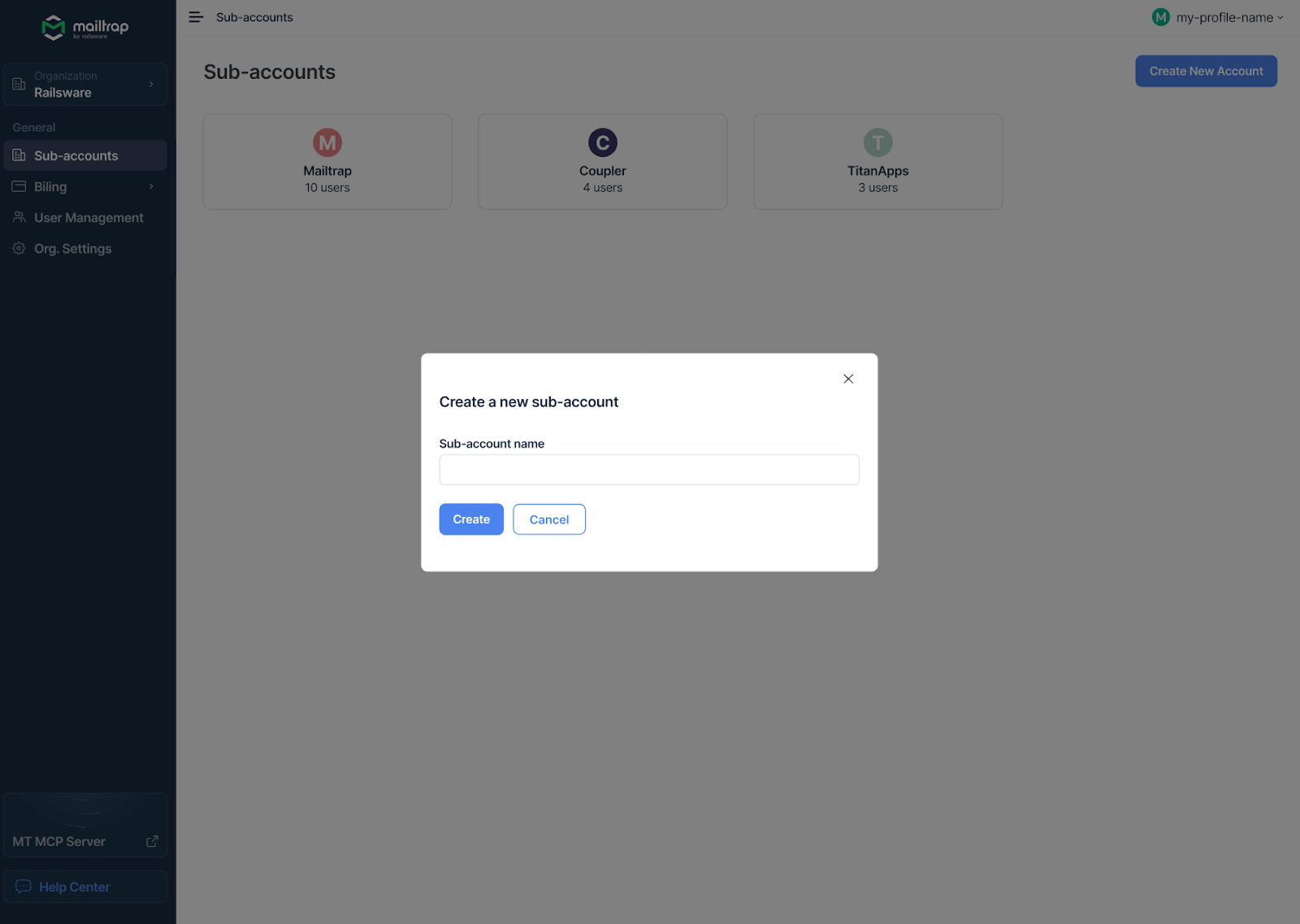
Enter the sub-account name and click **Create**.
{% endstep %}
{% step %}
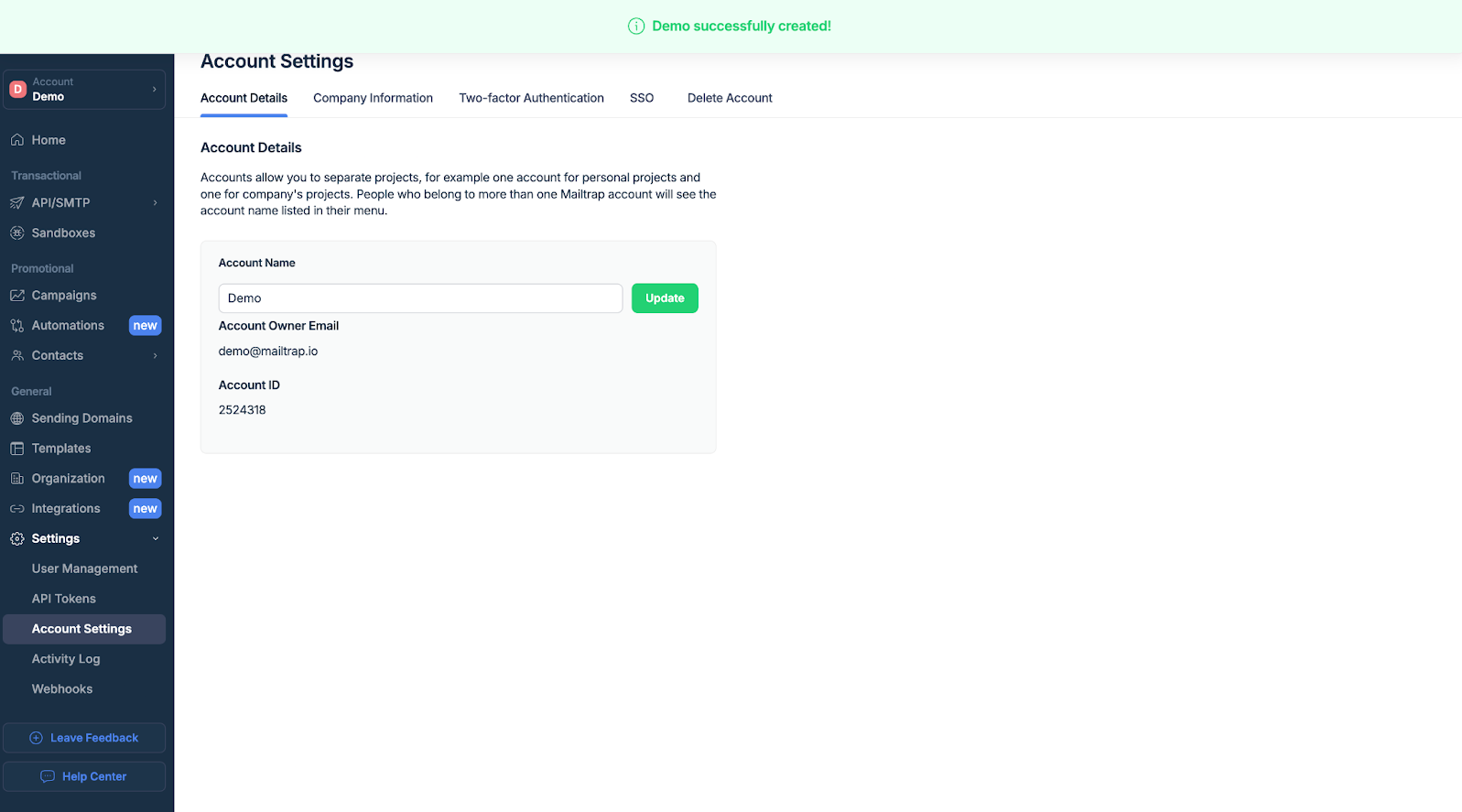
You will be automatically redirected to the new account settings page, where you can manage other account settings.
{% endstep %}
{% endstepper %}
You're ready! Each sub‑account starts fresh with no domains, tokens, or stats - configure however you like.
You can create as many sub‑accounts as needed - there is no limit, making this feature scalable for any organization size.
{% hint style="info" %}
Sub‑accounts can be created through the user interface or through the API as well.
{% endhint %}
Switch between your organizations and sub‑accounts from the left-side menu anytime.
### Migrating an already existing account
If you have multiple Mailtrap accounts and want to merge them under a single Organization (without re-authenticating domains or losing data), our Support Team can help make the process smooth. You can transfer any account, including free ones. The only requirement is that the **destination Organization** is on a subscription plan that includes **Organization & Sub-accounts**.
To start, email us at from the account owner's email address (the one who owns the account you want to move) and include:
* **Account name or ID** you want to transfer
* **Destination Organization name or ID**
* **Email address of the destination Organization Owner** (for security verification)
* **Reason for the transfer** (e.g., merging workspaces, restructuring your team, etc.)
Once we receive your request, our team will confirm the transfer with both sides.
{% hint style="warning" %}
**Important notes**
* If you need to transfer multiple accounts, please submit **one request per account**. Always send each request from the account owner's email.
* The transferred account will be **removed from the original Organization**.
* Original Organization admins and viewers will lose access to this account. **Account-level admins and viewers will retain their access.**
* If the transferred account was the **only one** in the original Organization, the subscription for that Organization will be canceled. If no accounts remain, the empty Organization will be deleted.
{% endhint %}
**Transfer and access**
After both sides approve:
* The account will be moved from the Original Organization to the Destination Organization.
* The account will now use the **subscription and usage limits of the Destination Organization**.
* Usage counters will reset, since the account is now part of a new shared plan.
### Permissions & user management
The Organization & Sub‑Accounts structure offers flexible and secure user access controls, so you can easily tailor permissions based on team roles, client needs, or project scope.
#### Types of access
There are two levels of user access:
**1. *****Organization-level access***
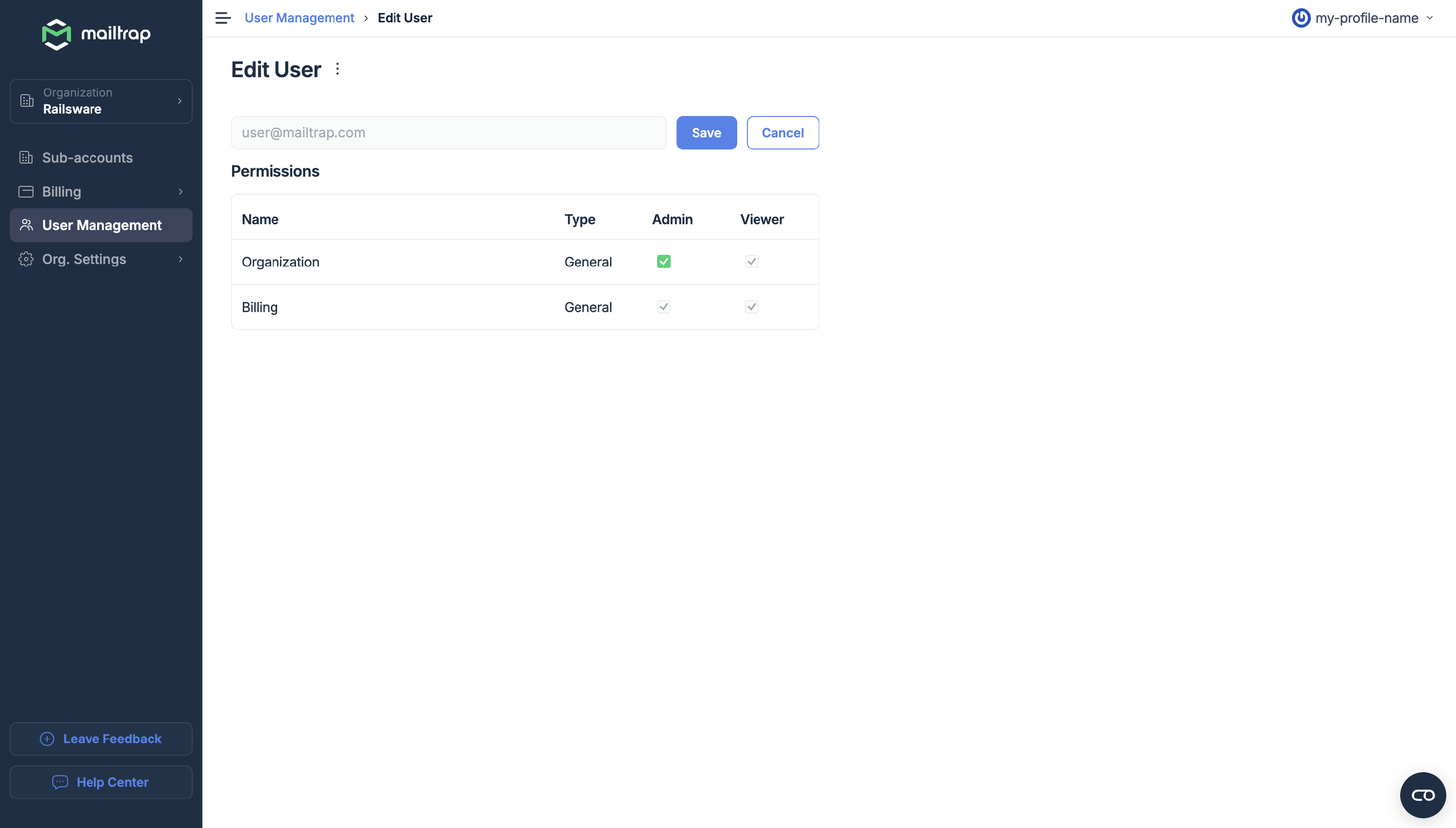
Users with this access-level can see and manage **all current and future sub-accounts** within the Organization. This is ideal for admins, finance, or central teams that need a global overview. You can assign roles such as:
* **Org Owner** – The highest-level role within Organization structure. This role is automatically assigned to the person who created the Organization and comes with full, unrestricted access.
* **Org Admin** – Full access to organization settings and billing, as well as admin access to all sub‑accounts.
* **Org Viewer** – View-only access to organization settings and billing, as well as view access to all sub‑accounts.
{% hint style="info" %}
A user with organization-level permissions will always have access to all organization-related pages in the Mailtrap UI, regardless of which sub‑account they are currently logged into.
{% endhint %}
* **Billing Admin** - Full access to billing.
* **Billing Viewer** - View-only access to billing.
**2. *****Account-level access***
If a user only needs access to selected sub‑accounts, you can invite them to those accounts only. Description of account-level roles can be found here: [Account-level User Management](/account-and-organization/management/users.md).
{% hint style="info" %}
Users can be invited with a single email address to both Organization and selected Sub‑accounts as needed. You don't need to create multiple invitations for the same person.
{% endhint %}
#### Viewing current users
You can easily check who has access to your account.
* **Account users**:
Go to the **Settings** → **User Management** tab to see a list of all users with account-level access. Permissions can be updated at any time from this panel - you can change access rights or remove users with just a few clicks.
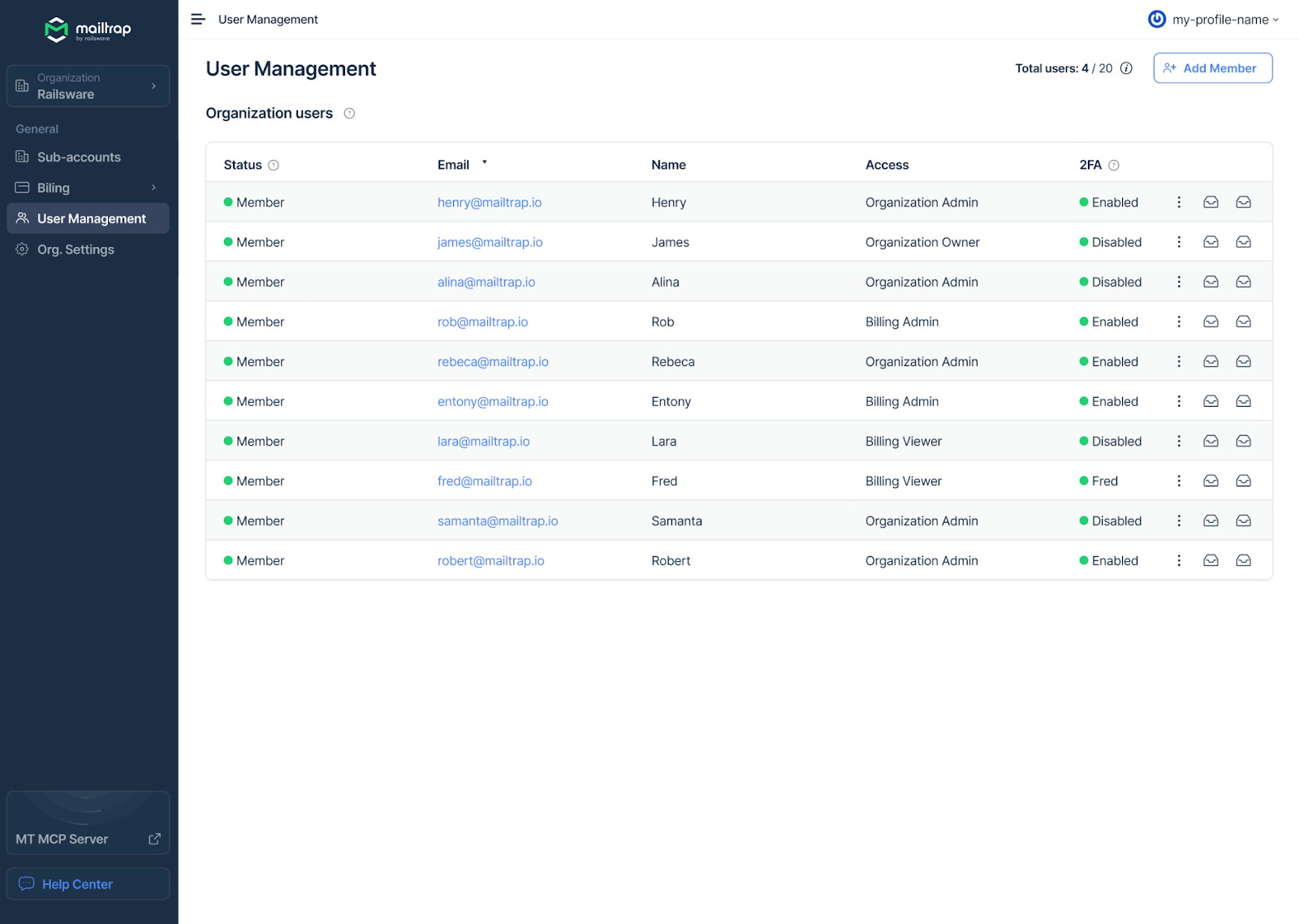
* **Organization-level users**:
All users with Organization-level access also have access to your account, and they are listed in a separate **"Organization"** tab. These users automatically have access to all current and future sub‑accounts.
If you are an Organization Owner or Organization Admin, you can edit organization-level users (e.g., invite, remove, or change roles). If you don't have admin rights, you will still see the full list of org-level users, but only in view-only mode.
### API tokens
API tokens in Mailtrap are account–level. That means each sub‑account has its own isolated set of tokens used for authentication when interacting with Mailtrap's API or SMTP services. Also, an organization has its own tokens to create and list their sub-accounts.
#### Key Points
* **Isolated by design**: Tokens are unique to each sub‑account and cannot be used to access resources from other sub‑accounts or the entire Organization.
* **Scoped access**: API tokens grant access only to the specific data and resources within the sub‑account they were created in, helping maintain strict separation between teams or environments.
* **Management via UI**: Tokens can currently be created, viewed, and revoked via the API Tokens section inside each sub‑account.
### Usage & Limits
Your organization has a single shared plan allowance (for example, monthly email volume and the number of sandboxes). Under the Usage & Limits tab, you can view your plan allowance, your organization's overall usage, and the usage of each individual sub-account. Since all sub-accounts share the same plan allowance, this makes it easy to understand how it is being consumed across your organization.
{% hint style="info" %}
Access to usage data per sub-account enables proportional cost allocation. For example, if a single subscription is shared across multiple sub-accounts representing different teams, its cost can be allocated proportionally based on each team's usage. Similarly, if a subscription is shared among multiple customers, the cost can be distributed proportionally across those customers according to their usage.
{% endhint %}
On top of that, as an Organization admin, you can set a personal limit for a sub-account (emails sent, domains, contacts, etc.) by clicking on the **Edit Limits** button.
You will then be redirected to the following page:
#### How limits per sub-account work
**Sub-account with a limit**
If you limit a sub-account (e.g., emails sent), it cannot go further once it hits the limit, not even by 1. A sub-account also cannot generate overage, even if the organization still has room for overage left.
**Sub-account without a limit**
A sub-account that you don't limit can use whatever is left of the organization’s plan allowance. If your plan allows it, the sub-account can also go into overage.
**Mixed setup (some limited, some not)**
* *Capped* sub-accounts stop at their own limits and never create overage.
* *Uncapped* ones keep using the shared org pool and can create overage for the organization.
* Even an uncapped sub-account is still blocked if the organization’s overall limit (including overage, if enabled) is exhausted.
**Example**: Let's imagine that an organization with 100k monthly email sends has a sub-account A capped at 20k, and a sub-account B with no limit. In such a case, sub-account A will stop at 20k, whereas sub-account B can use the rest and may push the organization into overage.
### FAQ
#### Users and Permissions
Are the number of users shared for all the sub-accounts under the organization?
Yes, user counts are shared across all sub-accounts within the organization.
How am I counted as a user if I have permissions to more than 1 sub-account?
You'll still be counted as one user, regardless of how many sub-accounts you have access to within the organization.
Can a user be in multiple sub-accounts?
Yes, just invite them to each sub‑account and assign the right role. You can also add users to the entire Organization, and thus, they will have access to all sub-accounts within your Organization.
#### Organization and Sub-Account Management
How can a sub-account be removed from the organization they're currently in?
You can either fully delete the sub-account (using the same process as deleting standard accounts) or contact our Support Team to transfer the sub-account to another Organization.
Need to migrate existing accounts into one Organization?
Sure! Reach out to us, and we'll help you move everything over without losing data or re-verifying domains.
Can sub-accounts have different plan levels?
No, the subscription plan is defined at the Organization level and shared across all sub‑accounts.
What about billing?
All usage is tracked and billed under the Organization's plan. If you need billing per account, we recommend keeping them as standalone accounts.
How to update the organization owner?
Submit a support request to update the organization owner.
#### Quotas and Stats
Can we set a per sub-account quota limit?
This feature is currently in development and will be available soon.
Are stats and email quotas shared?
Quotas apply at the Organization level, but stats are tracked separately for each sub‑account.
#### General
Can sub-accounts share templates?
No, templates are isolated per sub‑account. You can manually export and import them if needed.
Not seeing the "Organization" menu item?
Your current plan may not include this feature. You can check our pricing or contact support for help.
---
# Agent Instructions
This documentation is published with GitBook. GitBook is the documentation platform designed so that both humans and AI agents can read, navigate, and reason over technical content effectively. Learn more at gitbook.com.
## Querying This Documentation
If you need additional information that is not directly available in this page, you can query the documentation dynamically by asking a question.
Perform an HTTP GET request on the current page URL with the `ask` query parameter, and the optional `goal` query parameter:
```
GET https://docs.mailtrap.io/account-and-organization/management/organization-and-sub-accounts.md?ask=&goal=
```
`ask` is the immediate question: it should be specific, self-contained, and written in natural language.
`goal` is optional and describes the broader end goal you are ultimately trying to accomplish on behalf of the user. GitBook uses it to tailor the answer towards what is most useful for that goal.
The response will contain a direct answer to the question and relevant excerpts and sources from the documentation.
Use this mechanism when the answer is not explicitly present in the current page, you need clarification or additional context, or you want to retrieve related documentation sections.