# Vercel
Mailtrap’s native integration with Vercel removes manual setup friction, minimizes configuration mistakes, and makes it easy to follow a reliable testing-to-production email workflow.
This integration automatically configures the environment variables necessary for both testing (Sandbox) and production sending in your Vercel projects.
{% hint style="info" %}
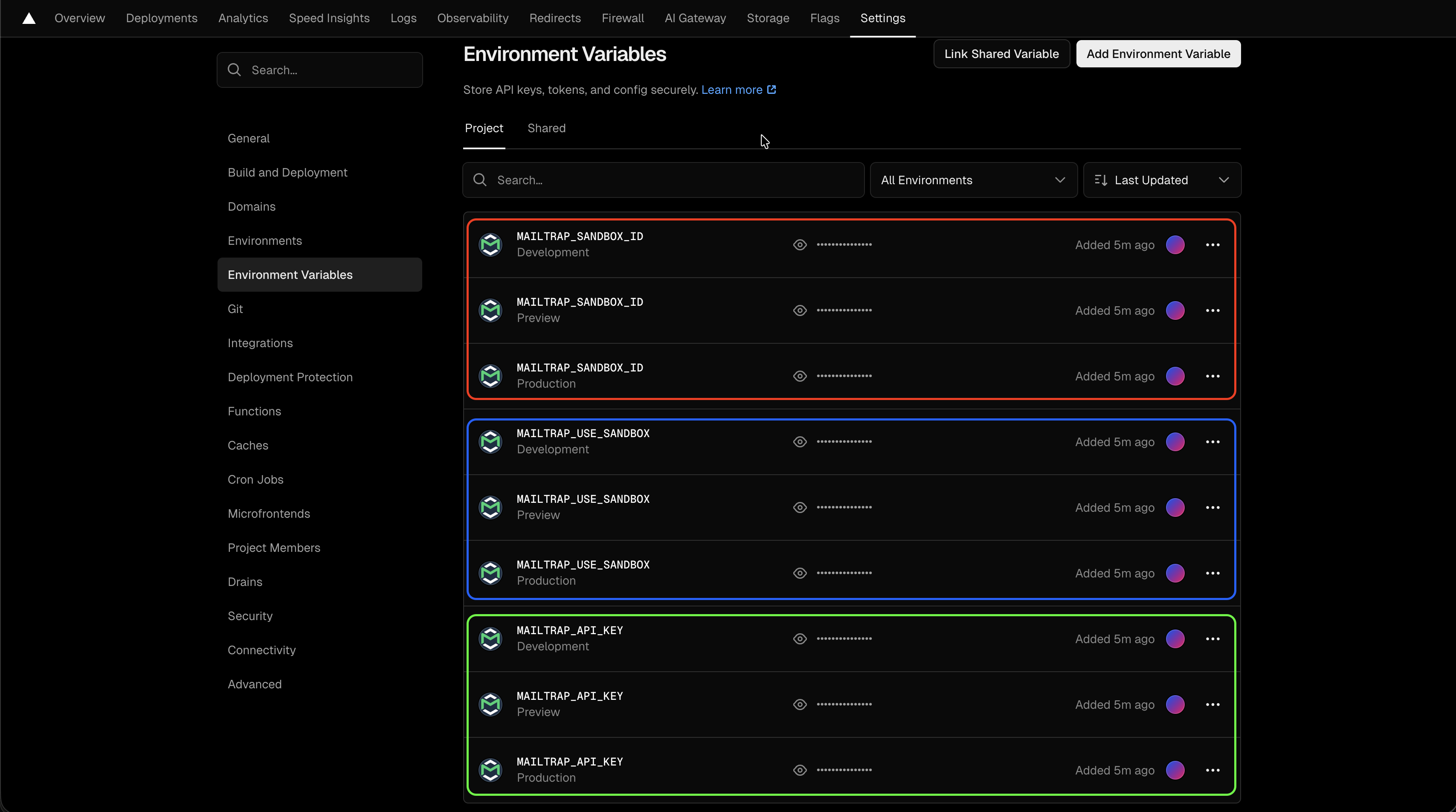
The integration adds a set of three variables (`API_KEY`, `USE_SANDBOX`, and `INBOX_ID`) for each of the three Vercel environments: **Development**, **Preview**, and **Production**.
{% endhint %}
#### Prerequisites
* **Admin rights** for your Mailtrap account.
* A [verified sending domain](https://docs.mailtrap.io/email-api-smtp/setup/sending-domain) set up within Mailtrap.
* An existing **Vercel account** with one or more projects.
### Step-by-step integration guide
{% stepper %}
{% step %}
### Initiate the integration
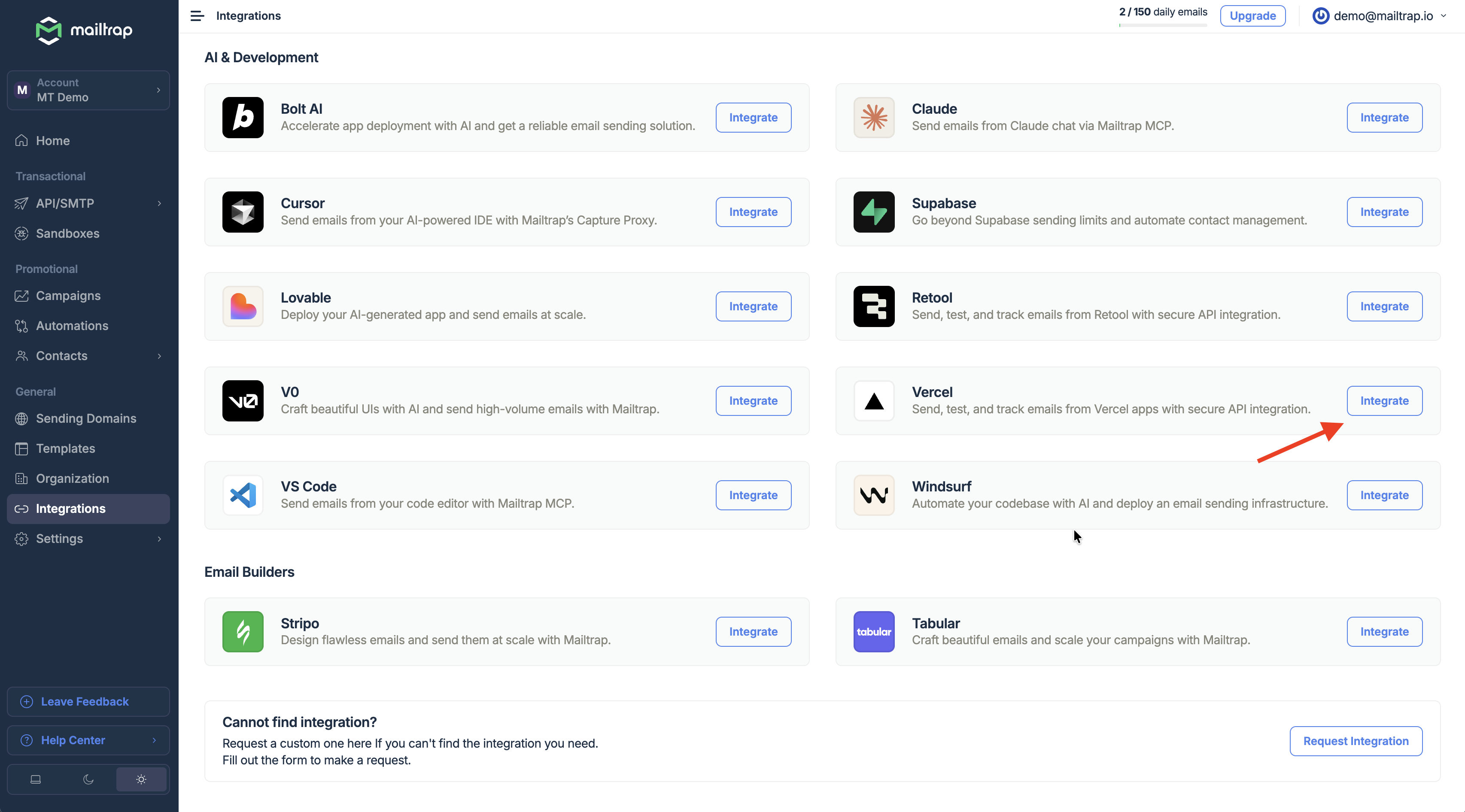
* Log in to your Mailtrap account
* Navigate to the [**Integrations** page](https://mailtrap.io/integrations) from the sidebar.
* Locate the **Vercel** card under the **AI & Development** section.
* Click the **Integrate** button.
{% endstep %}
{% step %}
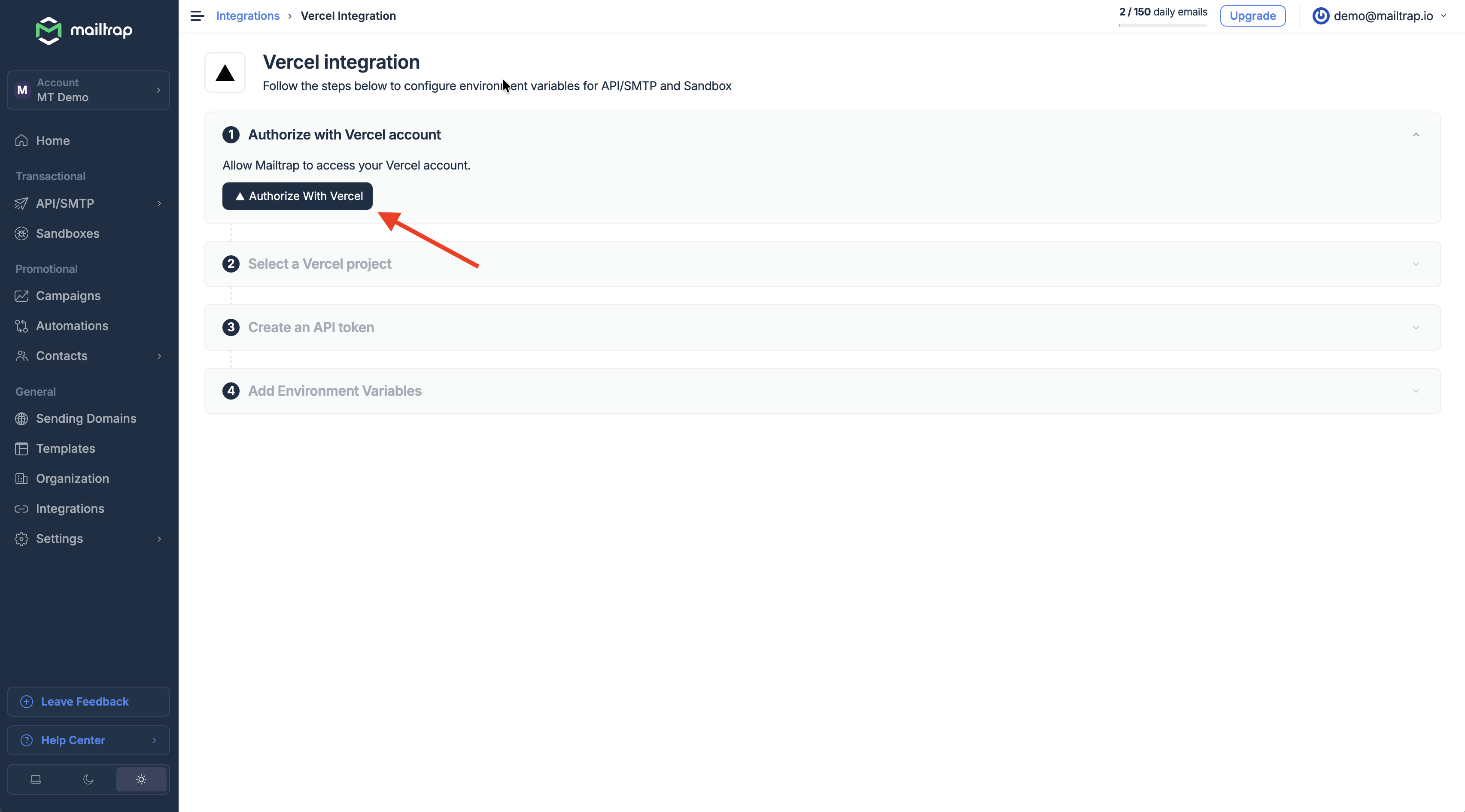
### Authorize with Vercel account
Click the **Authorize with Vercel** account button. You will be redirected to the Mailtrap listing page.
{% endstep %}
{% step %}
### Connect your Mailtrap account
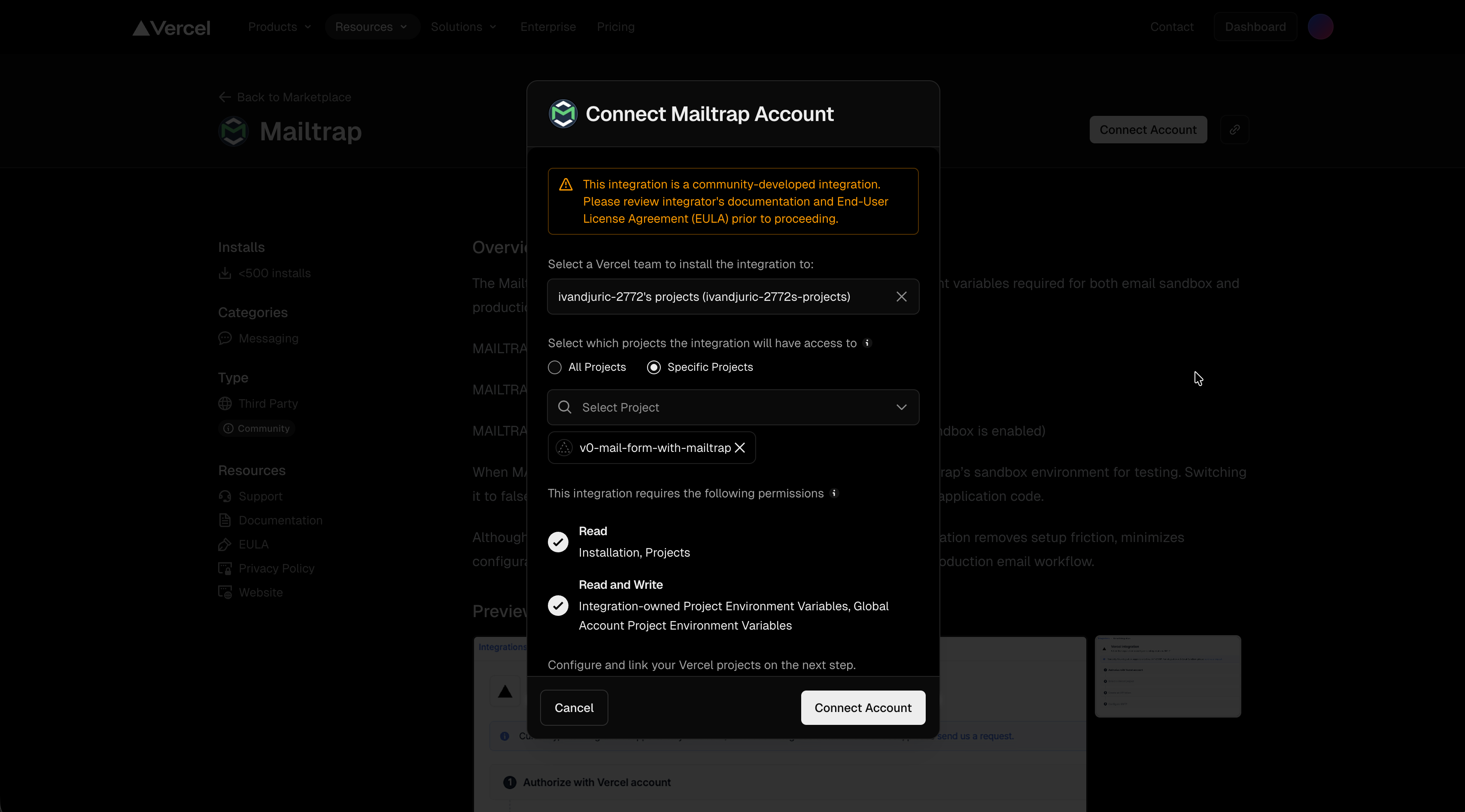
On the Vercel integration page, click on **Connect Account** and then:
* Select your Vercel team.
* Select the specific project you want the integration to apply to.
* **Note**: You’ll need to choose the project again on the Mailtrap side in the next step.
* Click **Connect Account** to proceed, and a new popup will appear.
{% hint style="warning" %}
Currently, the integration cannot be added to all projects, only to specific ones.
{% endhint %}
{% endstep %}
{% step %}
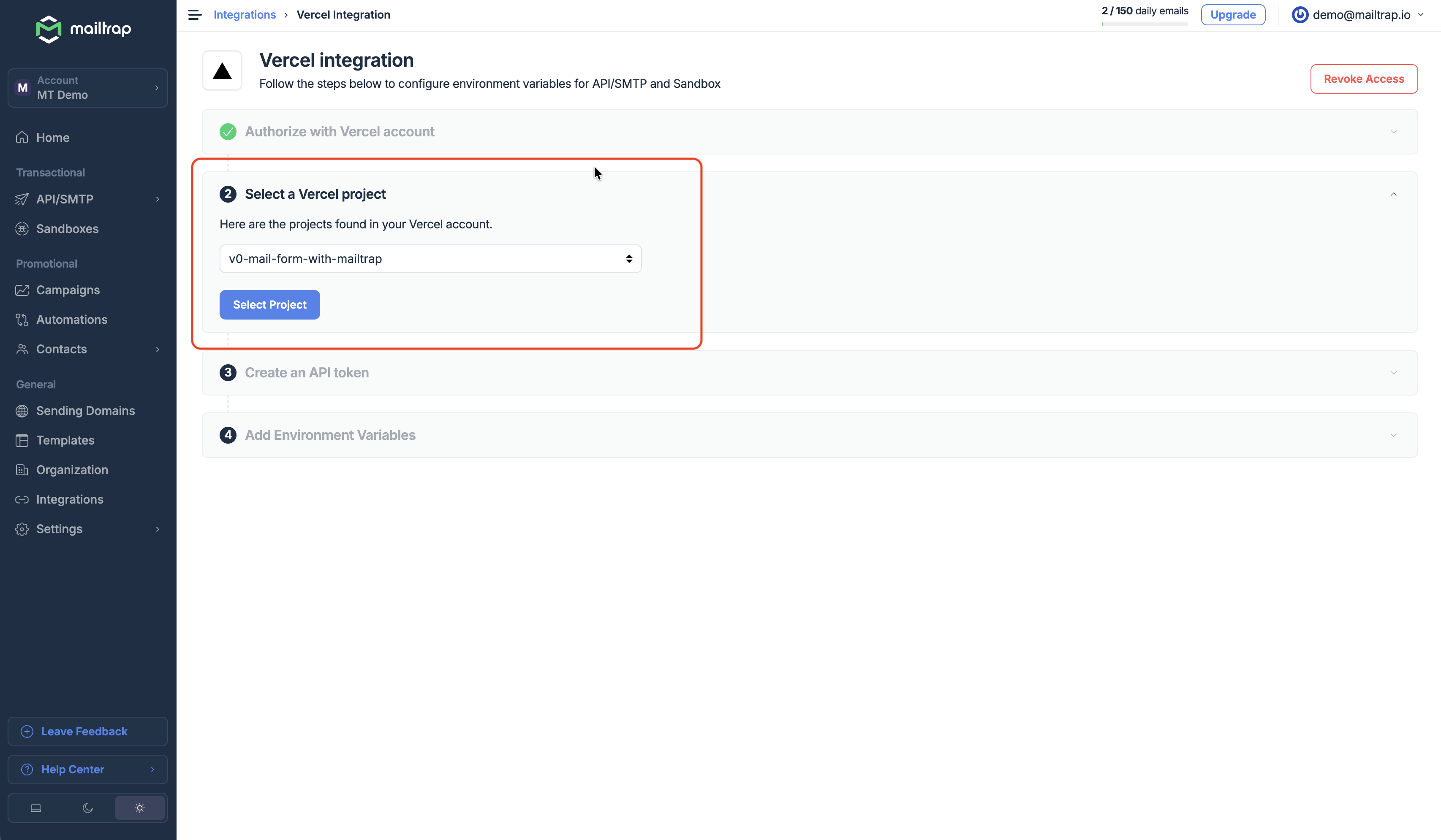
### Select a Vercel project in Mailtrap
Select the specific Vercel project you want to configure from the dropdown menu.
{% endstep %}
{% step %}
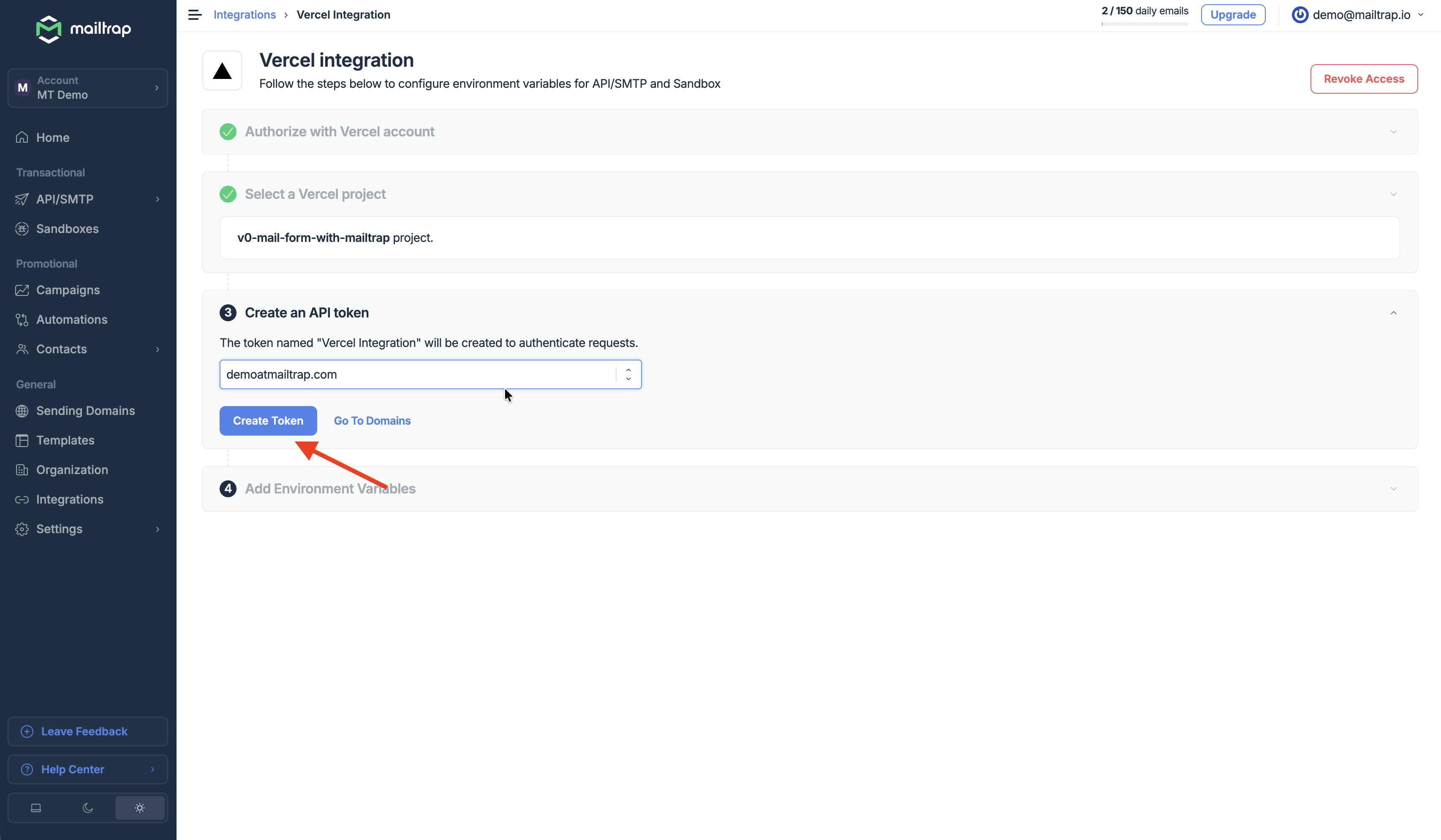
### Create an API Token
Choose the domain from which you intend to send emails and click **Create Token**. The token will be generated at the domain level.
{% endstep %}
{% step %}
### Add environment variables and complete the installation
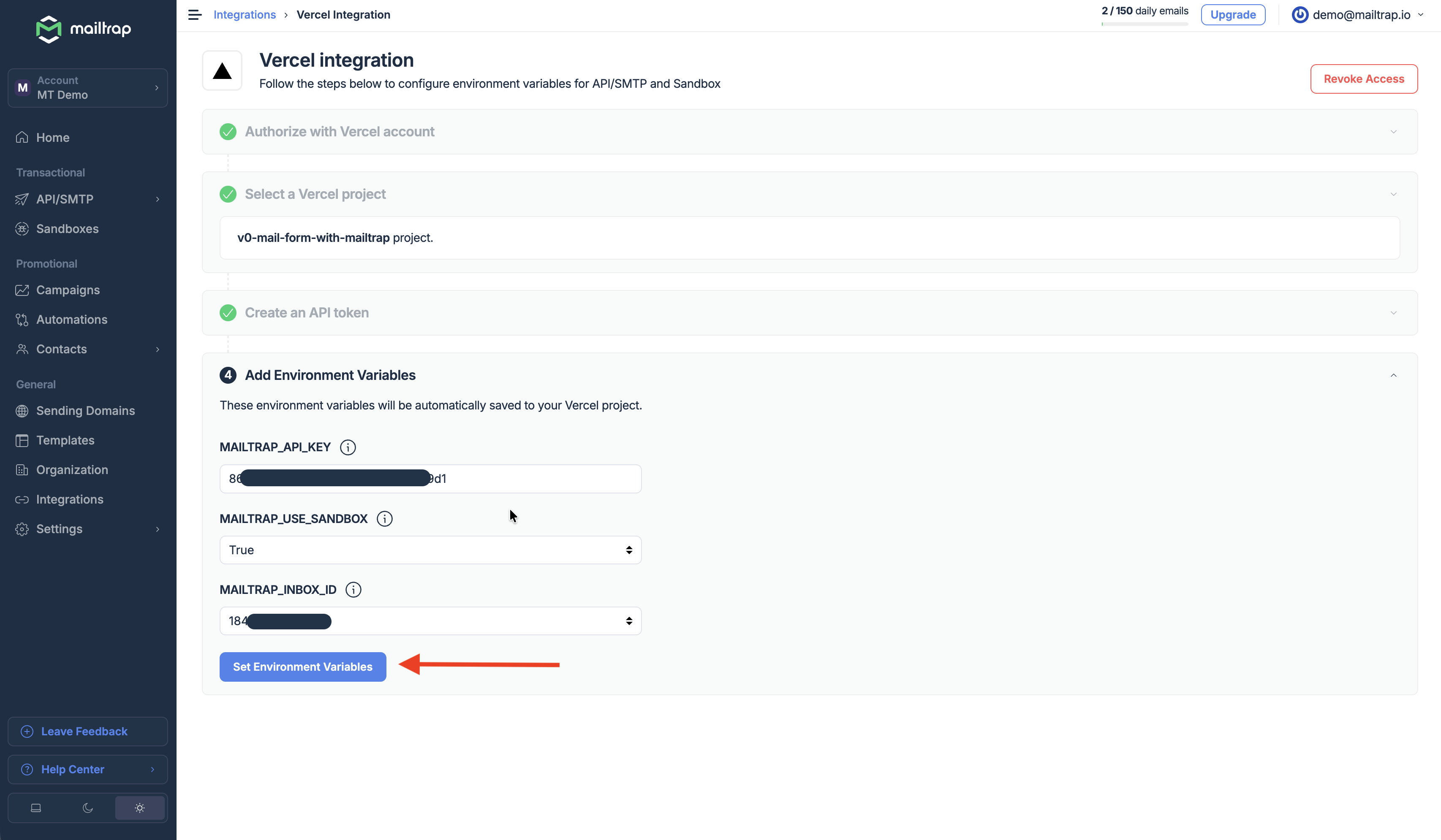
The following variables will be added to your Vercel project:
* `MAILTRAP_API_KEY` – Required for both testing and sending.
* `MAILTRAP_USE_SANDBOX` – Set to **True** to use Mailtrap's Sandbox for testing, or **False** for production sending.
* `MAILTRAP_INBOX_ID` – Required if using the Sandbox. Select the desired Inbox from the dropdown.
Once you’re done reviewing the variables, click **Set Environment Variables**. This will finalize the integration and close the setup window.
### Verifying the integration in Vercel
Once the setup is complete, you can verify the environment variables in your Vercel account:
1. Go to your Vercel project settings.
2. Navigate to the **Environment Variables** section.
3. You should see nine Mailtrap environment variables. A set of three variables (`API_KEY`, `USE_SANDBOX`, and `INBOX_ID`) for each of the three Vercel environments: **Development**, **Preview**, and **Production**.
{% endstep %}
{% endstepper %}