> For the complete documentation index, see [llms.txt](https://docs.mailtrap.io/llms.txt). Markdown versions of documentation pages are available by appending `.md` to page URLs; this page is available as [Markdown](https://docs.mailtrap.io/email-sandbox/testing/email-template.md).
# Email Template Inspector
Check email content, validate HTML code, and verify text versions of your message.
### 1. View the email in the sandbox and check its content
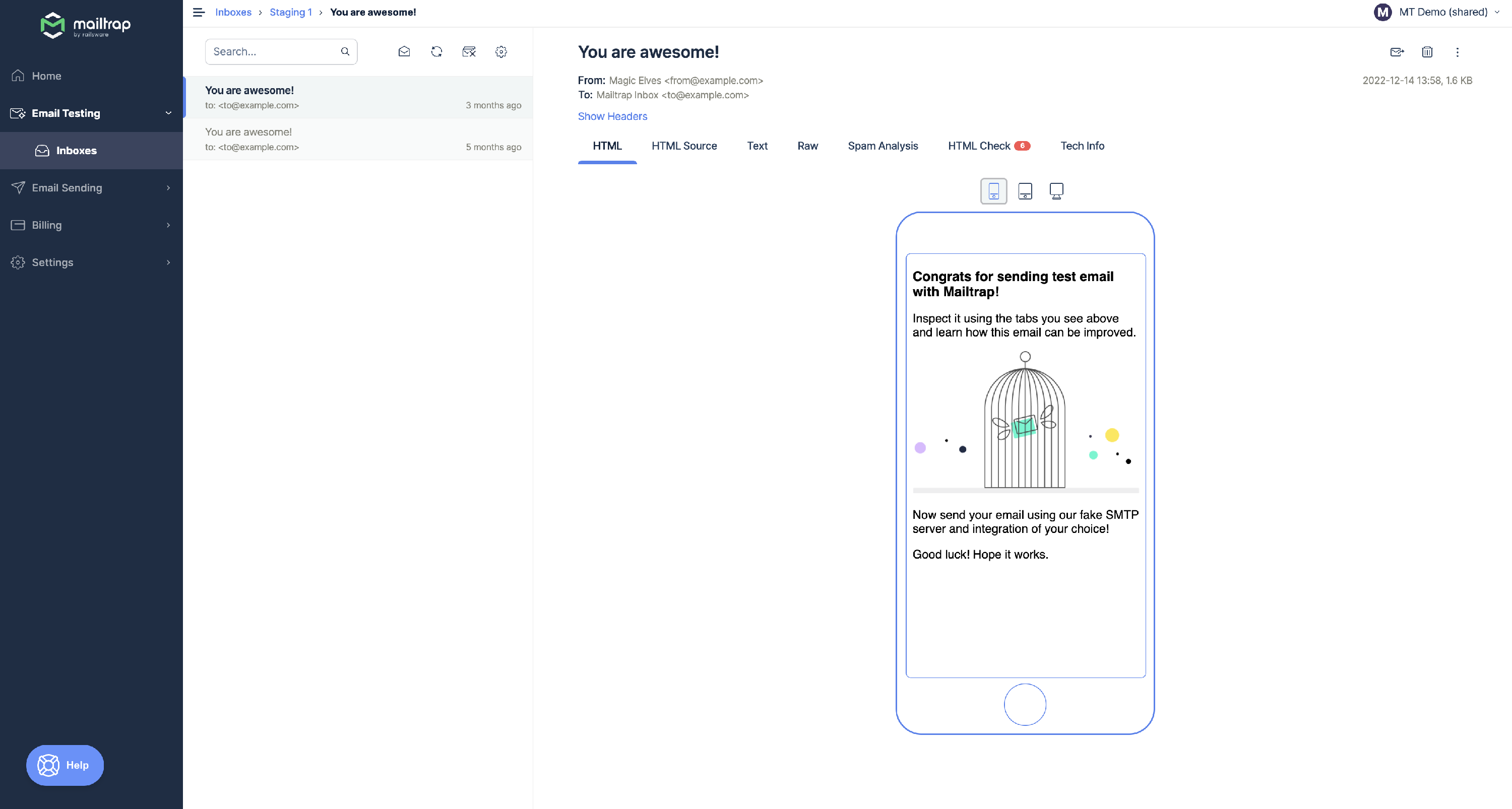
Go to the **HTML tab**, which opens by default when you open a message. It demonstrates how the email is rendered in a web browser and allows you to:
* Check whether the template looks as expected: Markup is correct, images are displayed, and fonts are supported.
* Review the message content, click the links and buttons.
* Test the message for responsiveness: click the device icons in the tab to see how it looks on mobile, tablet, and desktop.
### 2. Check the HTML template code for validity
Email clients use different rendering standards. This is why your email can be displayed not as you designed it. You need to check that your message code won't cause rendering issues.
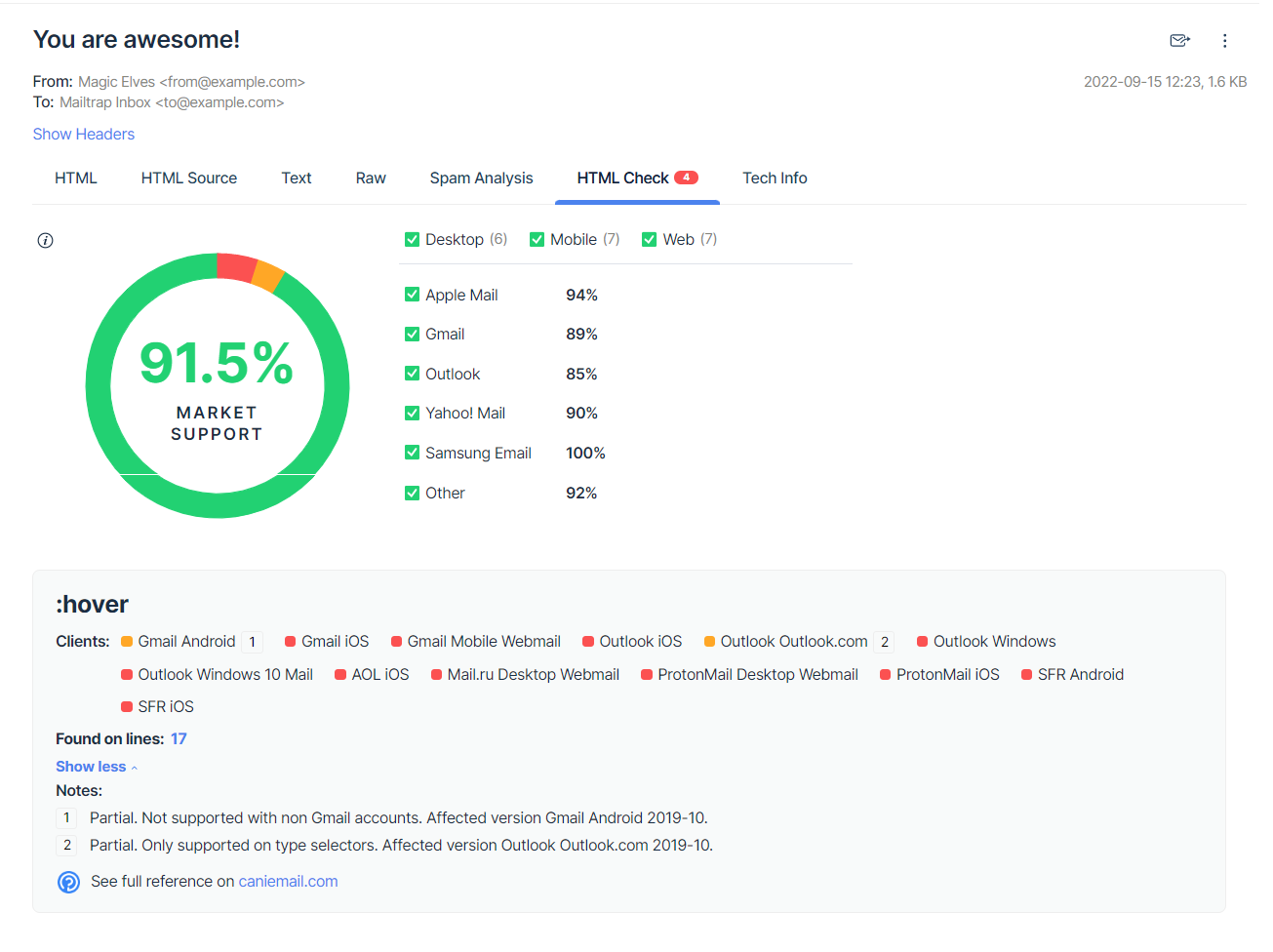
**HTML Check** scans through your email in search of problematic elements. For each it finds, it displays the list of email clients that lack support for it or support it only partially. It also estimates the support for your emails' code across popular email clients, making adjustments for their popularity.
Go to the **HTML Check** tab to see the report:
**HTML Check** collects the list of rules used in your email and compiles it with the supporting data we have for the most popular email clients. The final result is the Market Support, or the overall level of HTML/CSS support for your email.
Below you will see a list of rules that cause errors in the specified email clients. To the right of each element, you can see the numbers (\[1], \[2], etc.). Click on any of them, and the "show more" section will expand, explaining what the issue is and which client/version it applies to.
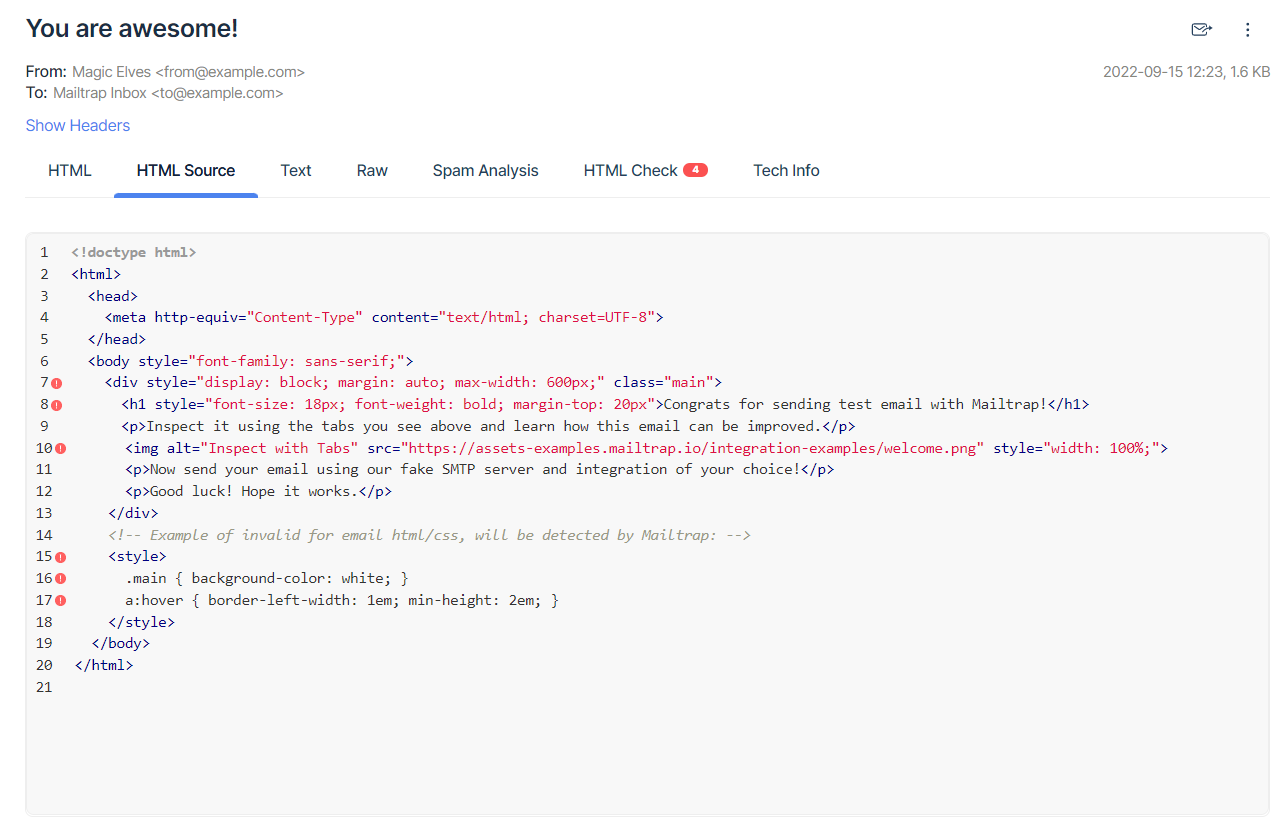
Clicking on the line number will take you to the **HTML Source** tab where you can view your email's entire HTML.
To learn more about the HTML Check feature, refer to the [HTML Check article](/email-sandbox/testing/email-html.md).
### 3. Make sure that the HTML and TEXT versions of your message match
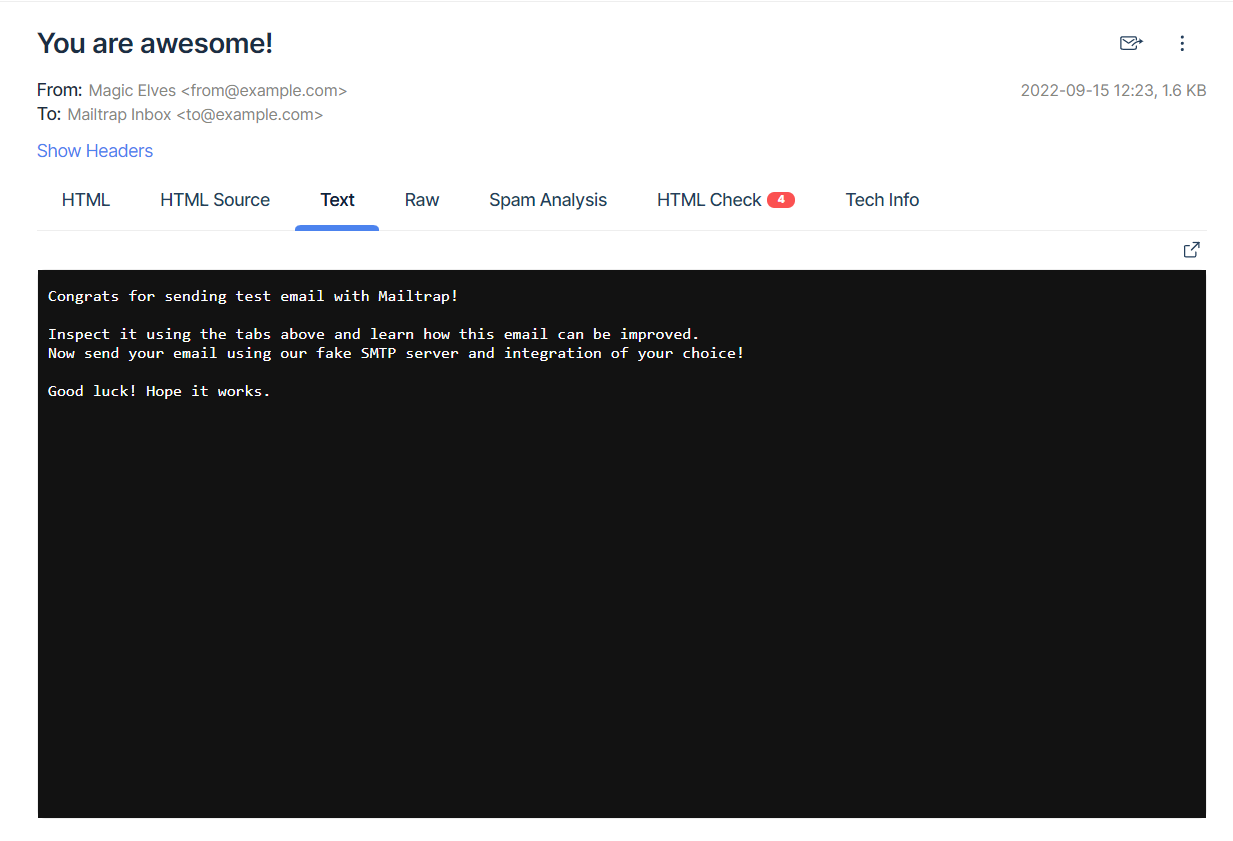
It is important to include both the HTML and text versions in your message. This not only affects the spam score but also helps your recipients to understand your message if the HTML part hasn't rendered for some reason. Go to the **Text** tab to inspect the text version.
---
# Agent Instructions
This documentation is published with GitBook. GitBook is the documentation platform designed so that both humans and AI agents can read, navigate, and reason over technical content effectively. Learn more at gitbook.com.
## Querying This Documentation
If you need additional information that is not directly available in this page, you can query the documentation dynamically by asking a question.
Perform an HTTP GET request on the current page URL with the `ask` query parameter, and the optional `goal` query parameter:
```
GET https://docs.mailtrap.io/email-sandbox/testing/email-template.md?ask=&goal=
```
`ask` is the immediate question: it should be specific, self-contained, and written in natural language.
`goal` is optional and describes the broader end goal you are ultimately trying to accomplish on behalf of the user. GitBook uses it to tailor the answer towards what is most useful for that goal.
The response will contain a direct answer to the question and relevant excerpts and sources from the documentation.
Use this mechanism when the answer is not explicitly present in the current page, you need clarification or additional context, or you want to retrieve related documentation sections.