> For the complete documentation index, see [llms.txt](https://docs.mailtrap.io/llms.txt). Markdown versions of documentation pages are available by appending `.md` to page URLs; this page is available as [Markdown](https://docs.mailtrap.io/email-sandbox/collaboration/sharing-sandboxes.md).
# Sharing Sandboxes
Share individual sandboxes with team members for collaborative email testing.
### How to organize your sandbox data
The best practice is to create separate sandboxes for different environments: development, test, or staging. Each sandbox is defined by SMTP credentials (your username and password). If necessary, you can reset them at any time.
### How to share your sandboxes with others
For effortless collaboration with your colleagues or customers, you can share data of your choice with them: separate sandboxes or whole projects. To learn how to share projects, read our [dedicated article](/email-sandbox/collaboration/sharing-projects.md).
There are two ways to share your sandbox:
1. Invite users directly to sandbox
2. Share sandbox via User Management
To share a sandbox, you need to be one of the following:
1. Sandbox, project, or account admin
2. Account owner
Also, sharing options are available starting from the Team plan.
You can invite anyone, even if they don't have a Mailtrap account yet.
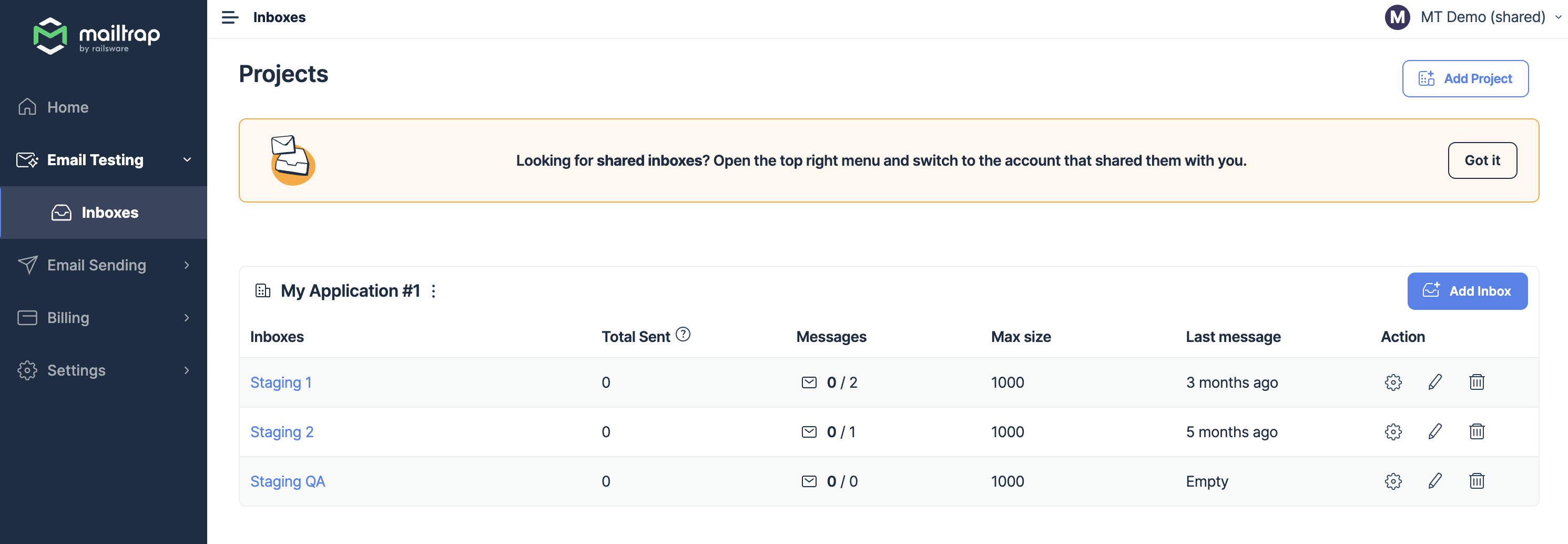
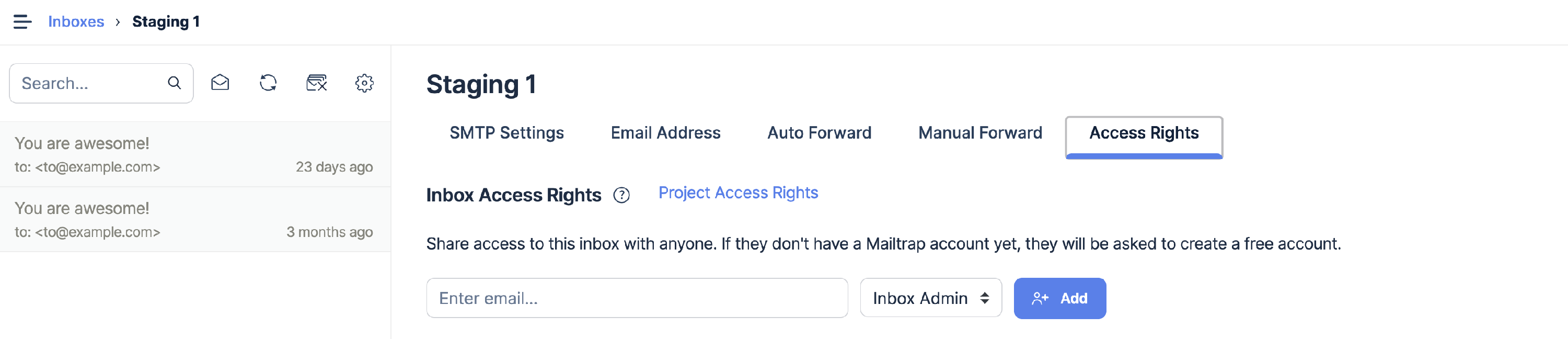
1. Click the gear icon on the far right of the sandbox you'd like to share.
2. Go to the Access Rights tab.
3. Enter the email address of your team member.
4. Choose the invitee's permission level (e.g. Sandbox Viewer or Admin)
Once you click the **Add** button, the email invitation will be sent to the specified email address. The recipient should accept the email invitation.
But if a person is already in your account, the sandbox will immediately become visible to them.
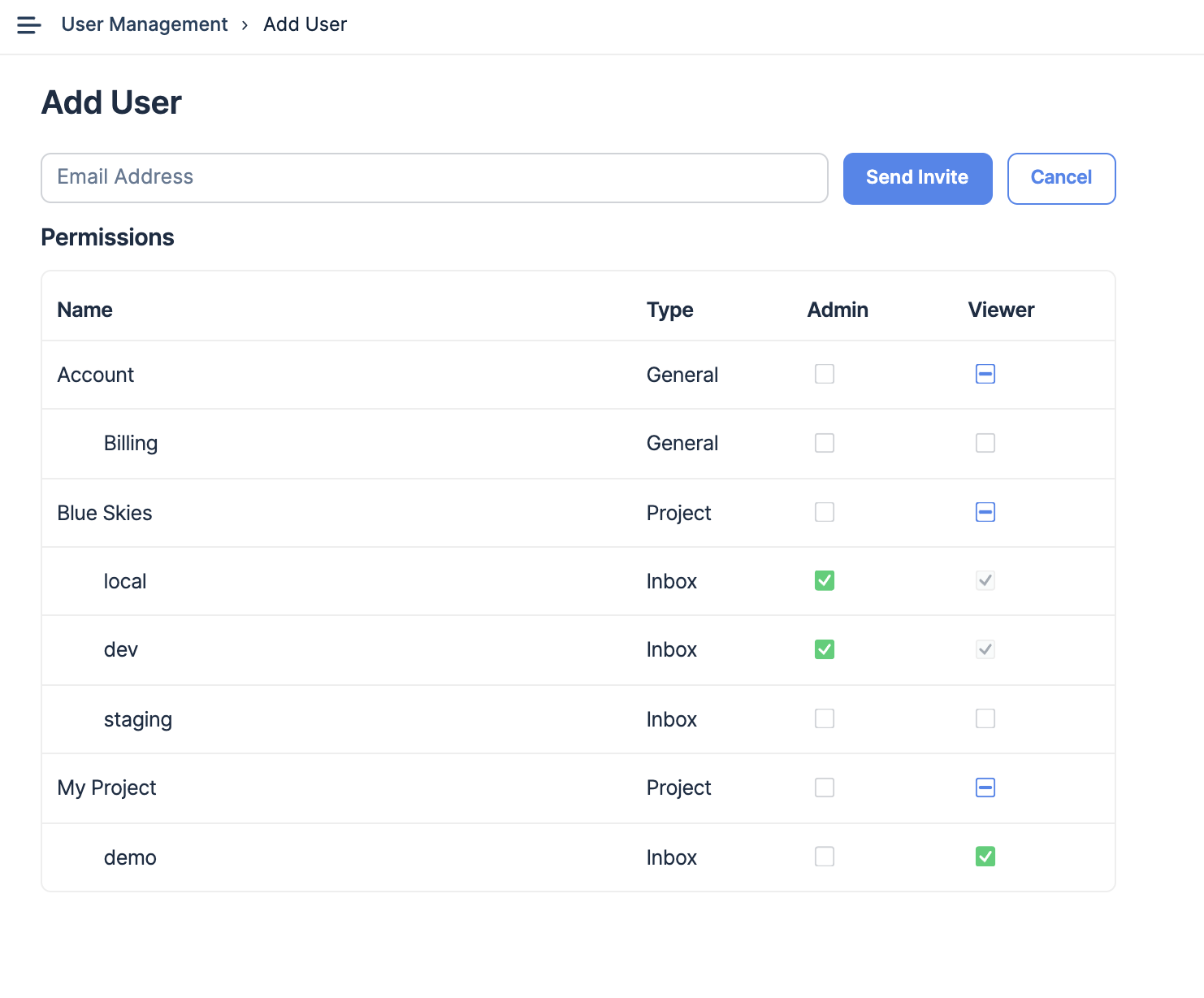
Alternatively, you can use the **User Management** feature. Select it and click the **Add Member** button. Type the user's email address and tick the box under the permission level for a sandbox you'd like to share.
And yes, you can share multiple sandboxes at the same time. To finalize sharing, hit **Send Invite** and you're good to go.
### Sandboxes shared with you by others
Clicking on Sandboxes in the menu bar on the left reveals only the sandboxes associated with the account you're currently using.
If you want to access a different account and sandboxes that were shared with you, click on the account switcher in the upper right corner of the window, then select an account from the drop-down menu.
Note that you can be invited to any sandbox or project as a user, regardless of the subscription plan you currently use.
---
# Agent Instructions
This documentation is published with GitBook. GitBook is the documentation platform designed so that both humans and AI agents can read, navigate, and reason over technical content effectively. Learn more at gitbook.com.
## Querying This Documentation
If you need additional information that is not directly available in this page, you can query the documentation dynamically by asking a question.
Perform an HTTP GET request on the current page URL with the `ask` query parameter, and the optional `goal` query parameter:
```
GET https://docs.mailtrap.io/email-sandbox/collaboration/sharing-sandboxes.md?ask=&goal=
```
`ask` is the immediate question: it should be specific, self-contained, and written in natural language.
`goal` is optional and describes the broader end goal you are ultimately trying to accomplish on behalf of the user. GitBook uses it to tailor the answer towards what is most useful for that goal.
The response will contain a direct answer to the question and relevant excerpts and sources from the documentation.
Use this mechanism when the answer is not explicitly present in the current page, you need clarification or additional context, or you want to retrieve related documentation sections.