> For the complete documentation index, see [llms.txt](https://docs.mailtrap.io/llms.txt). Markdown versions of documentation pages are available by appending `.md` to page URLs; this page is available as [Markdown](https://docs.mailtrap.io/email-api-smtp/setup/sending-domain/aws-route-53.md).
# AWS Route 53
Verify your Mailtrap sending domain in AWS Route 53. Add DNS records for DKIM/DMARC verification, pass compliance, and start sending emails.
To start sending emails with Mailtrap, you need to own a domain (e.g., `yourcompany.com`) and then verify your ownership over it. For this, you'll need access to your domain provider account, more specifically, the DNS records management page.
In this guide, you'll learn how to add and verify a domain from AWS Route 53.
This guide assumes your domain uses Route 53's nameservers (e.g., `ns-123.awsdns-12.com` or `ns-456.awsdns-34.net`). This applies whether you registered your domain directly with AWS or just pointed your DNS to Route 53 from another registrar. Not sure? Check your domain registrar's settings or look for where you manage your DNS records. If it's in the AWS Management Console, you're in the right place.
### Step-by-step guide
{% stepper %}
{% step %}
Go to the **AWS Management Console**, type **Route 53** in the search bar, and click on it.
{% endstep %}
{% step %}
Navigate to **Hosted Zone** settings for the domain you've added to Mailtrap.
{% endstep %}
{% step %}
Click the domain you've added to Mailtrap.
{% endstep %}
{% step %}
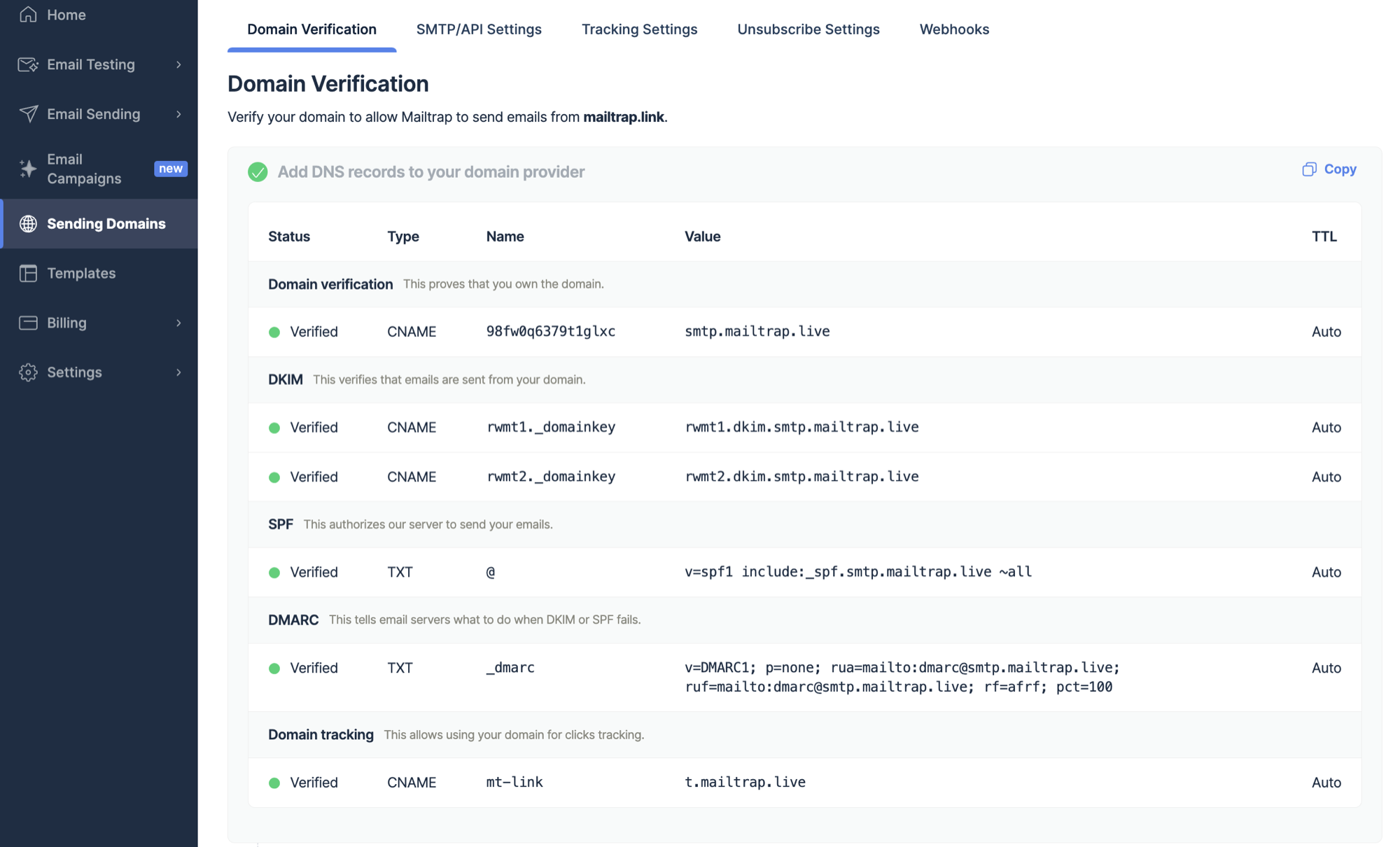
Return to Mailtrap. On the Domain Verification page, you'll see the DNS records you need to add to AWS Route 53. These are **Domain Verification**, **DKIM**, **DMARC**, and **Domain Tracking**. You'll need the values under **Type**, **Name**, and **Value**.
Make sure you check the type next to each record in Mailtrap and choose a relevant one in AWS Route 53. There are **four CNAME type records** (Domain Verification, DKIM (2), and Custom Tracking Domain) and **one TXT type records** (DMARC).
{% hint style="info" %}
The SPF check for your mail is covered by the domain verification record. There is no need to add a separate SPF record on your sending domain.
{% endhint %}
{% endstep %}
{% step %}
Copy the **Name** and **Value** for each record one by one. You can do this by hovering and clicking each record.
{% endstep %}
{% step %}
Paste the **Name** and **Value** into AWS Route 53. The namings of the records are the same in AWS Route 53 as in Mailtrap.
Use the default value for TTL as indicated in Mailtrap. Click Add another record after adding each record in AWS Route 53.
{% endstep %}
{% step %}
Repeat the process of copying and pasting for each record until you've added all the Mailtrap DNS records to AWS Route 53. Click **Create Records**.
{% endstep %}
{% step %}
Some records may be verified immediately, while some may take more time. Mailtrap will check the DNS records automatically every hour, but you can force a check by clicking the Re-check DNS Records button.
{% endstep %}
{% step %}
If you add all the required DNS records correctly, the **Status** of DNS records will change from Missing to **Verified**, and the red dots will turn green.
{% endstep %}
{% endstepper %}
{% hint style="info" %}
If you have additional questions, [consult AWS documentation](https://docs.aws.amazon.com/Route53/latest/DeveloperGuide/resource-record-sets-creating.html) or contact us at .
{% endhint %}
---
# Agent Instructions
This documentation is published with GitBook. GitBook is the documentation platform designed so that both humans and AI agents can read, navigate, and reason over technical content effectively. Learn more at gitbook.com.
## Querying This Documentation
If you need additional information that is not directly available in this page, you can query the documentation dynamically by asking a question.
Perform an HTTP GET request on the current page URL with the `ask` query parameter, and the optional `goal` query parameter:
```
GET https://docs.mailtrap.io/email-api-smtp/setup/sending-domain/aws-route-53.md?ask=&goal=
```
`ask` is the immediate question: it should be specific, self-contained, and written in natural language.
`goal` is optional and describes the broader end goal you are ultimately trying to accomplish on behalf of the user. GitBook uses it to tailor the answer towards what is most useful for that goal.
The response will contain a direct answer to the question and relevant excerpts and sources from the documentation.
Use this mechanism when the answer is not explicitly present in the current page, you need clarification or additional context, or you want to retrieve related documentation sections.